
Flow Google Workspace
Overview Flow Google Workspace
How to access your google workspace account.
Important! Read to the end, there are notes that need to be paid attention to.
Reasons For Migration
Improve data security, particularly regarding privacy protection.
Simplify ASA Team access by logging in using company email and logging into a single workspace.
Efficient collaboration through Google Chat.
Support productivity through integration with Google Calendar and other productivity tools.
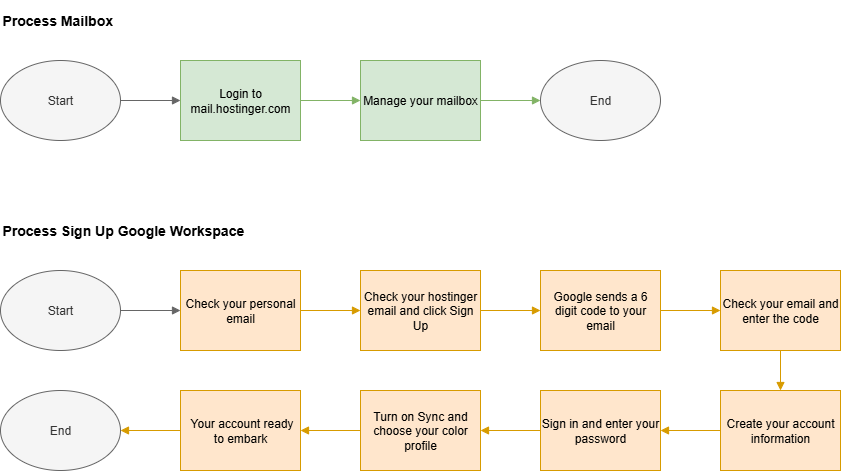
Step to Embark your Google Workspace Account
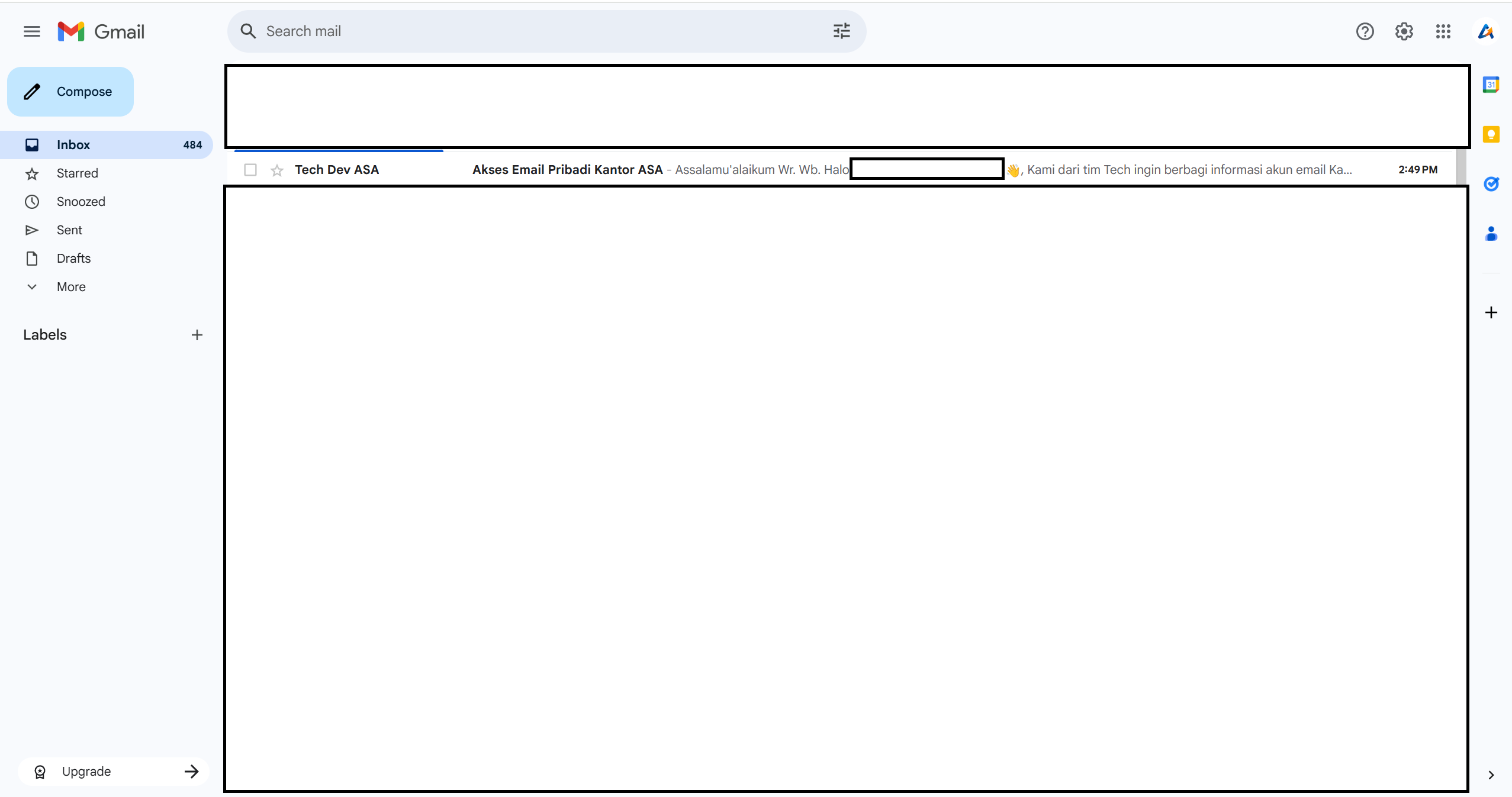
- Check your personal email for a message from Tech Dev ASA.
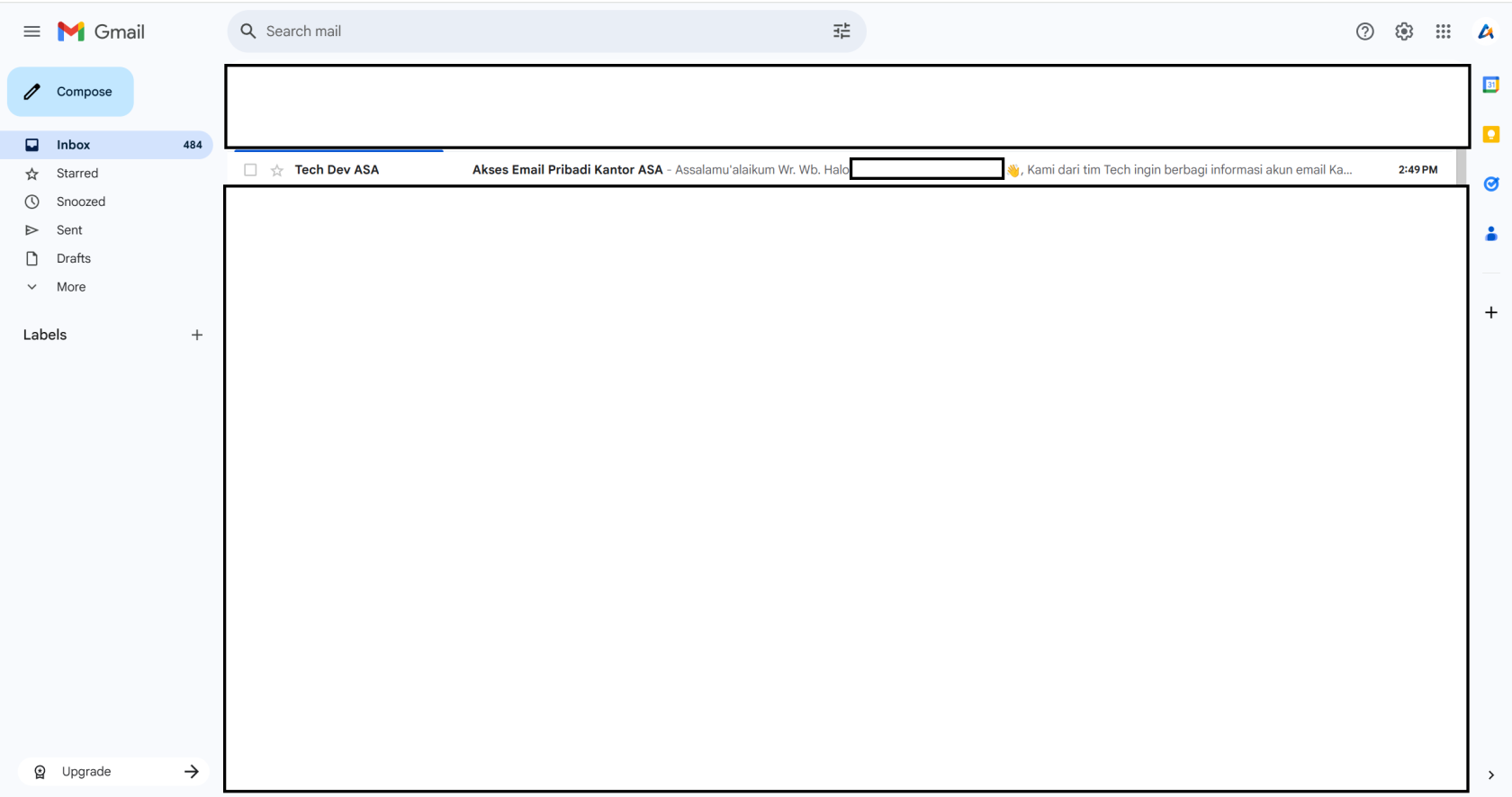
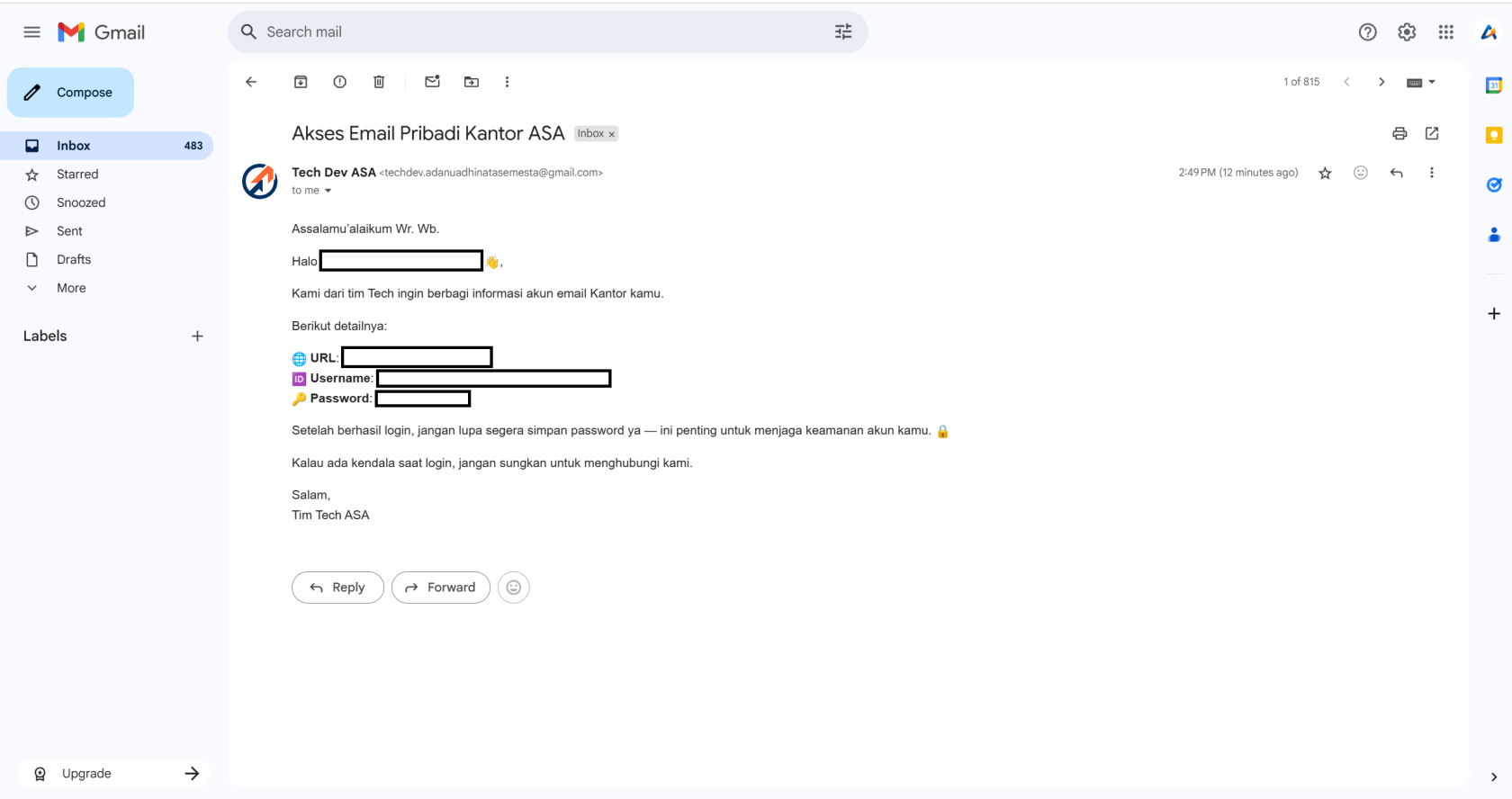
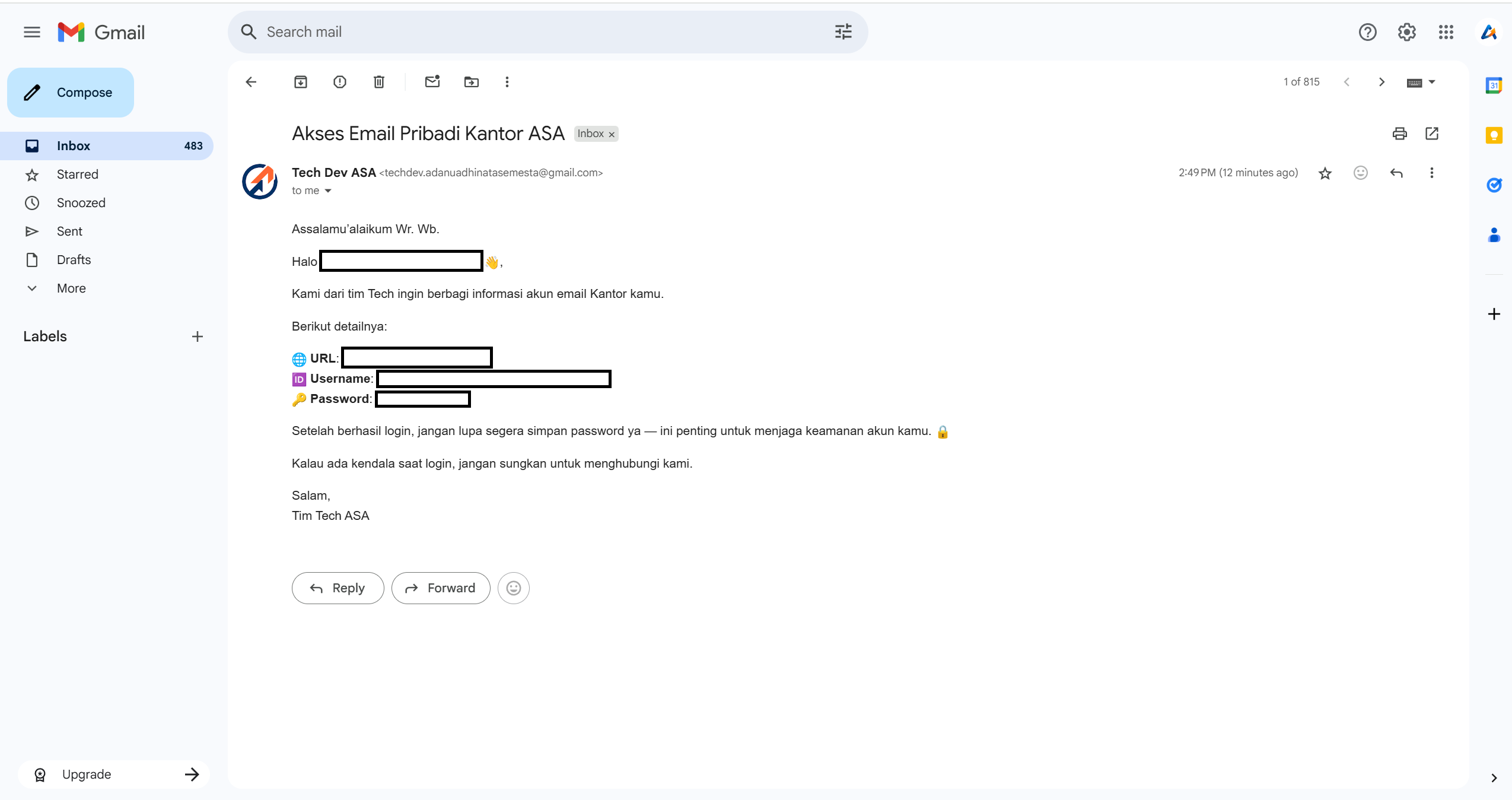
- Check the contents of the message from Tech Dev ASA, there is your credential info there.
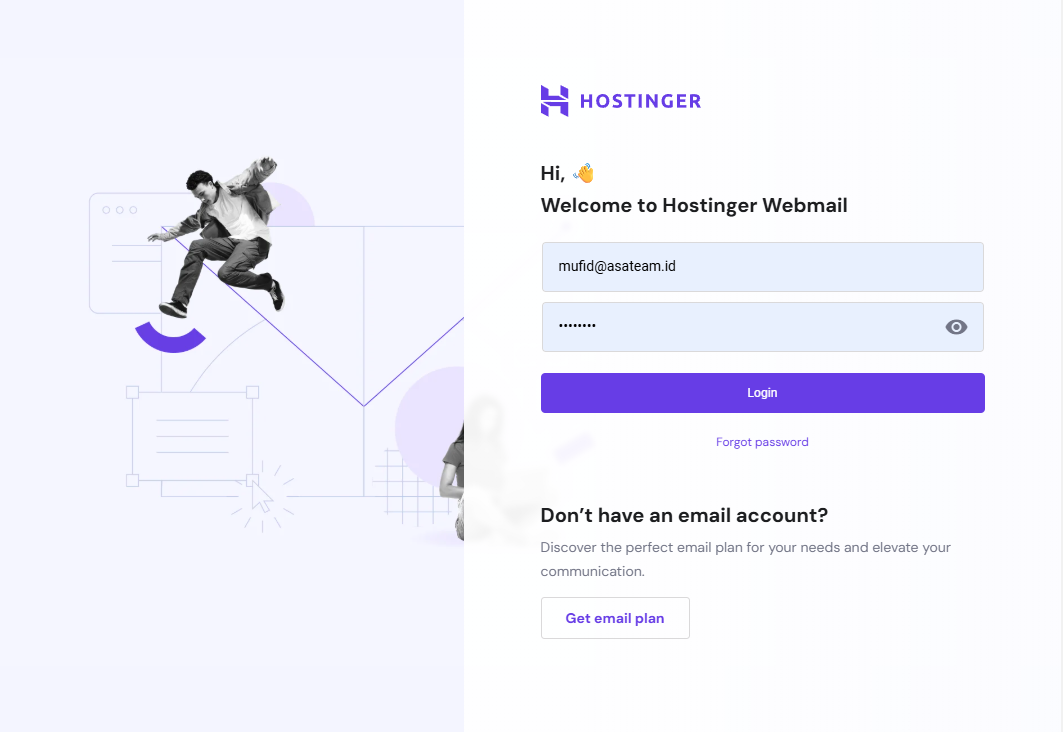
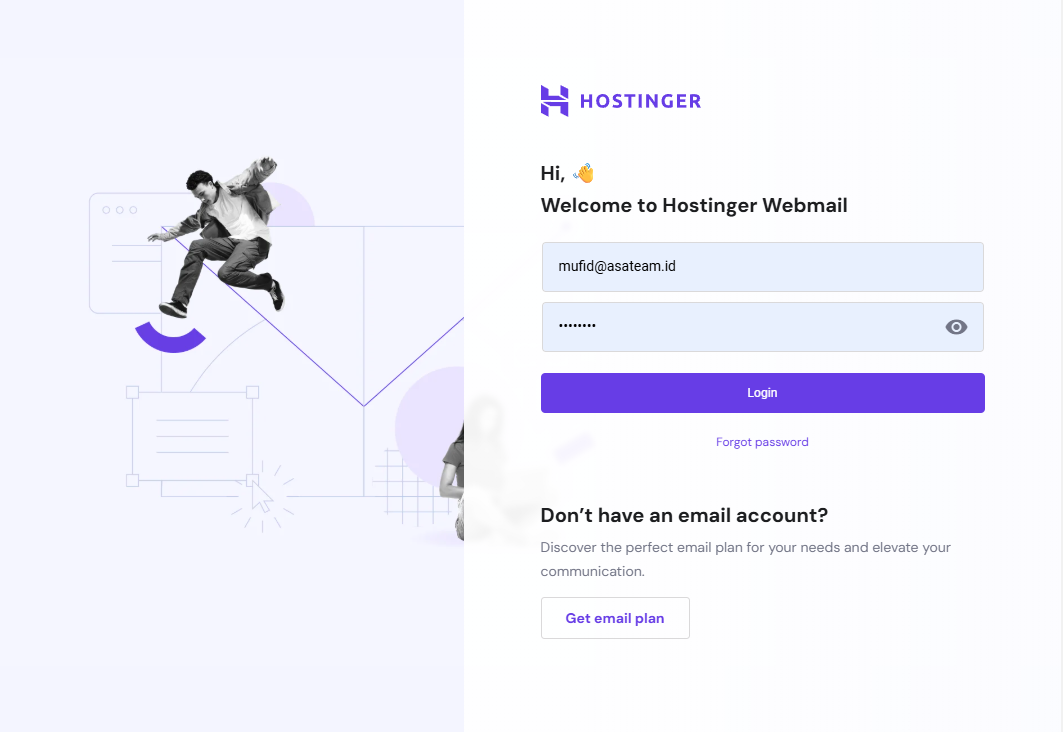
- Login on mail.hostinger.com
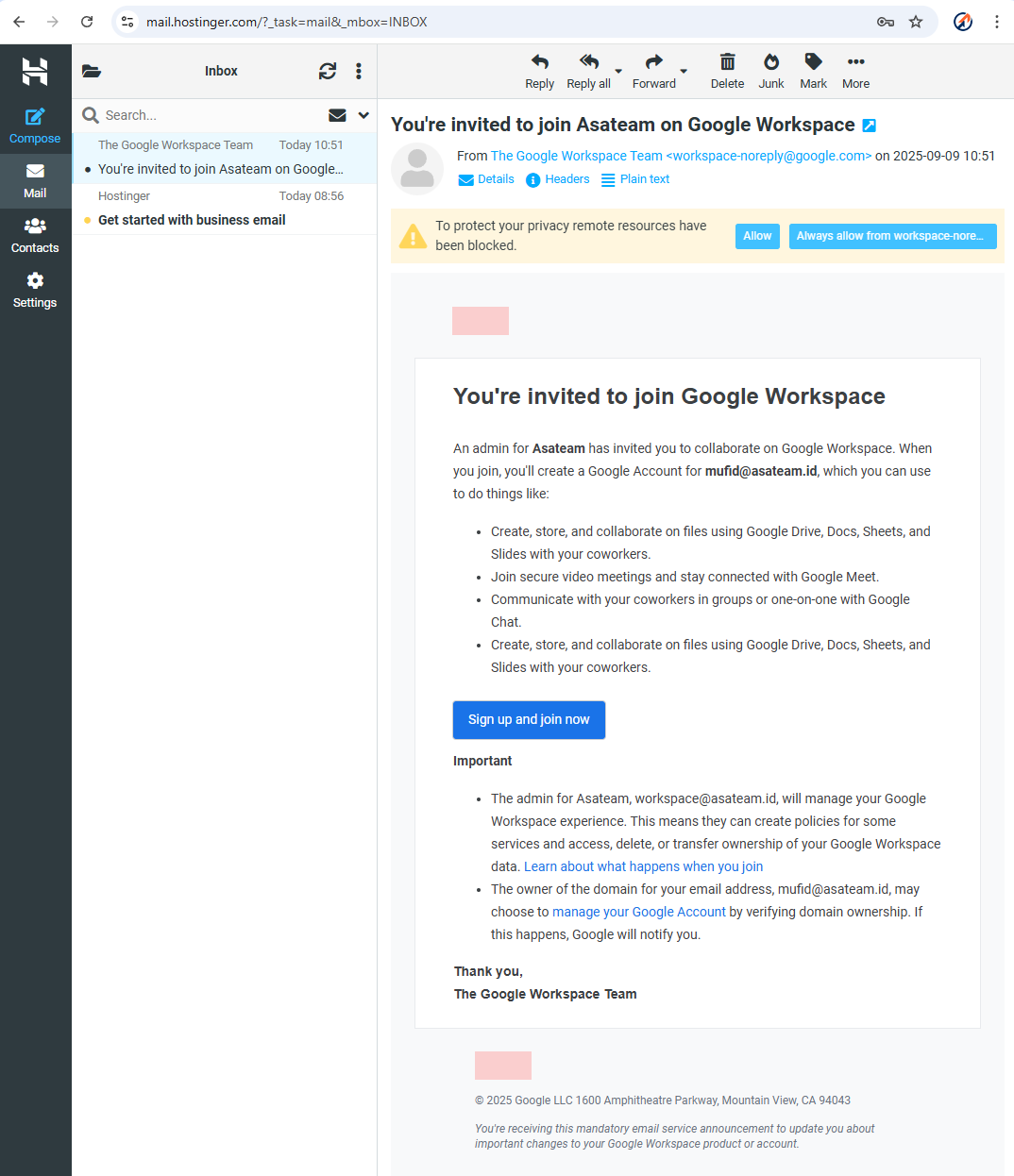
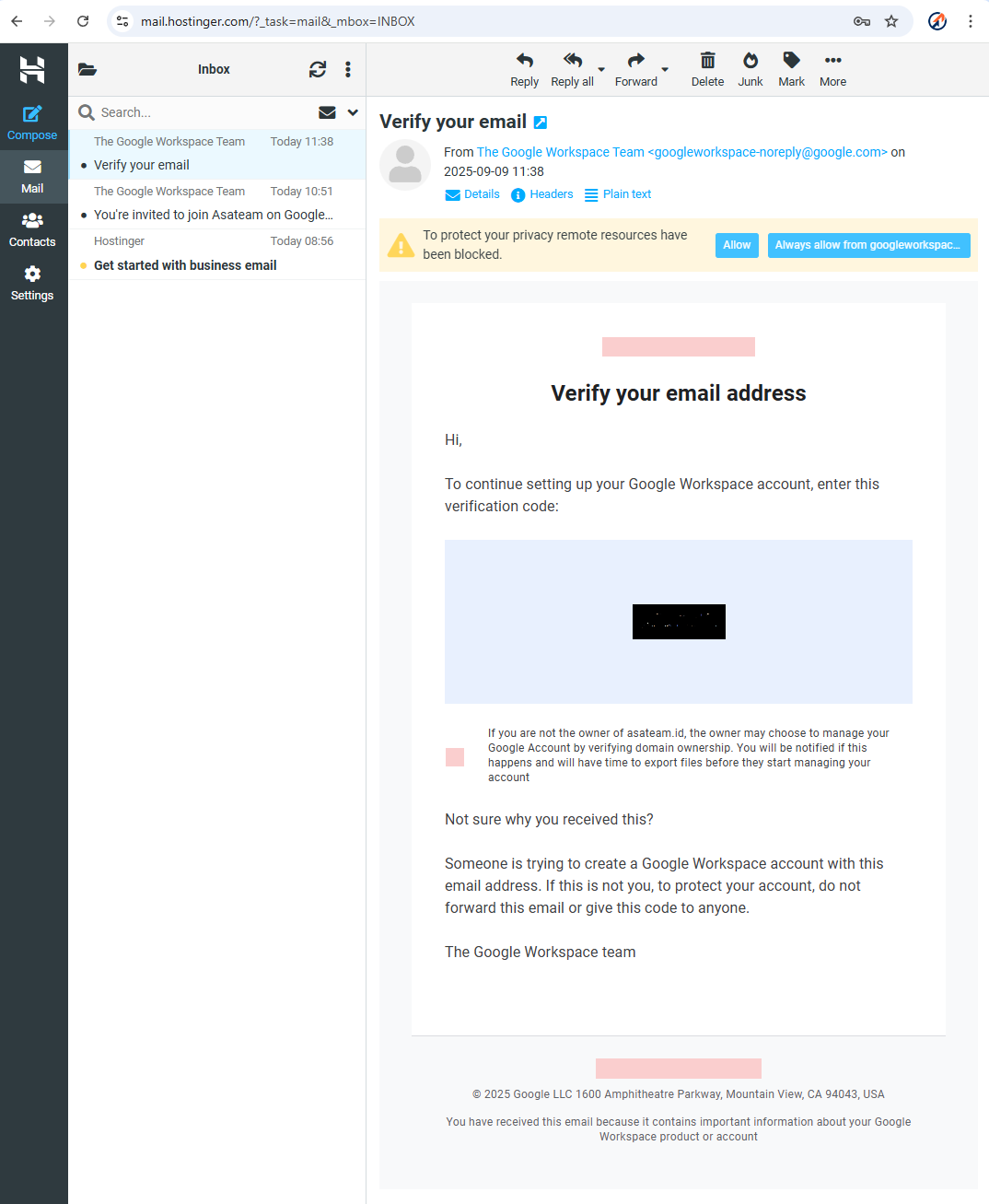
- Check your hostinger email for the invitation and click Sign Up and Join Now.
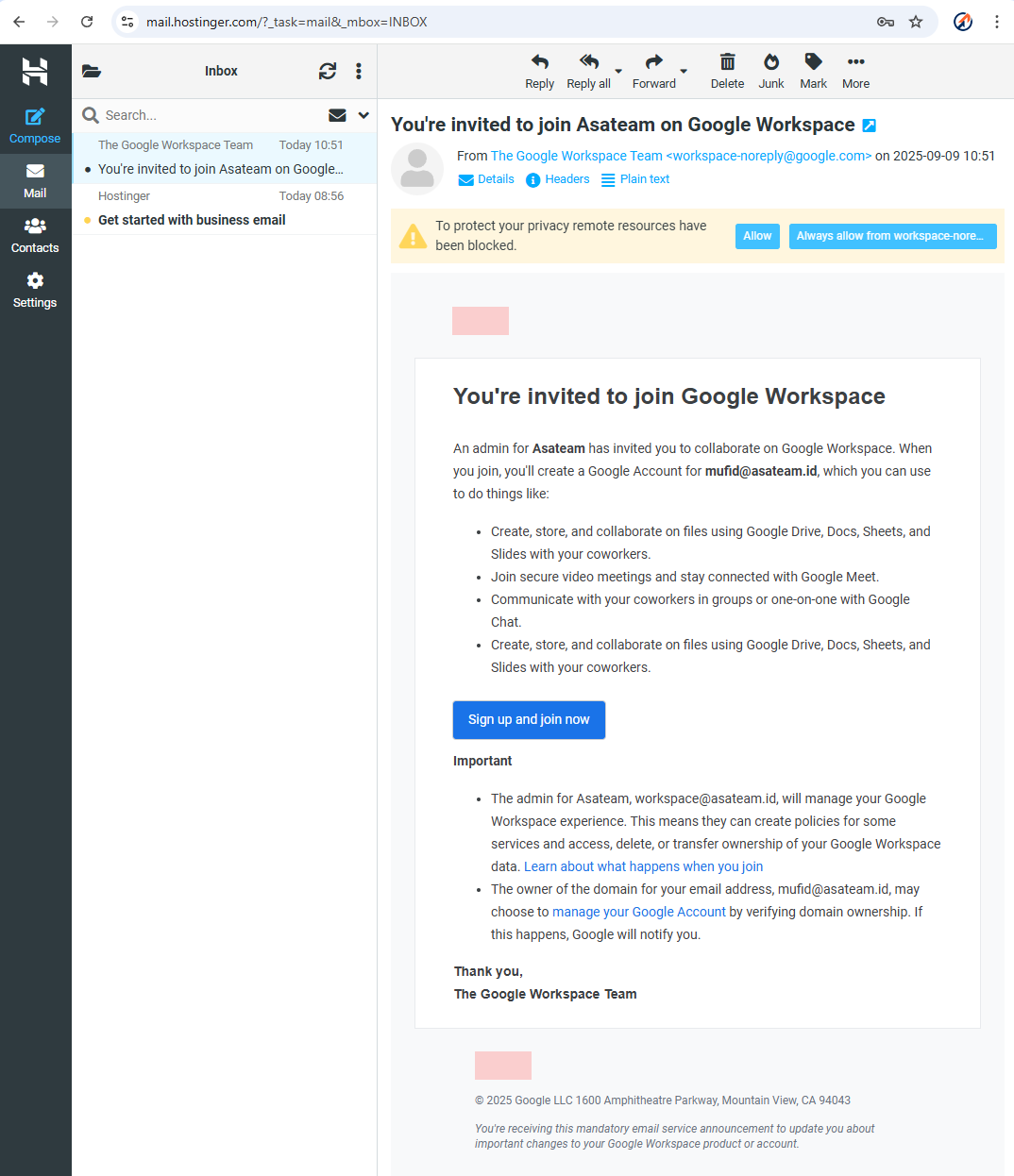
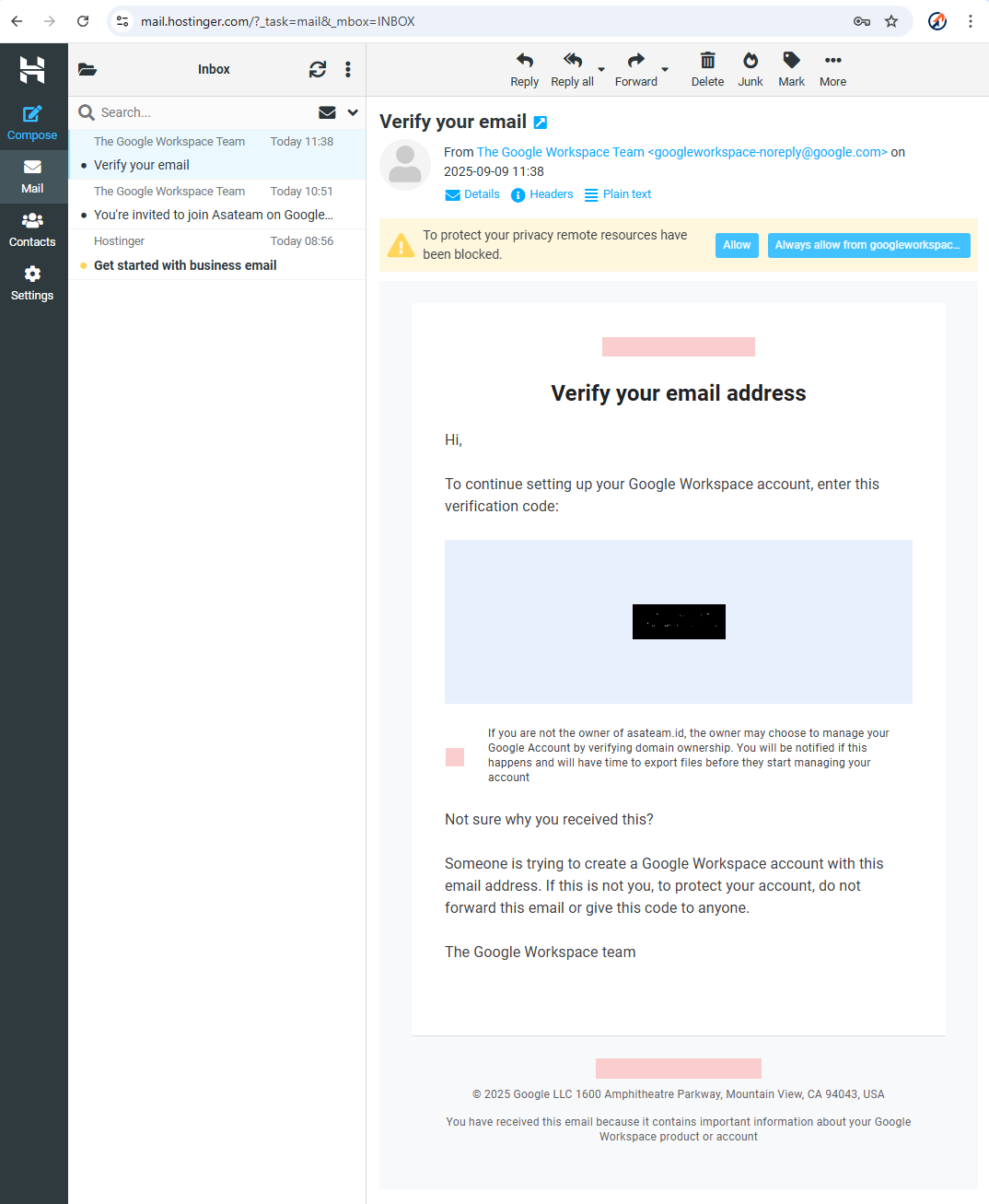
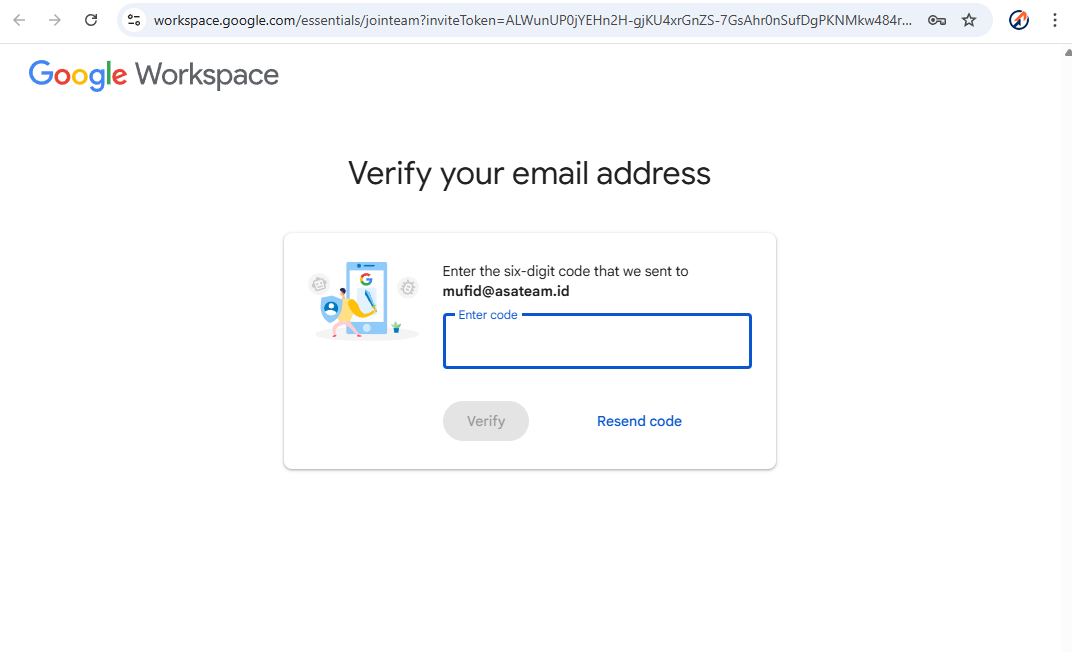
- Google sends a 6 digit code to your hostinger email account.
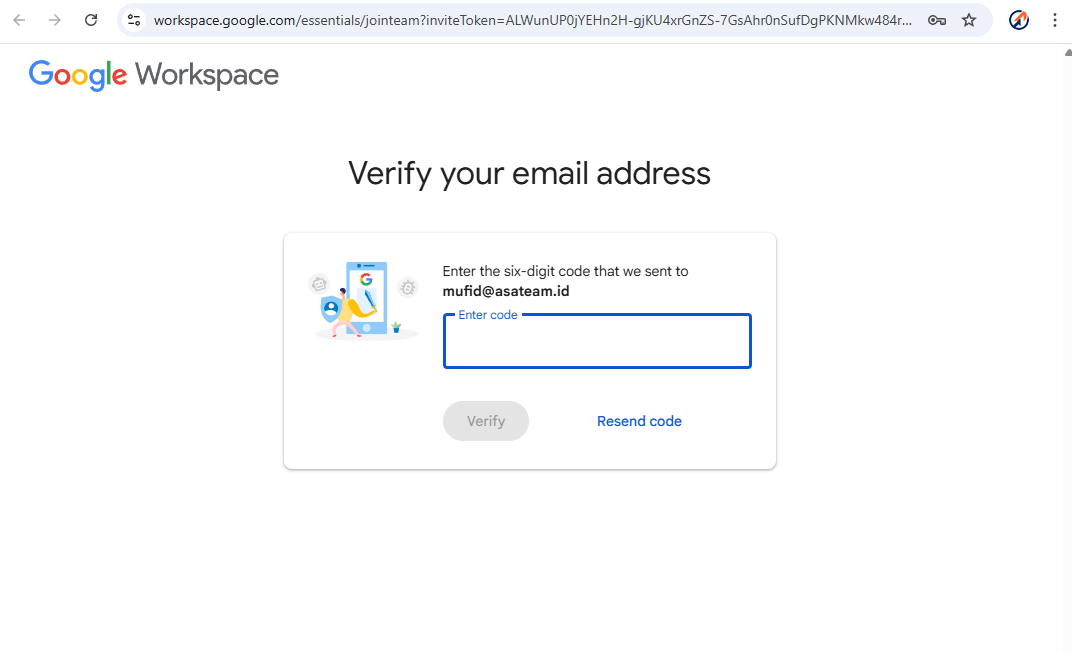
- Check your Hostinger email again and enter the code in the form above.
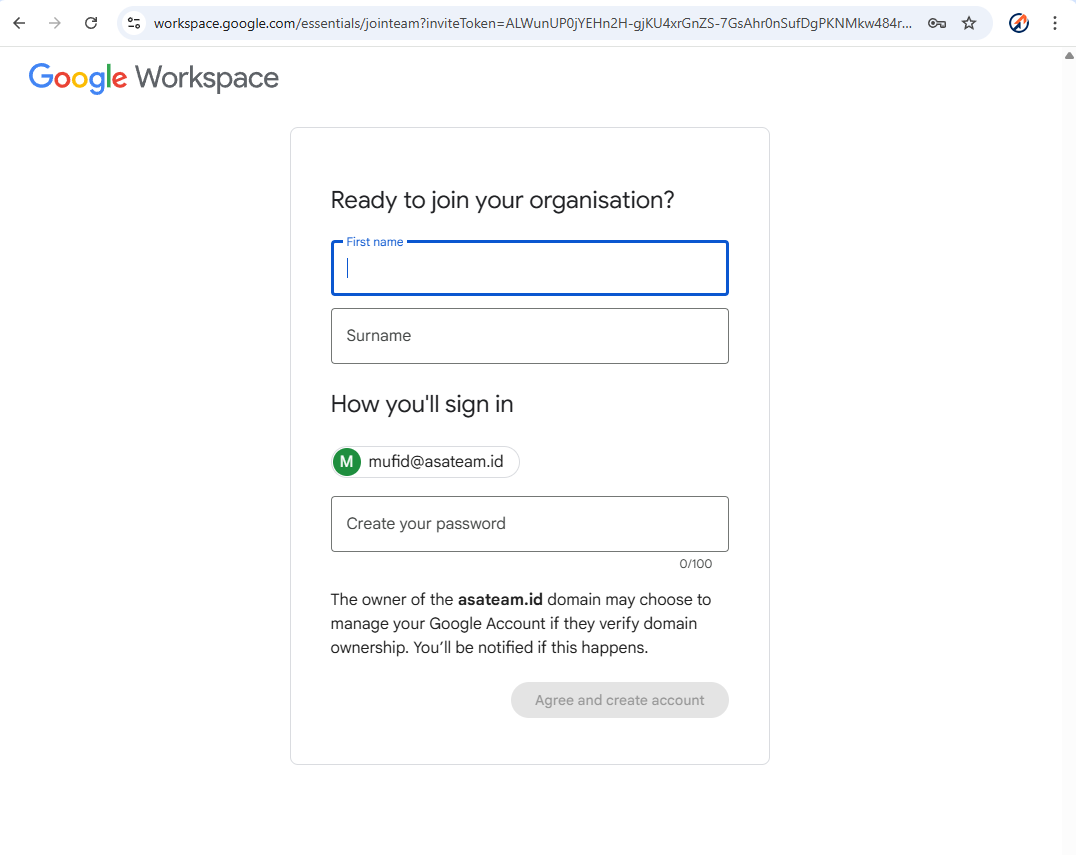
- Create your account information (NAME MUST BE THE REAL NAME ON YOUR ID CARD (KTP)) and create your password.
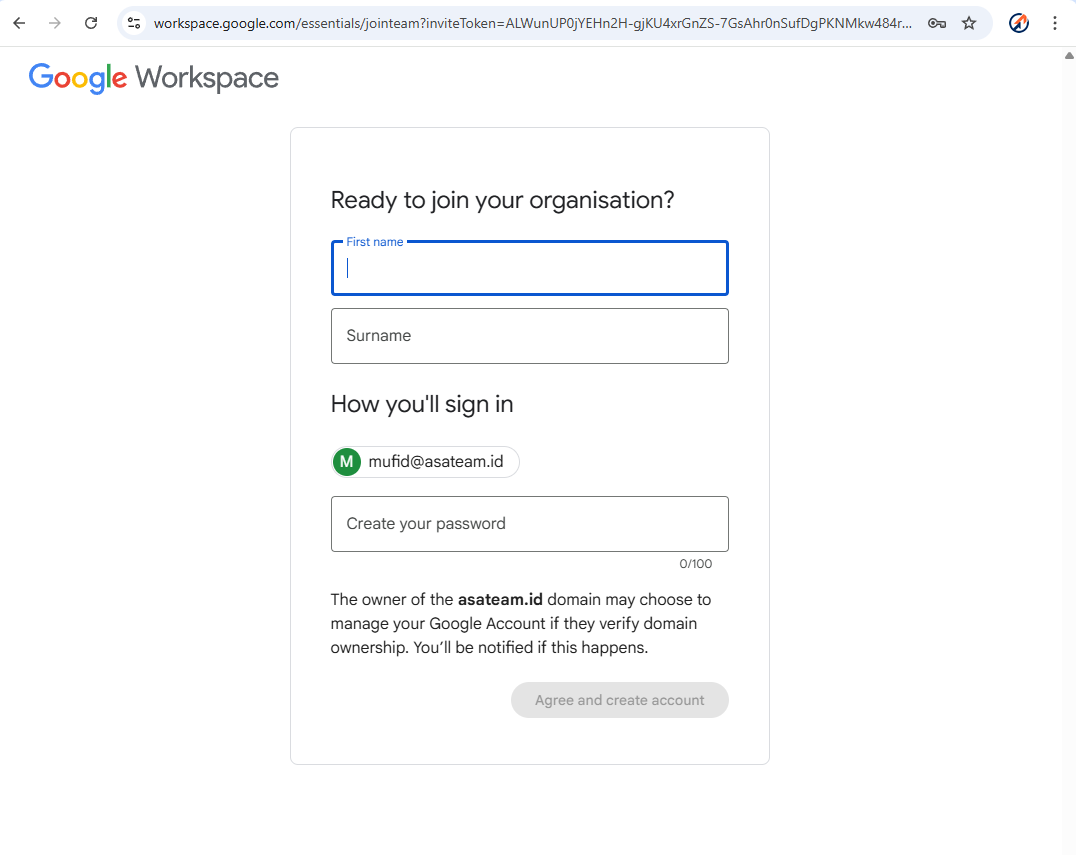
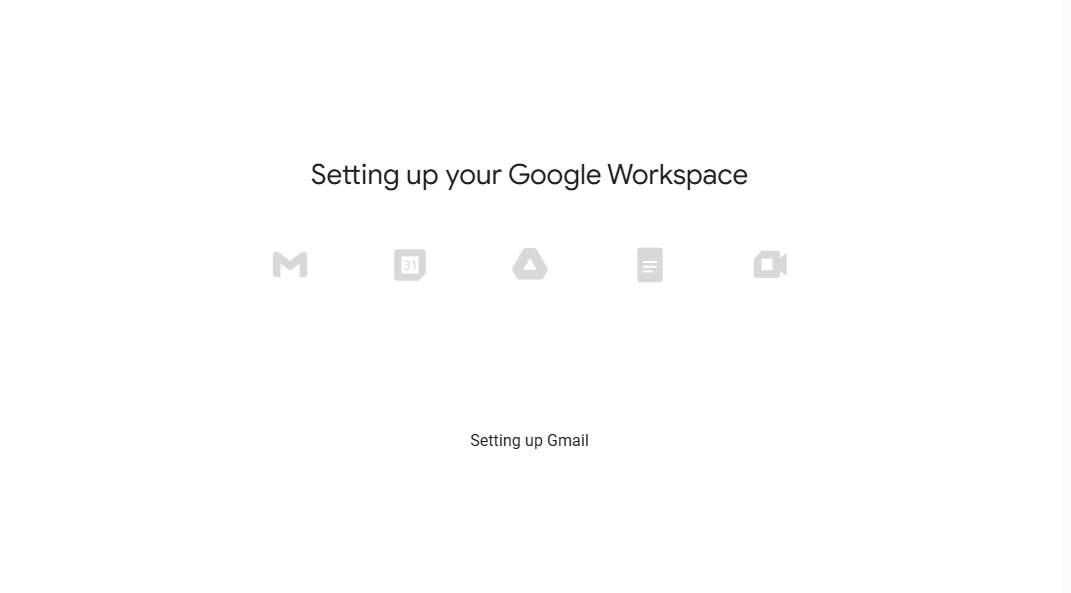
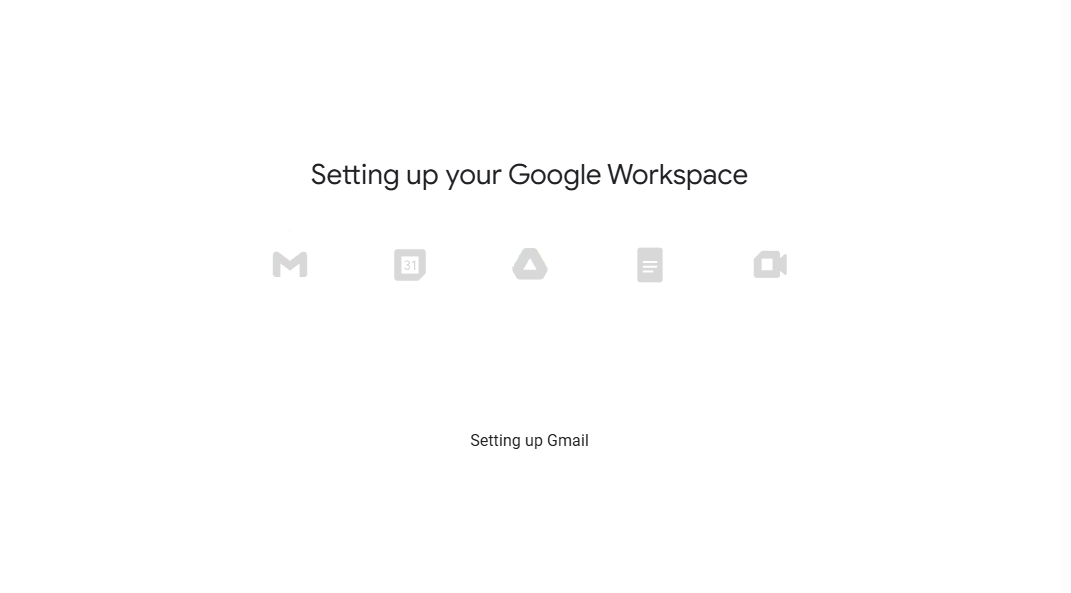
- Google setup your account workspace.
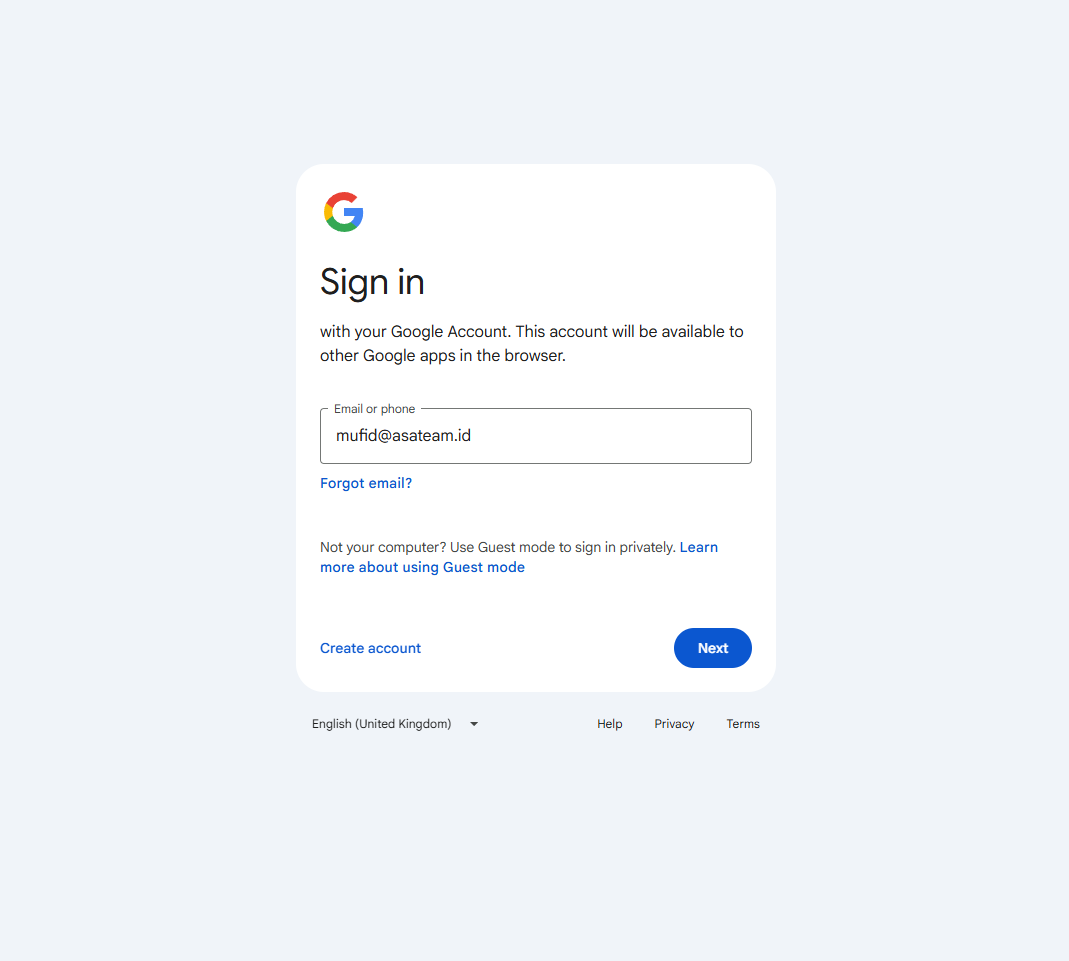
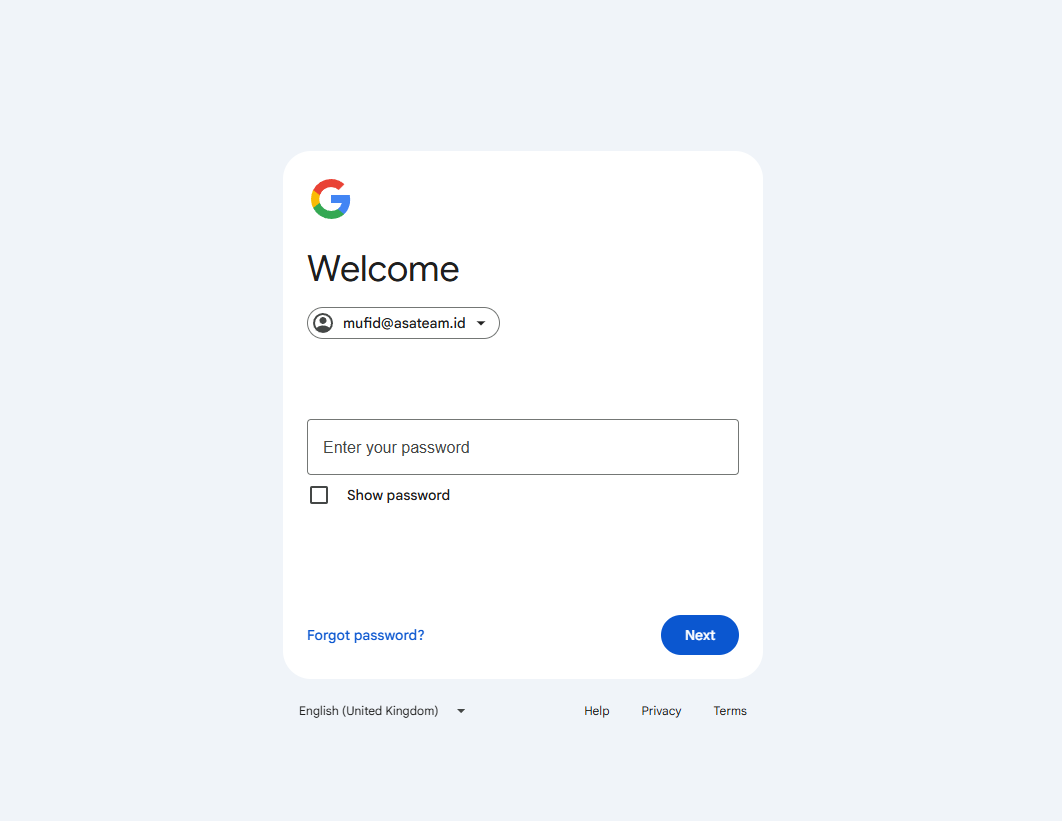
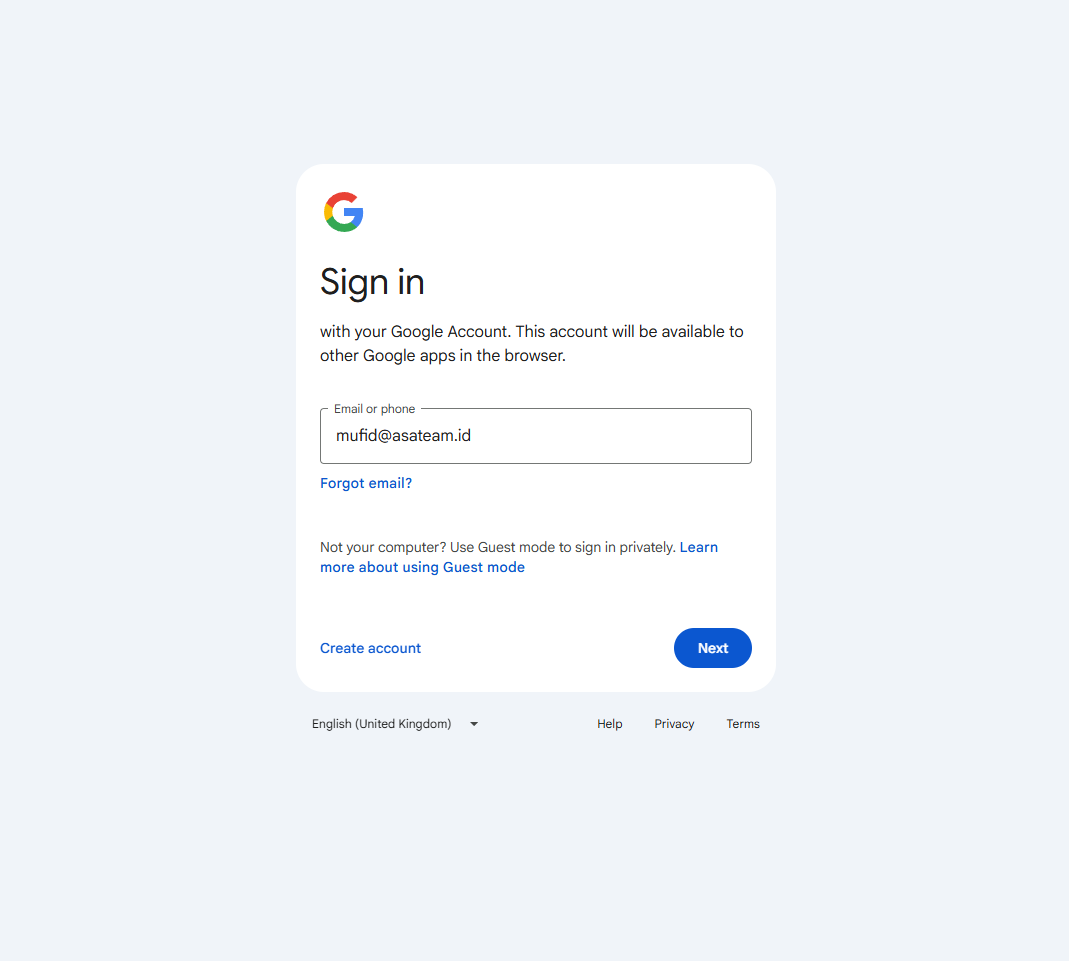
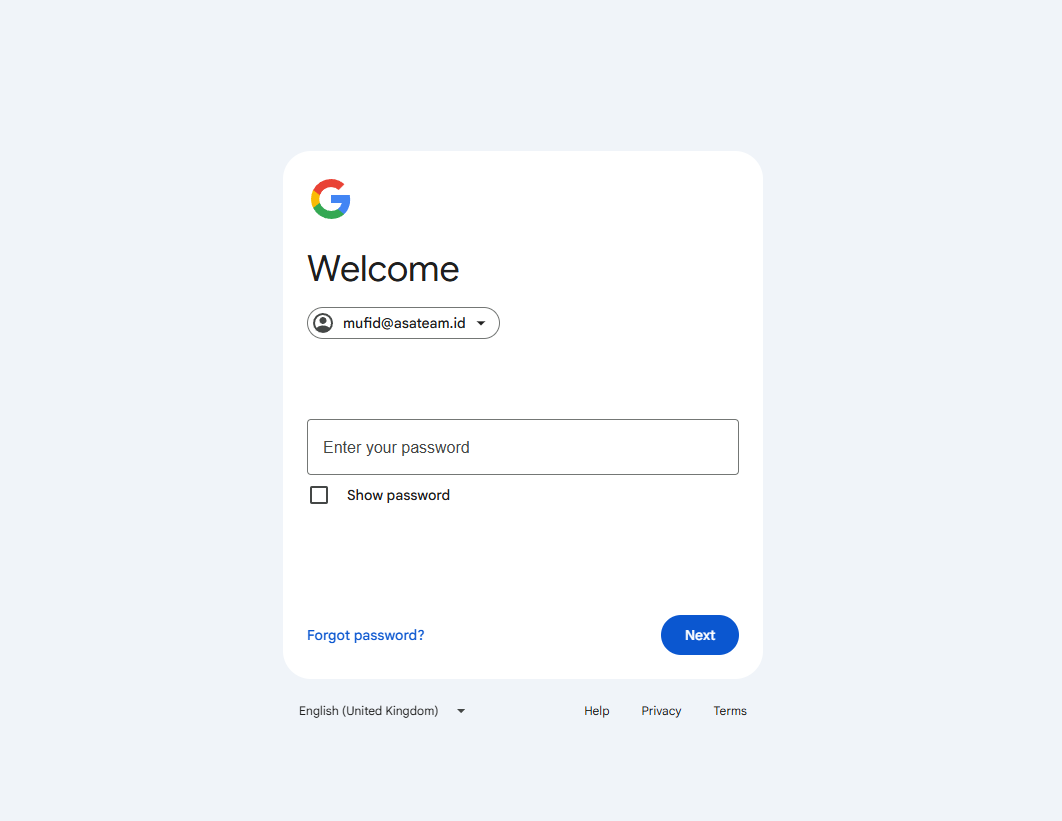
- Sign in and enter your password.
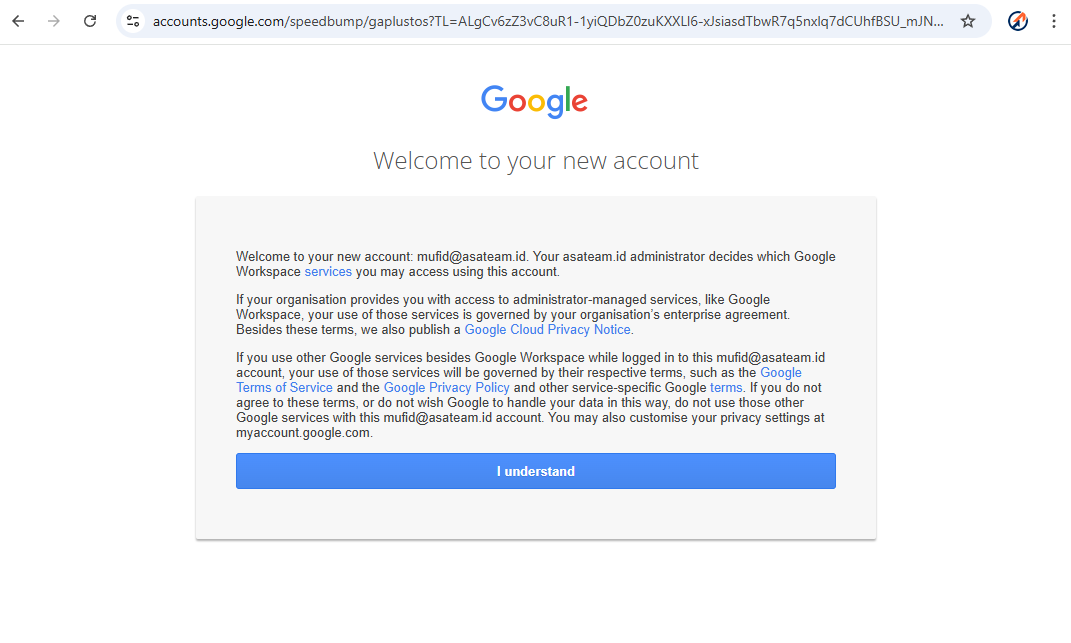
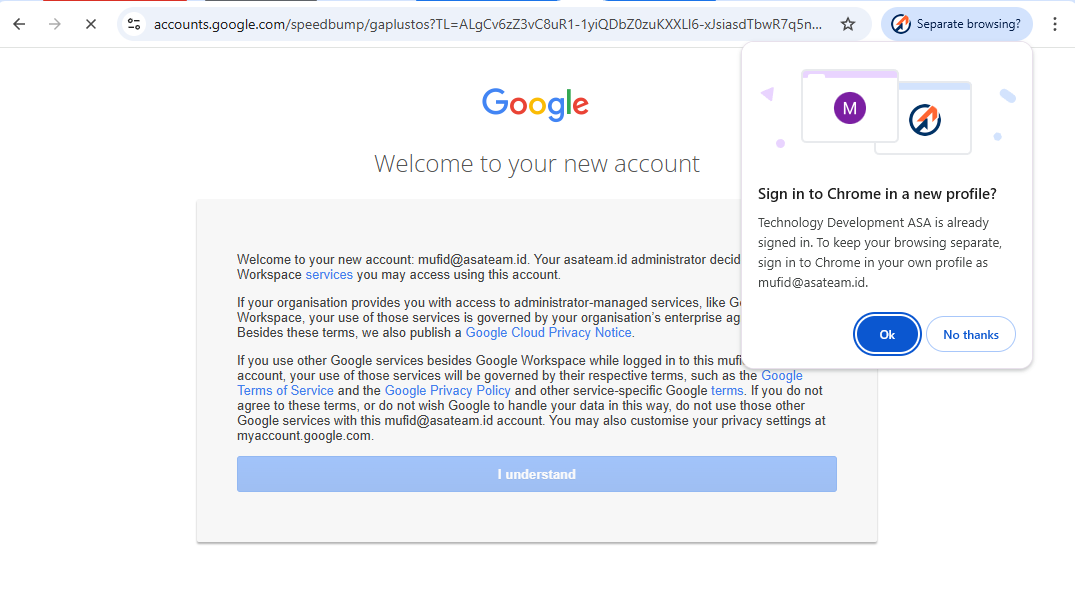
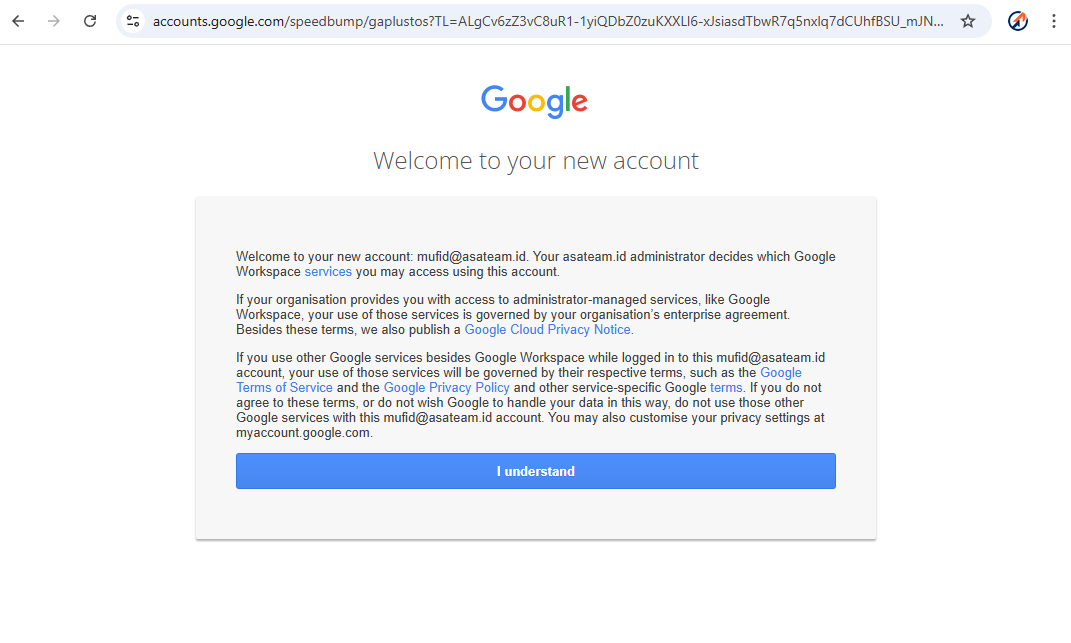
- Click understand.
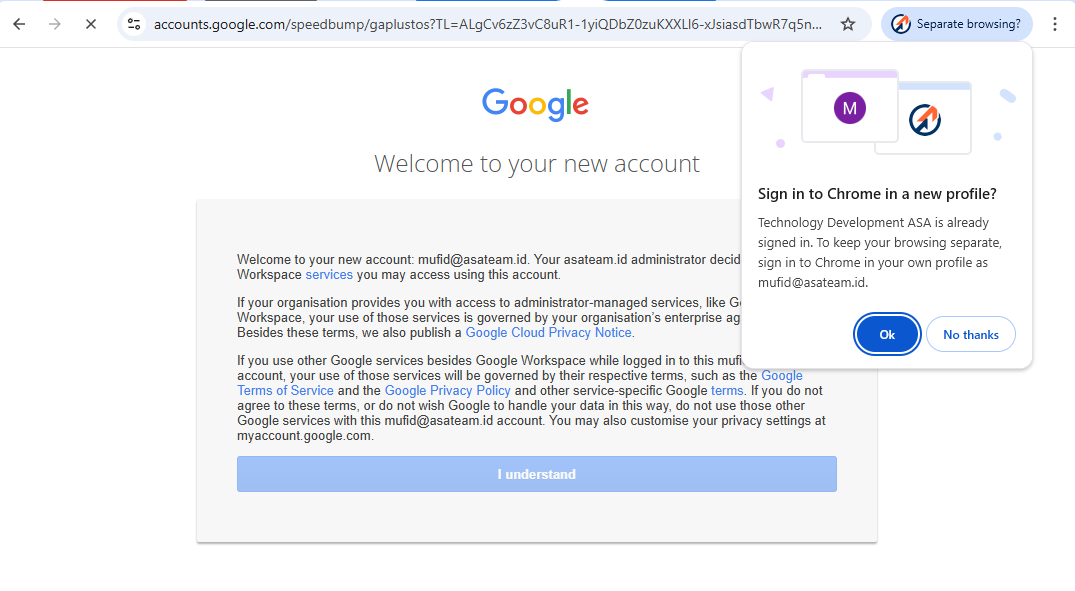
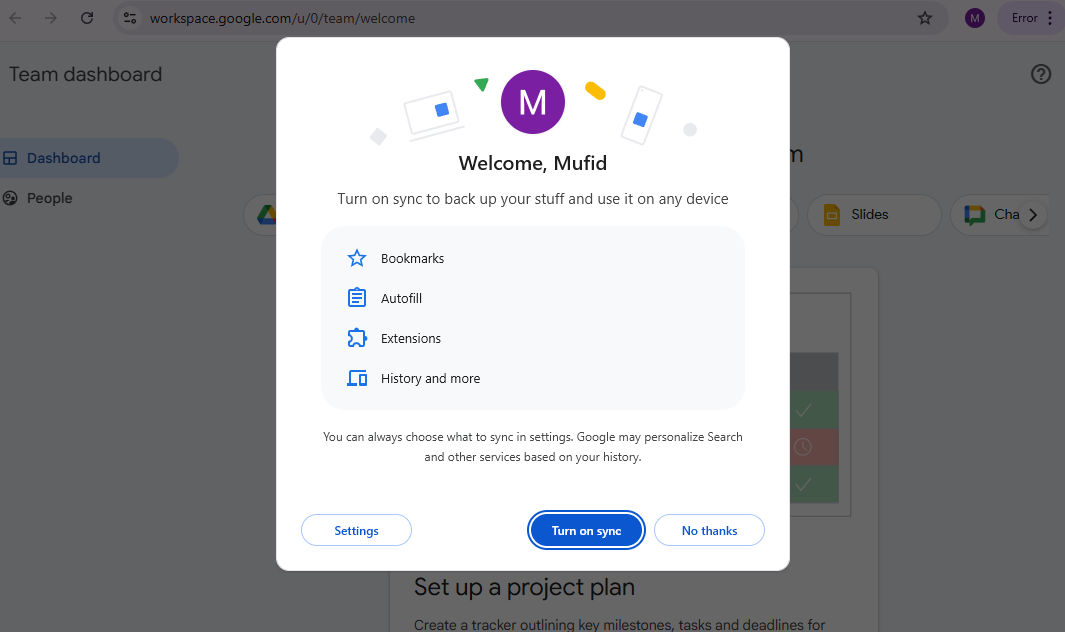
- If you get a pop up message in the top right corner, click OK so that Google automatically creates a new Chrome profile.
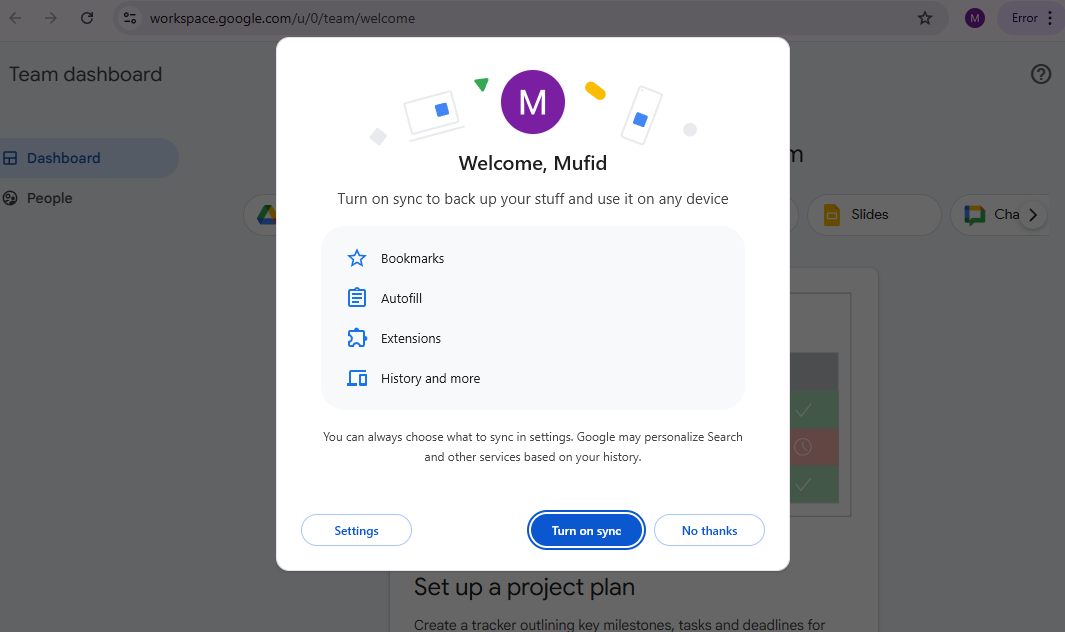
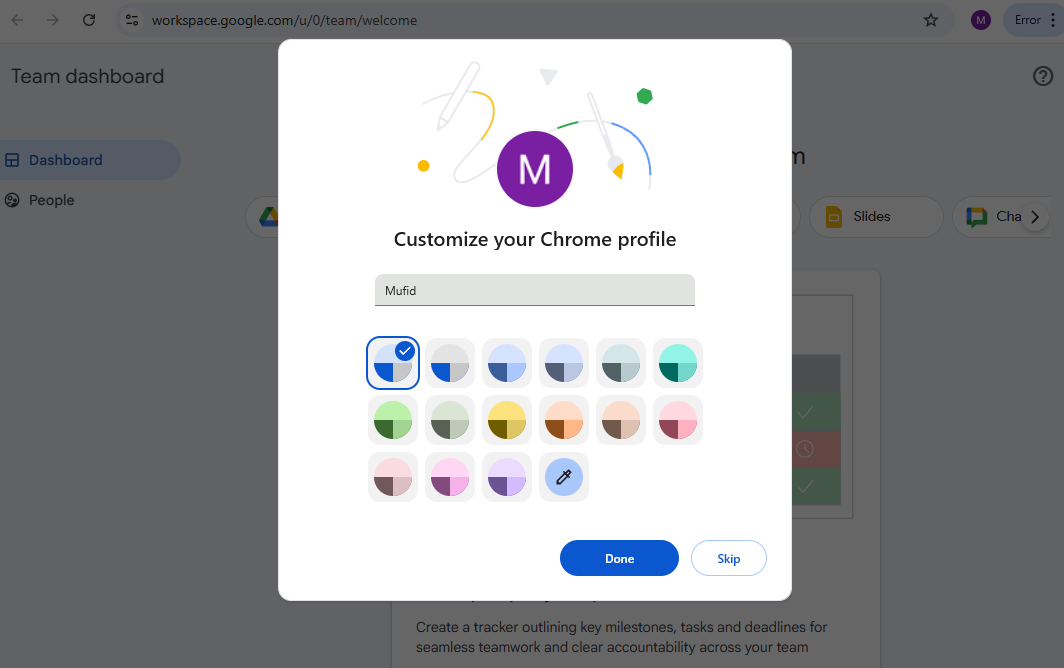
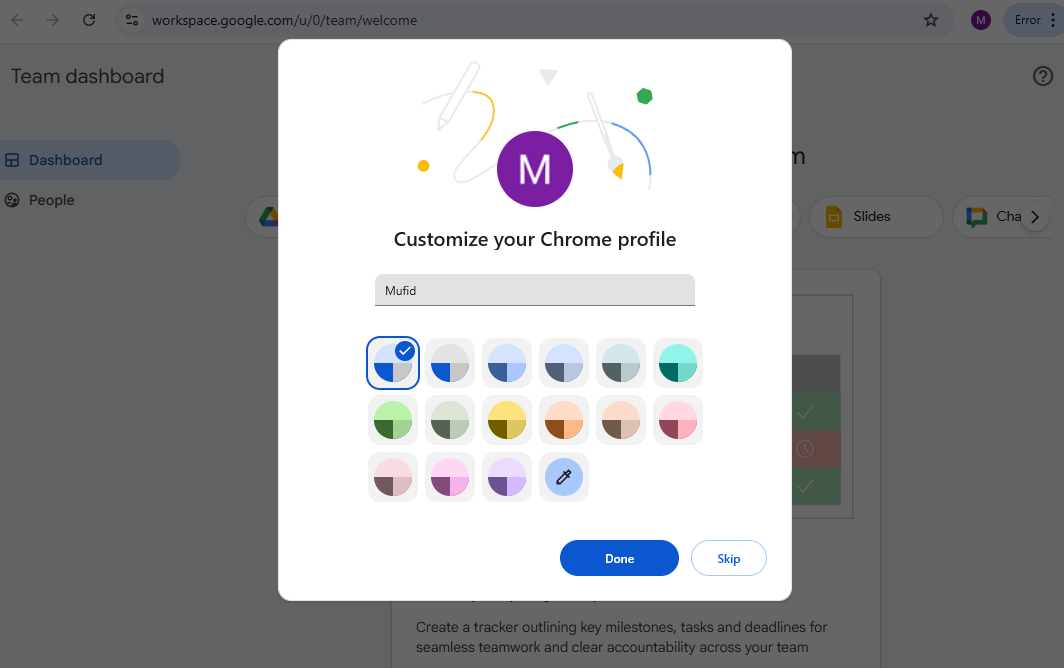
- Turn on Sync and choose your color profile.
- Welcome to Asateam Google Workspace, your account ready to embark
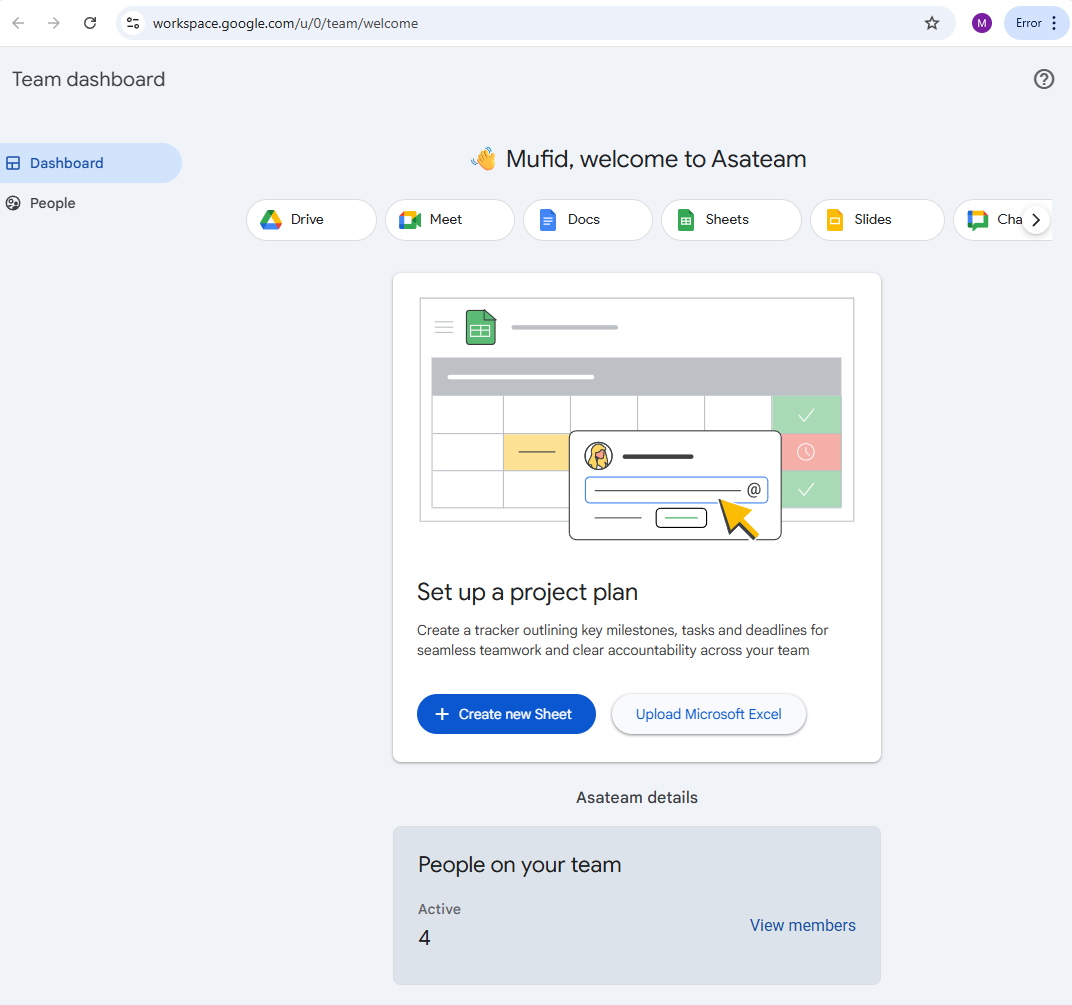
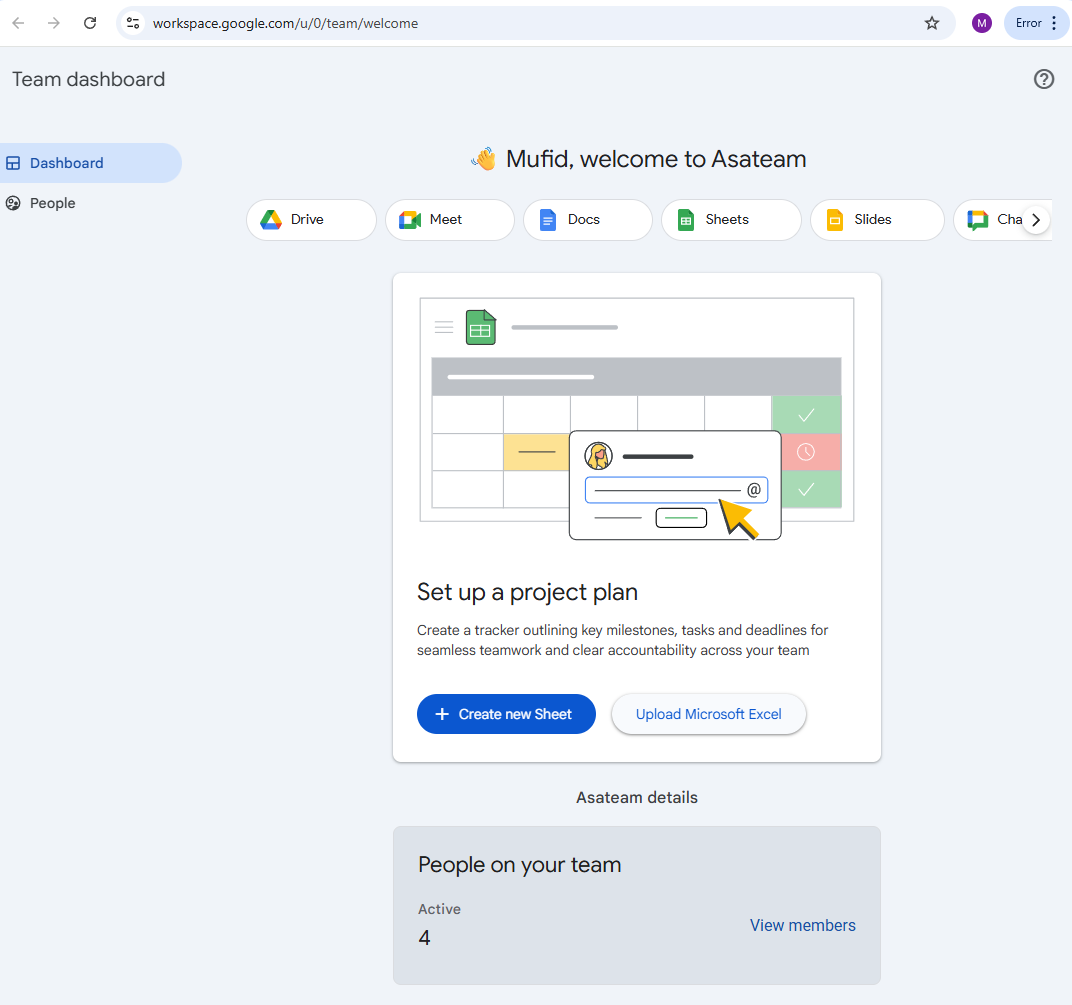
After successfully registering and logging into your workspace account, make sure your Chrome profile is saved on your desktop. Some other suggestions that may make things easier for you in the future: Open Chrome Settings, then click the "On Startup" side menu and select the "Continue where you left off" option. This will make it easier for you to close Chrome so you don't have to open the same tabs repeatedly. (If Google's language reference is not English, the title may be different)
If you have technical or other problems, please contact the technology unit. Contact us https://wa.me//6285119753371