
Flow Google Workspace
Step by Step Implementation
Phase 1 — Target
Objective: Penetapan berapa fase yang dibutuhkan untuk migrasi.
Phase 2 — Communication & Benefit Narrative
Objective: Semua user mengerti “kenapa” & “apa yang berubah”.
Phase 3 — Pilot Controlled & Improvement
Objective: Memvalidasi pada lingkar pertama.
Phase 4 — Hypercare
Objective: Respons cepat & edukasi ulang.
Phase 5 — Stabilisasi & Reinforcement
Objective: Menjadikan kebiasaan.
Phase 6 — Closure & Handover
Overview Flow Google Workspace
How to access your google workspace account.
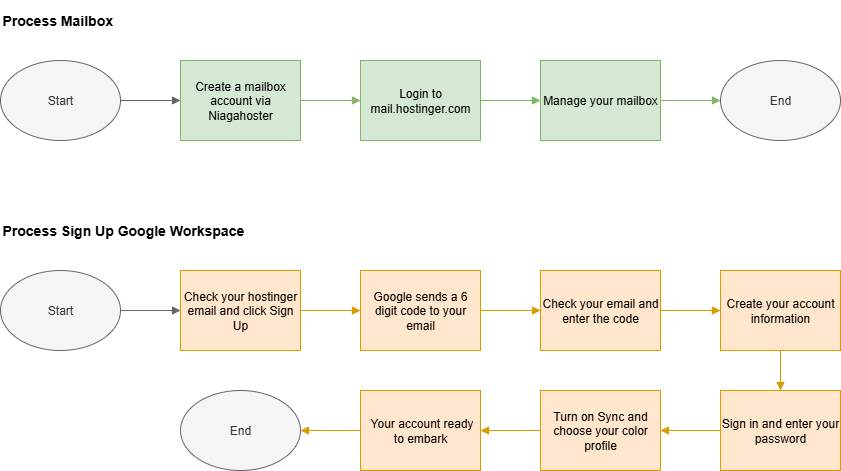
Step to Embark your Google Workspace Account
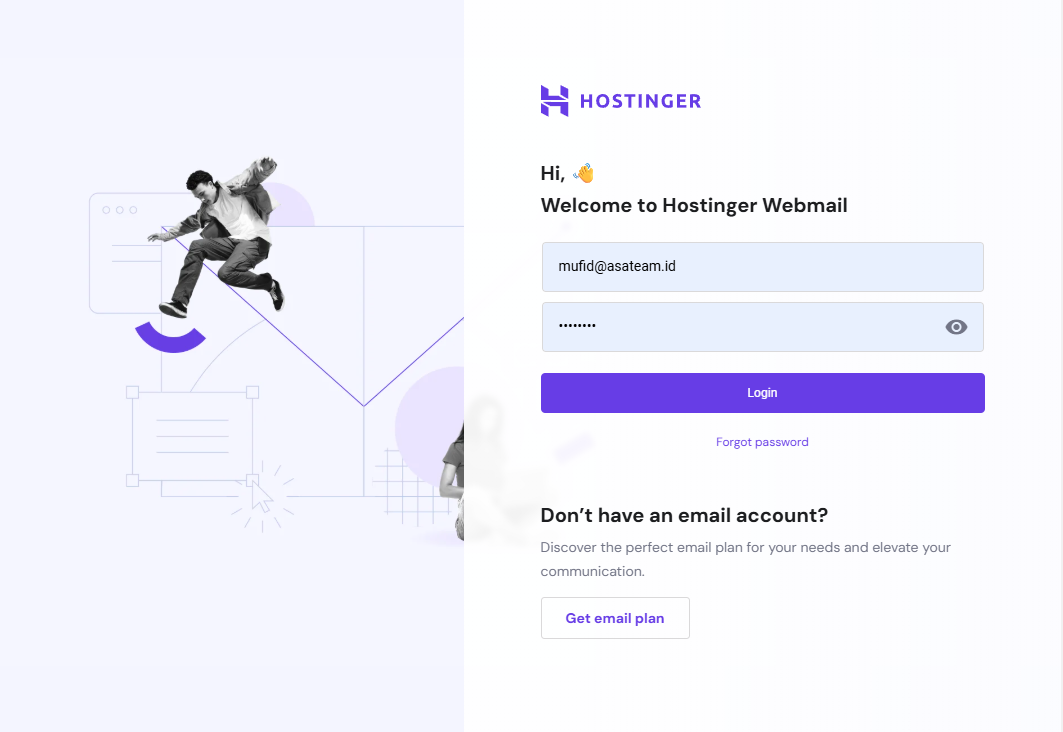
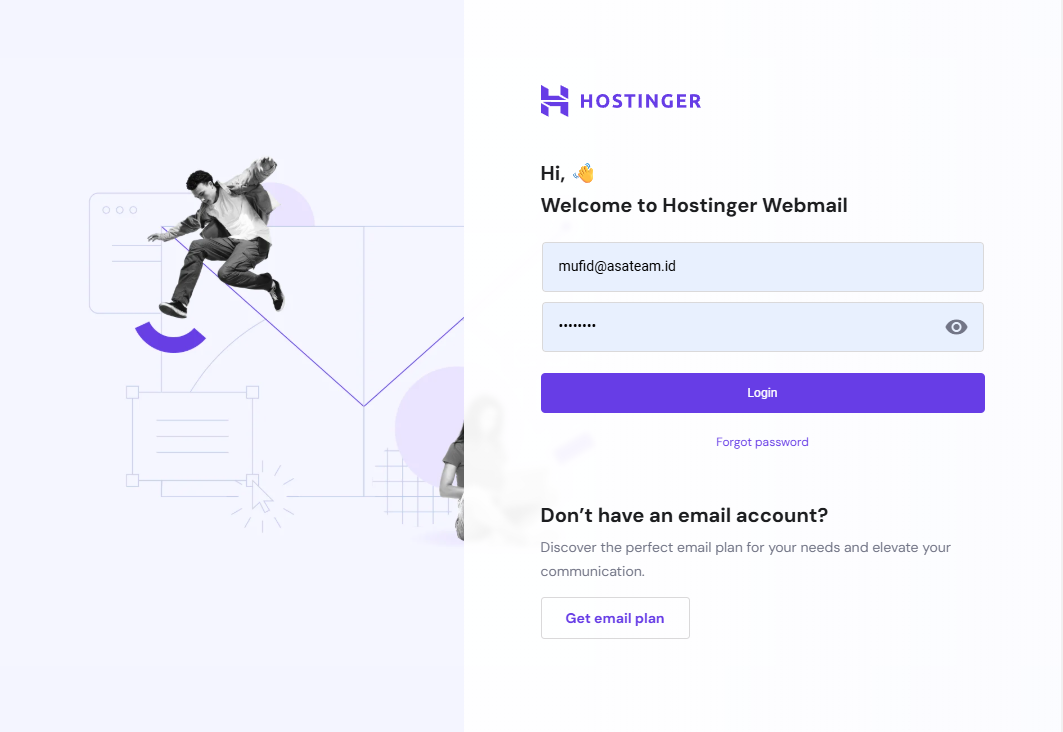
- Login on mail.hostinger.com
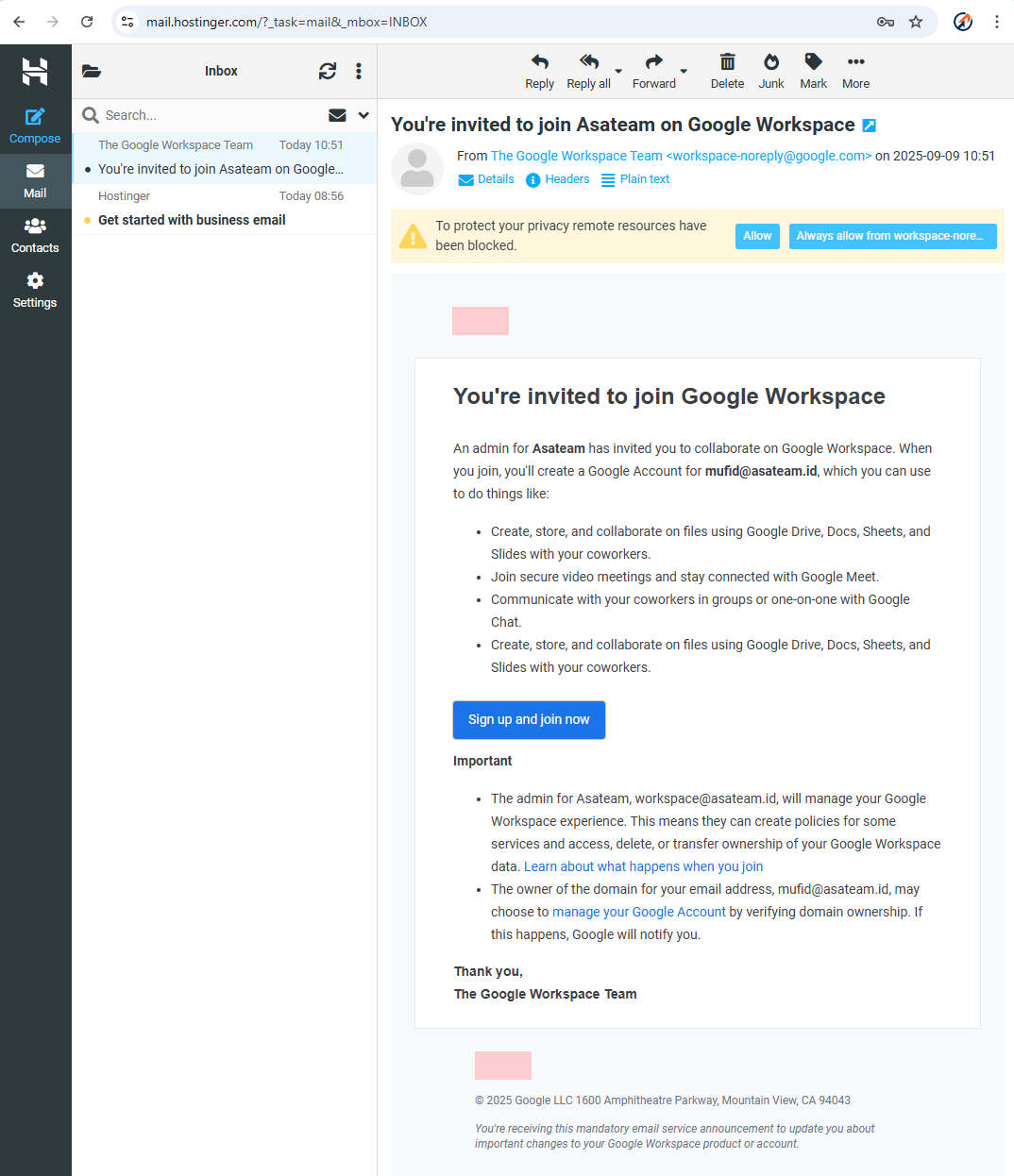
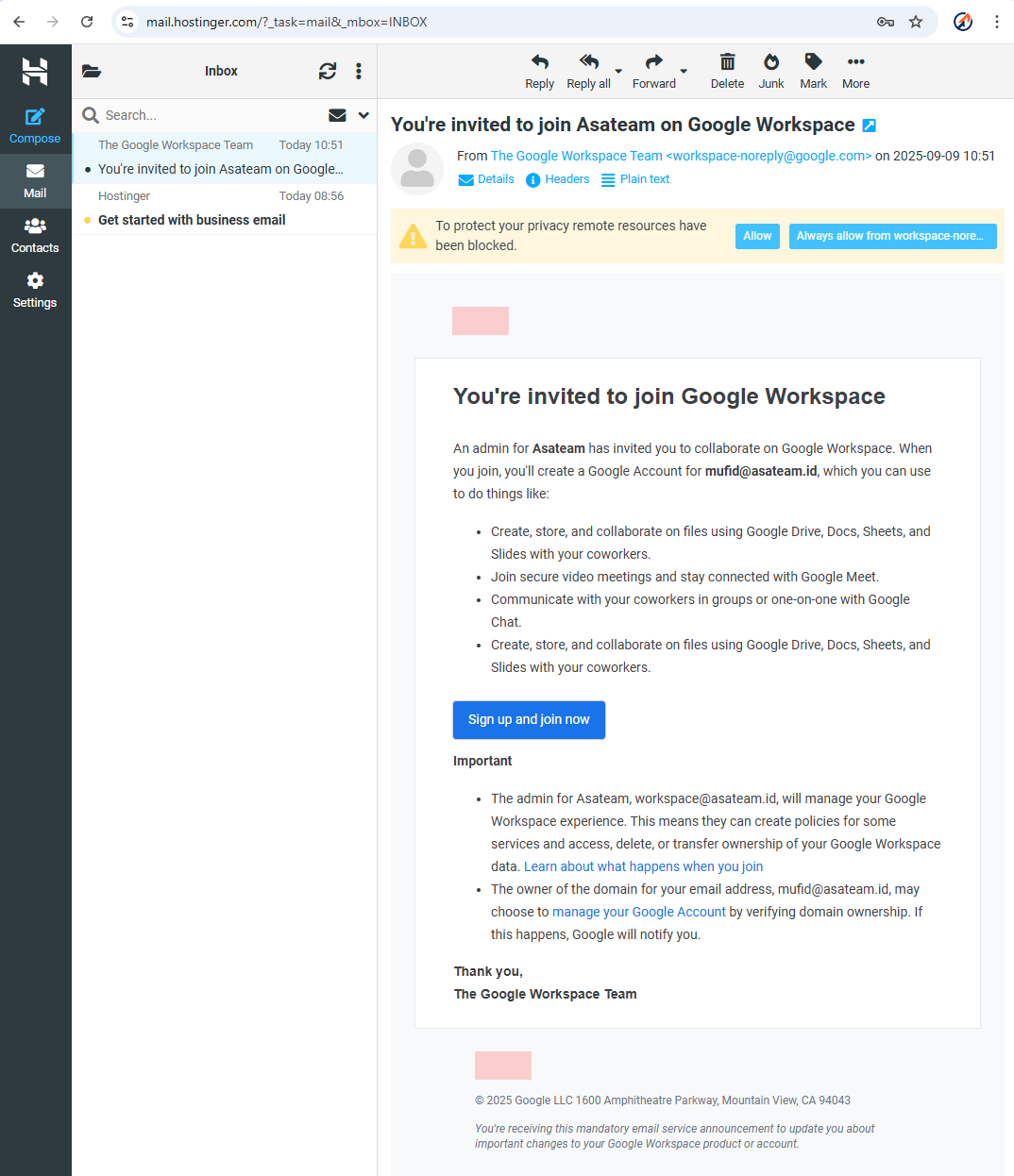
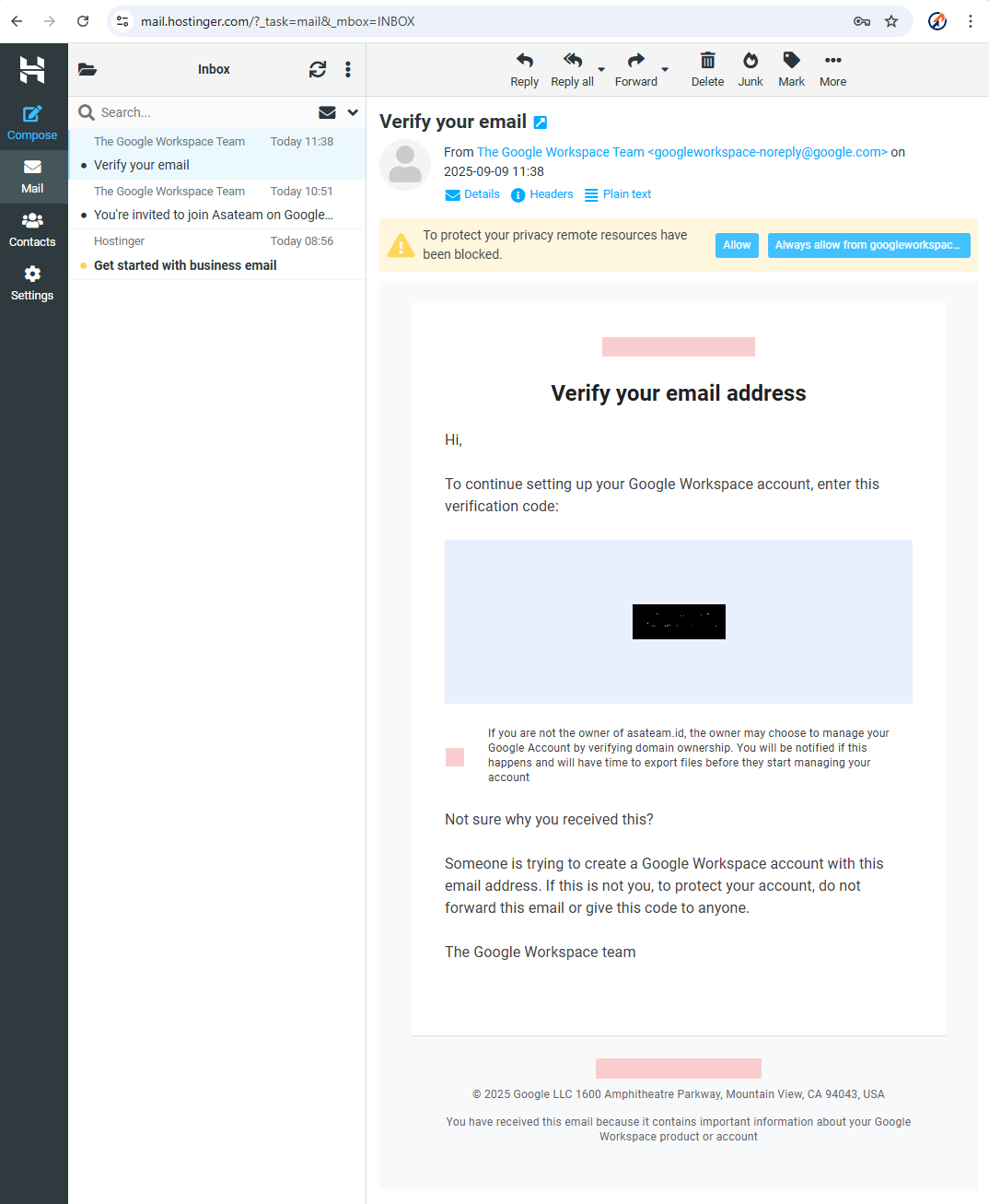
- Check your hostinger email for the invitation and click Sign Up and Join Now
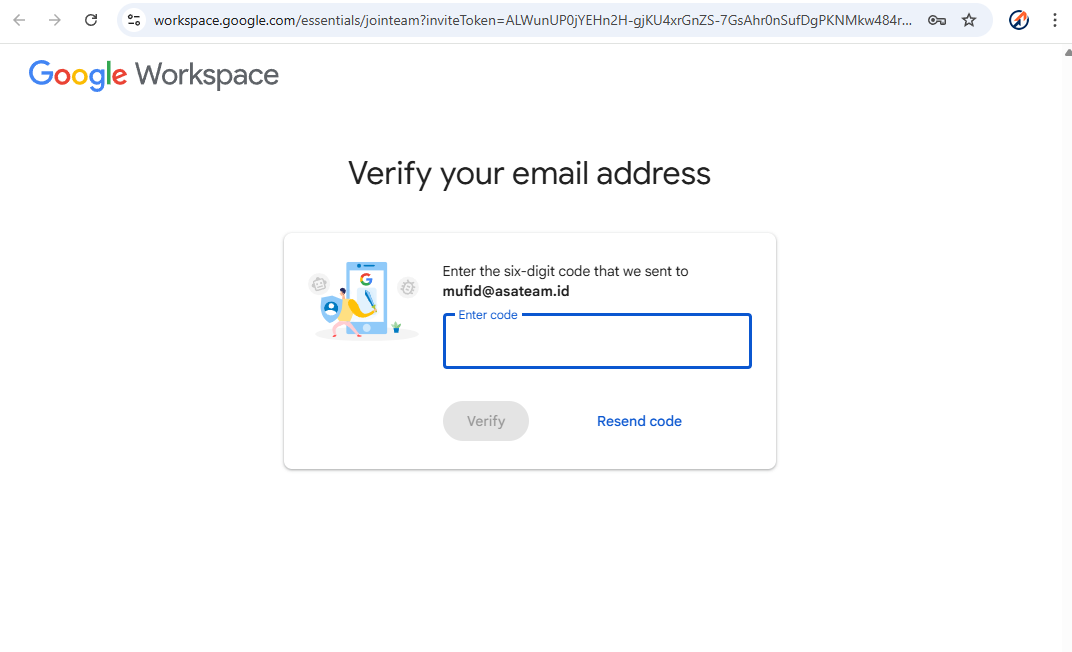
- Google sends a 6 digit code to your hostinger email account
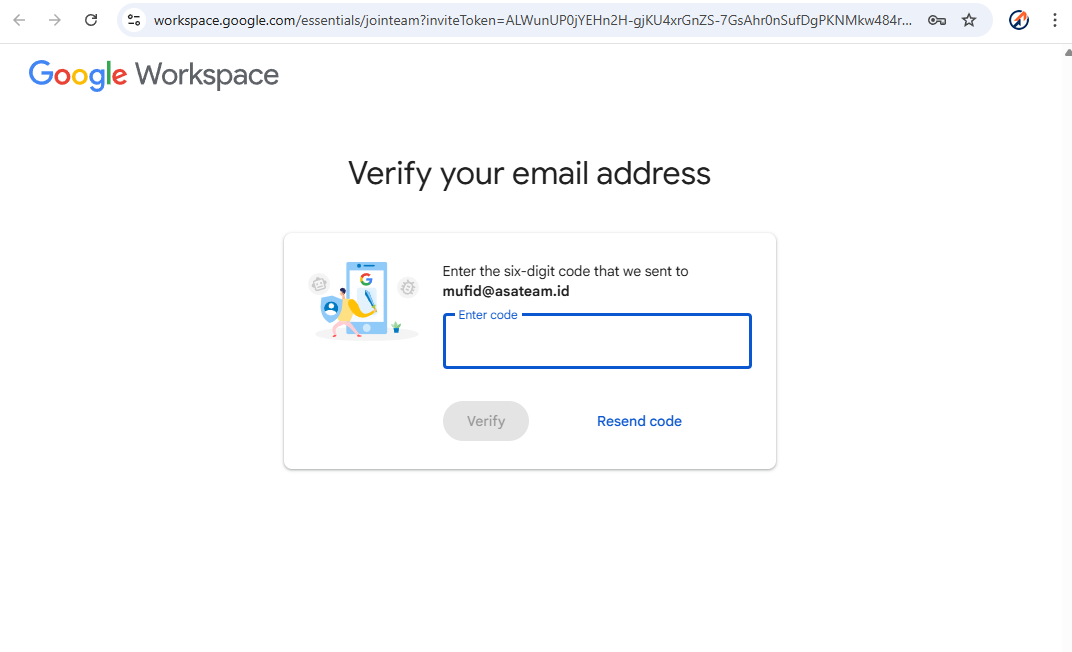
- Check your Hostinger email again and enter the code in the form above
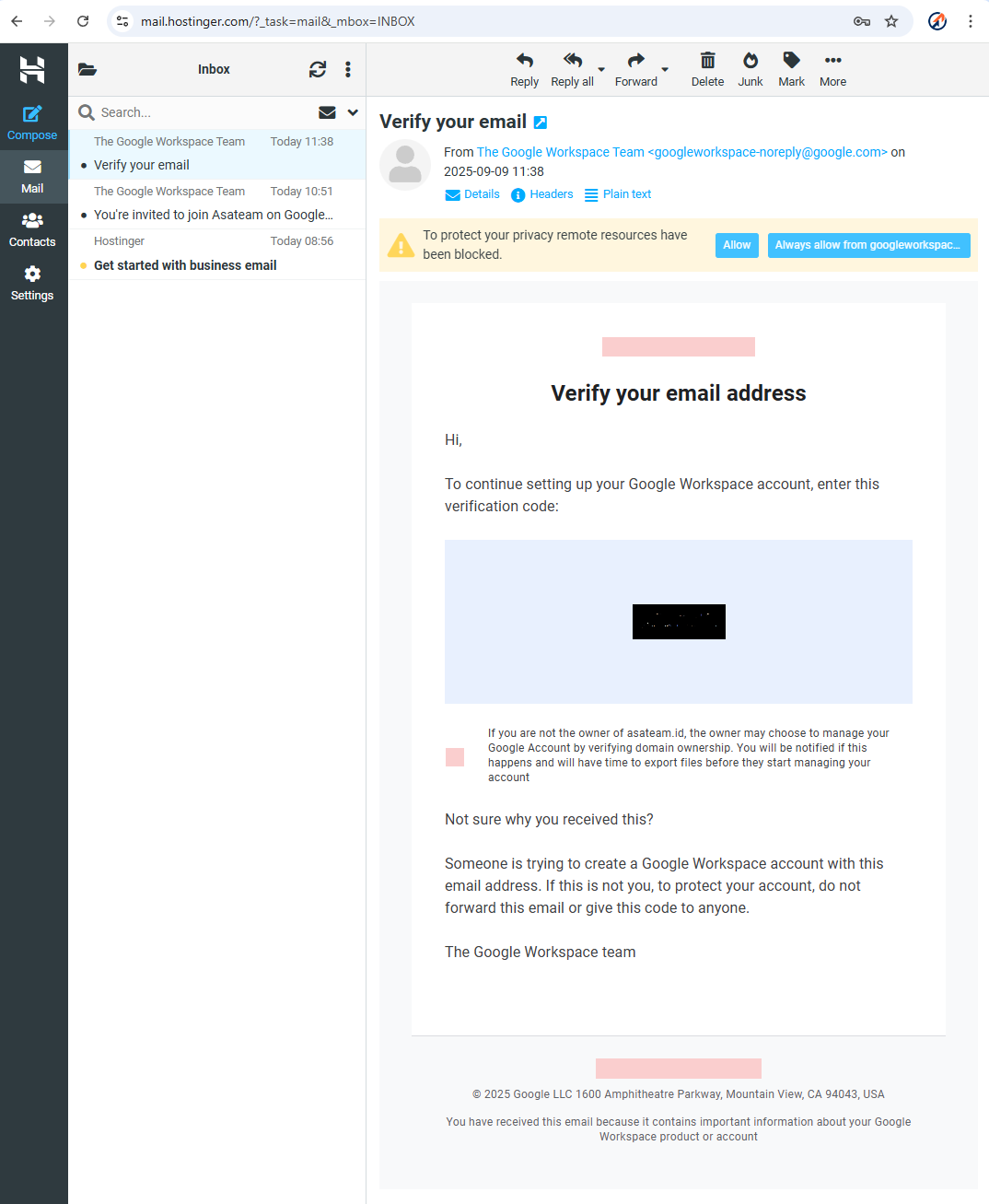
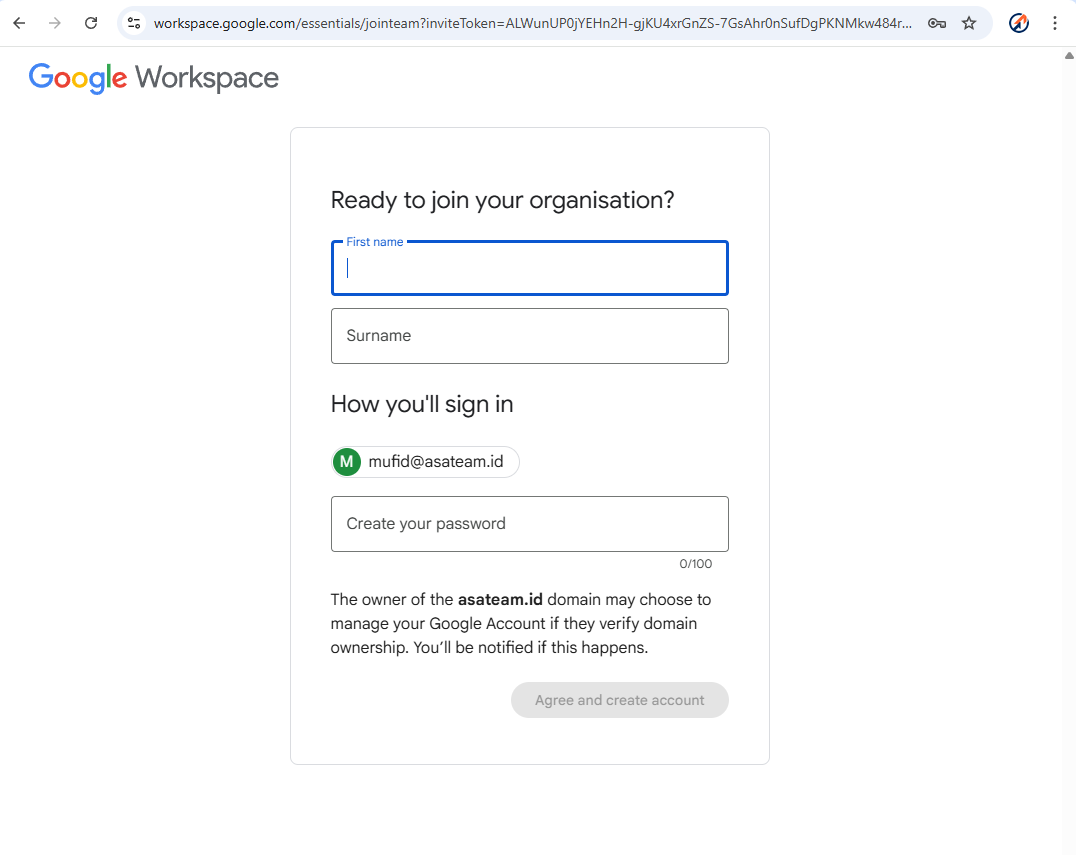
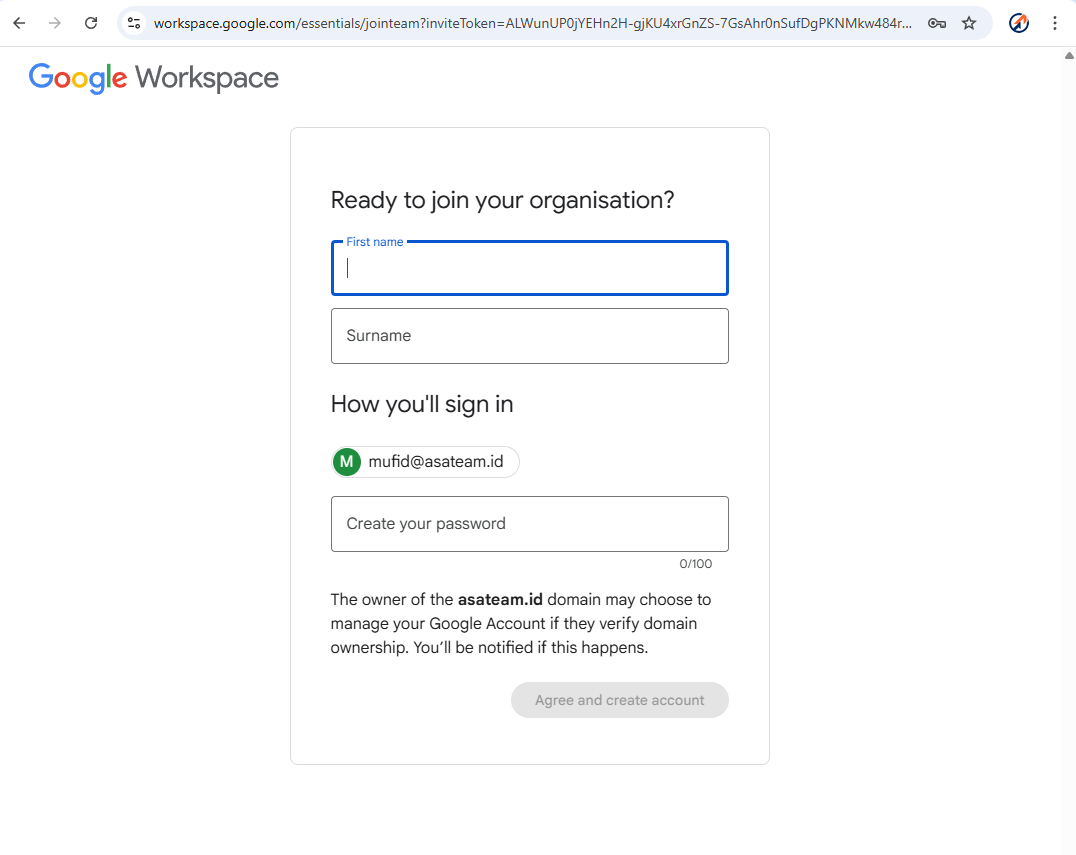
- Create your account information (Name must nickname, Surename must Asateam) and create your password
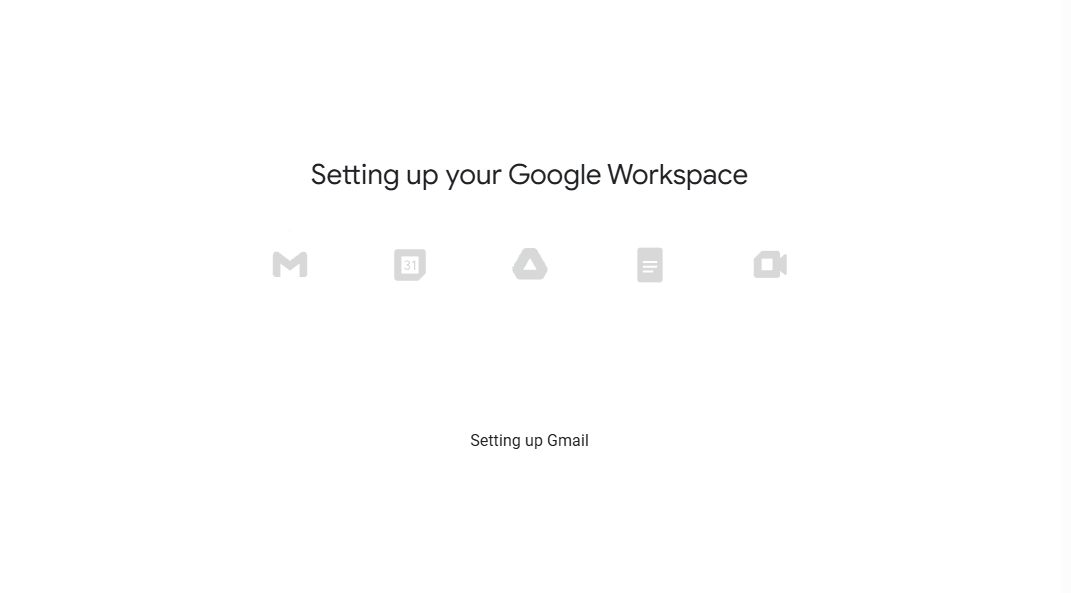
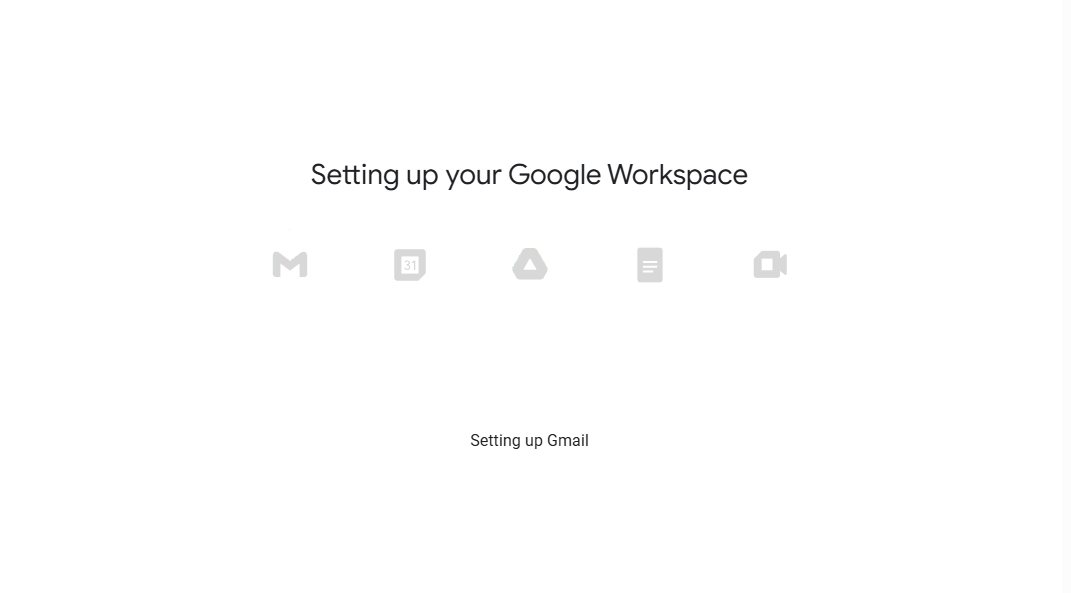
- Google setup your account workspace
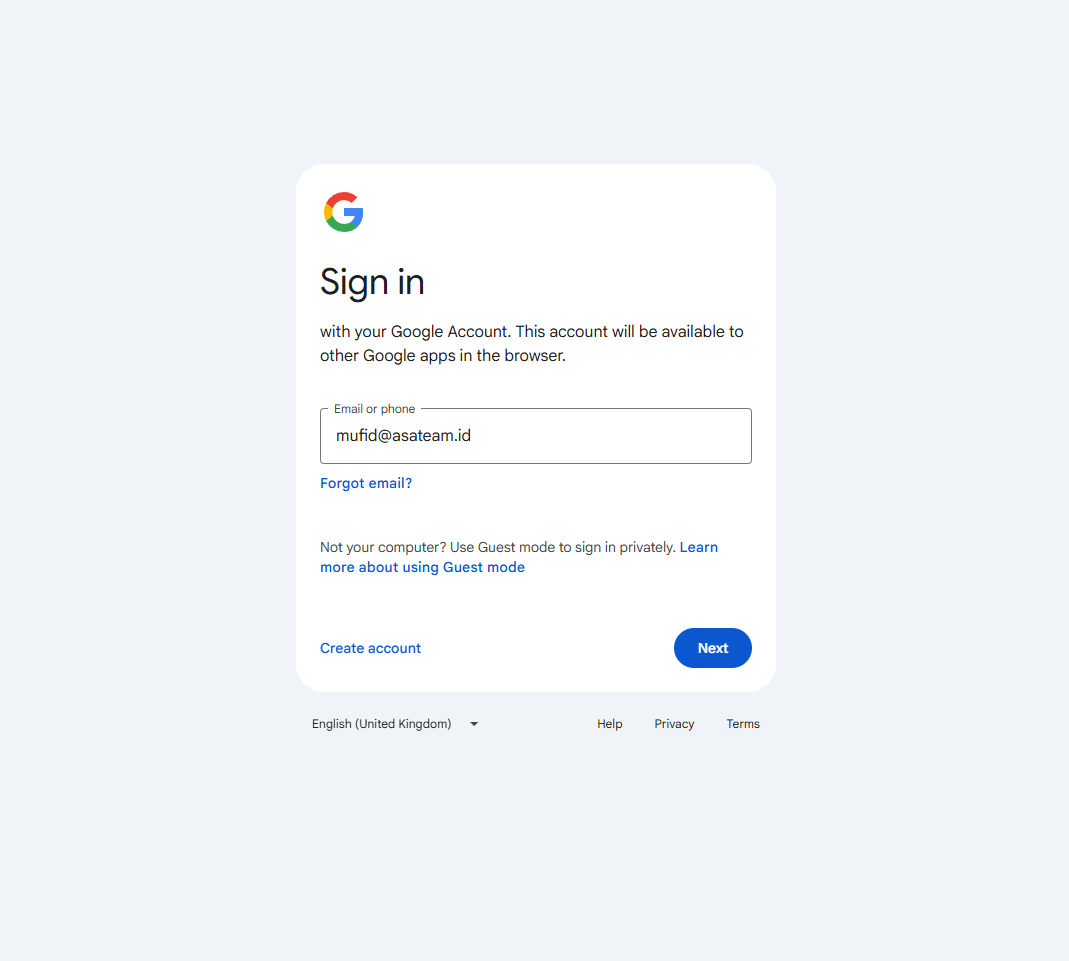
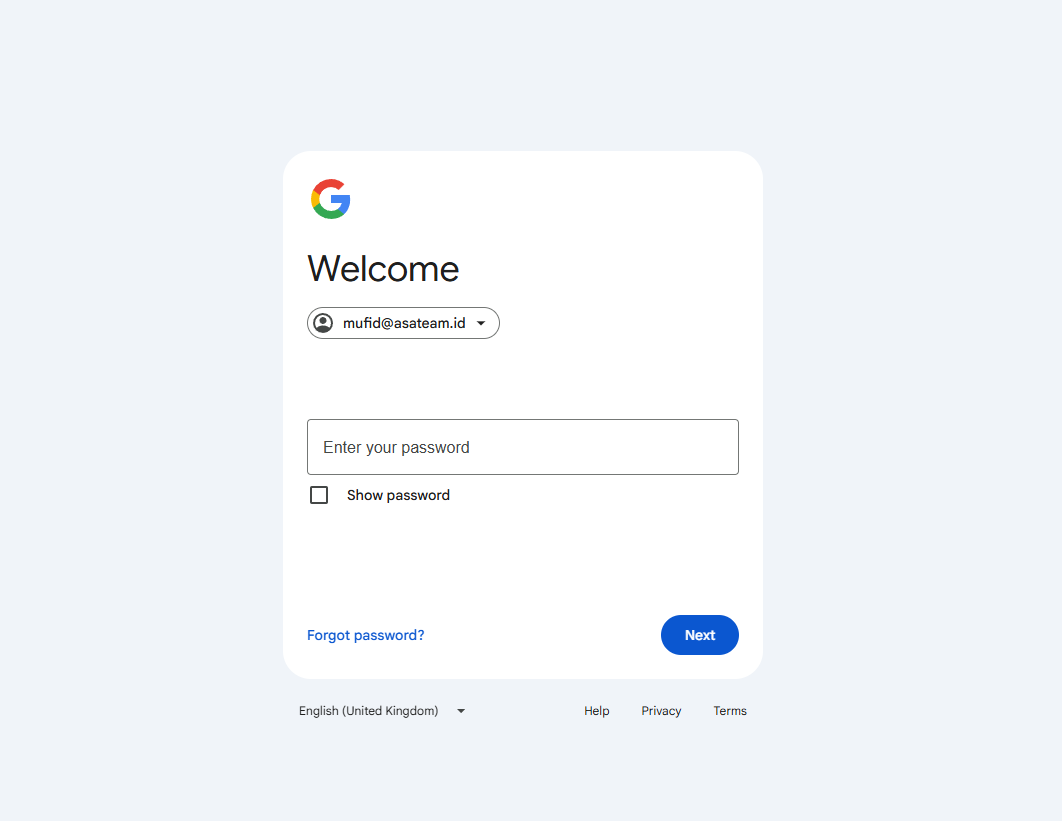
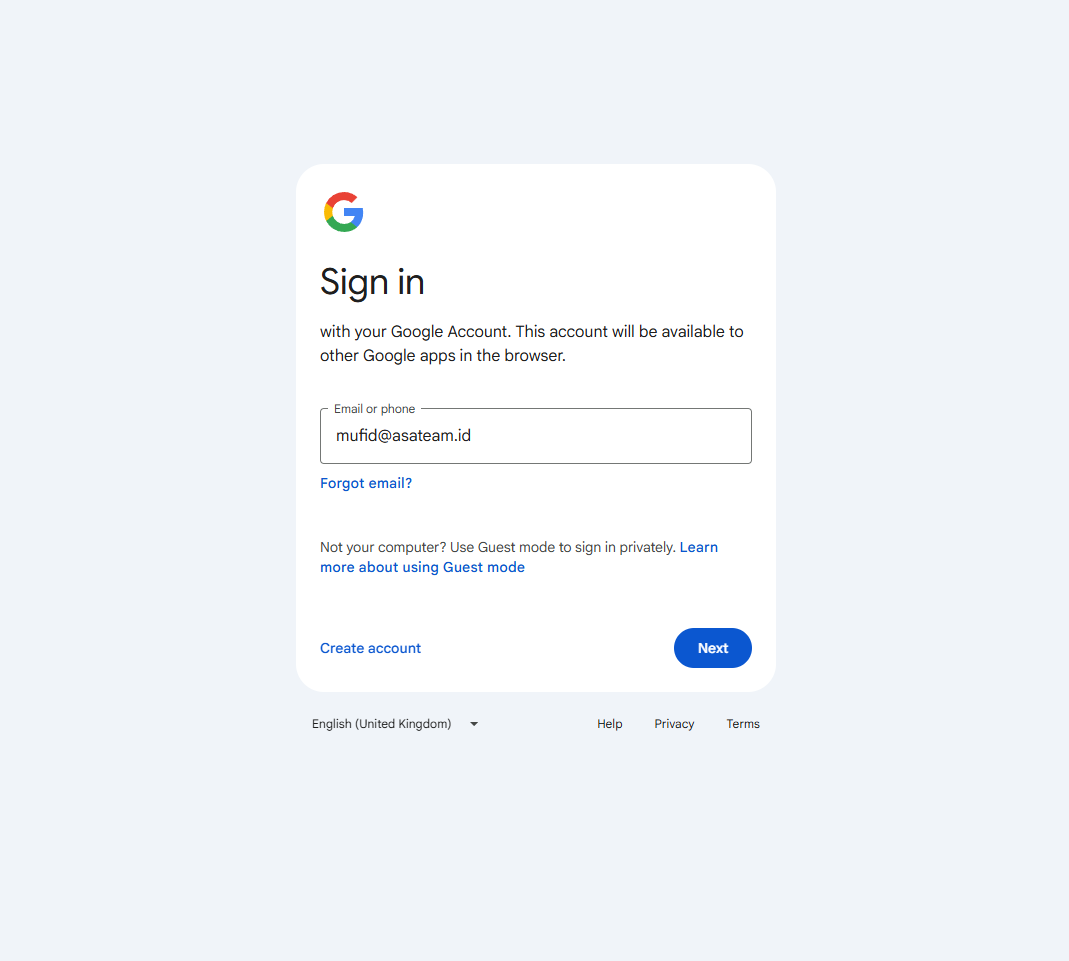
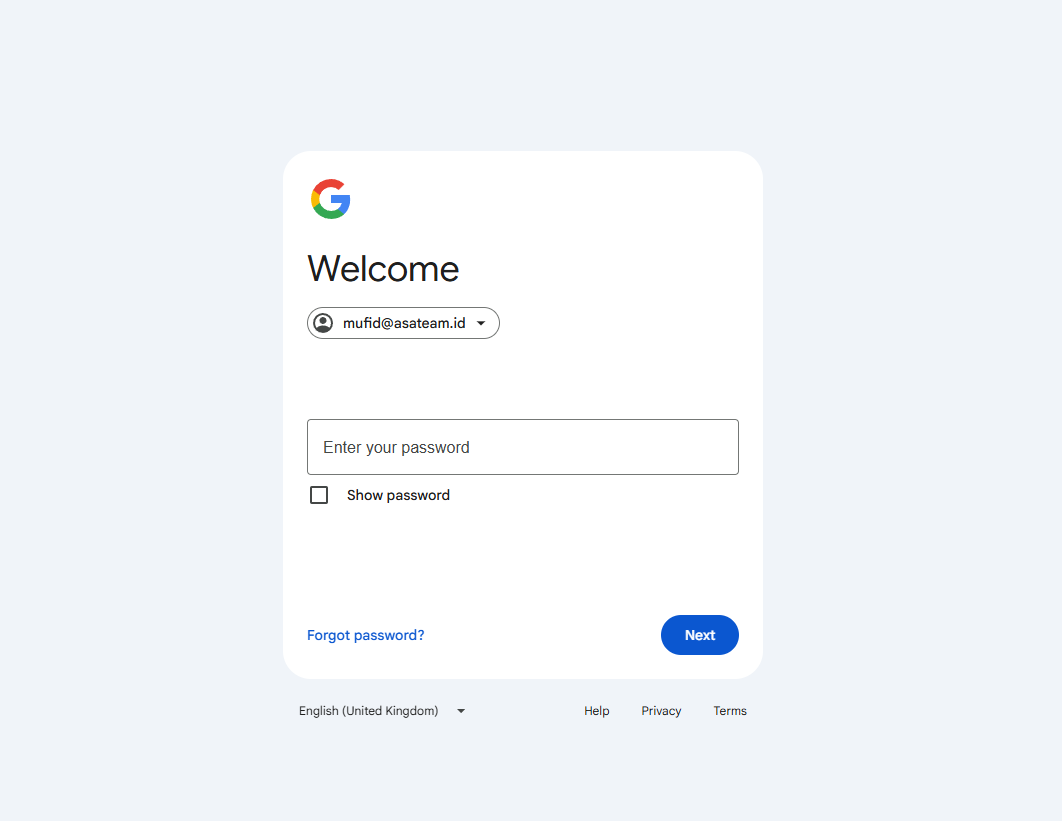
- Sign in and enter your password
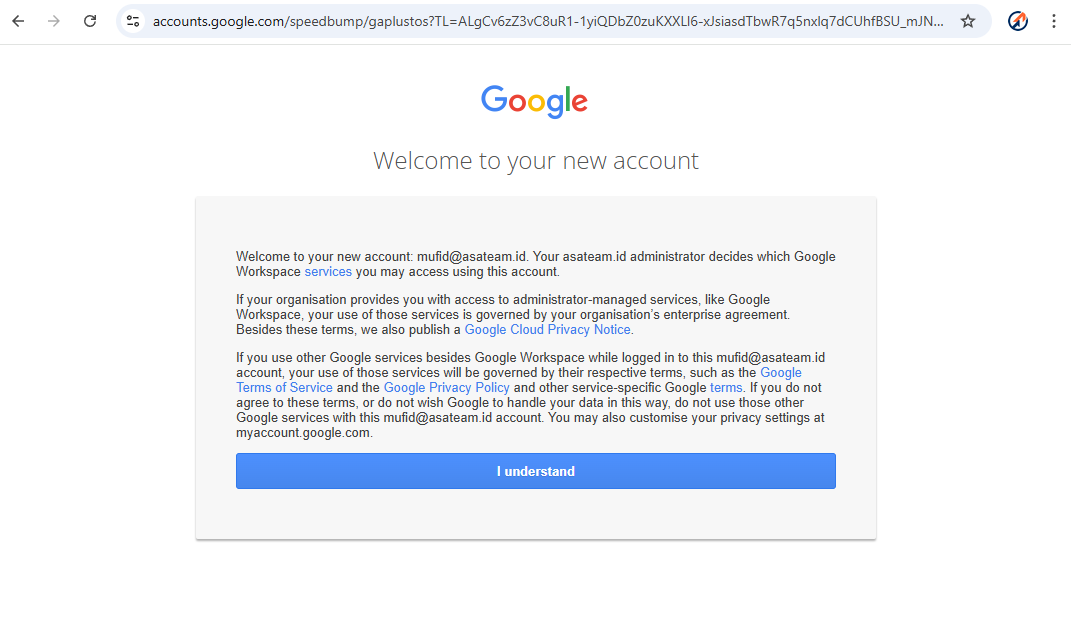
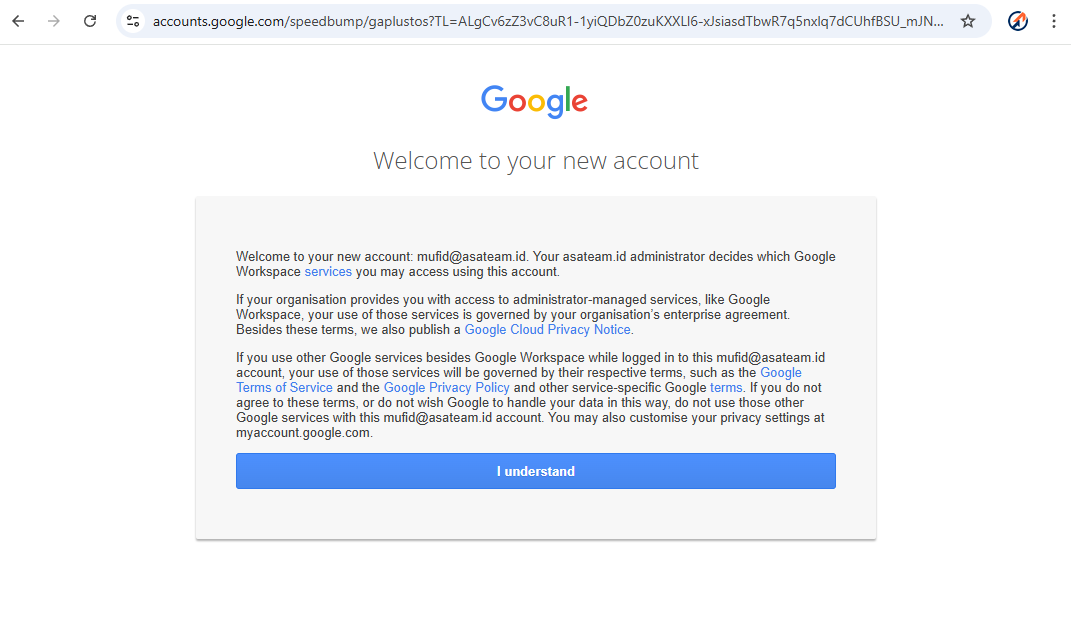
- Click understand
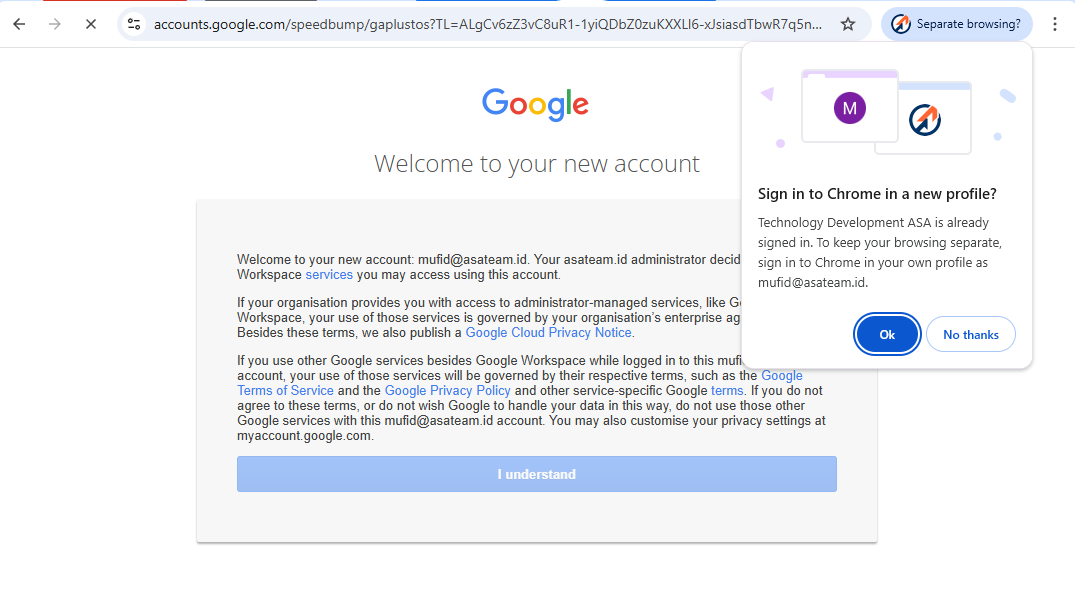
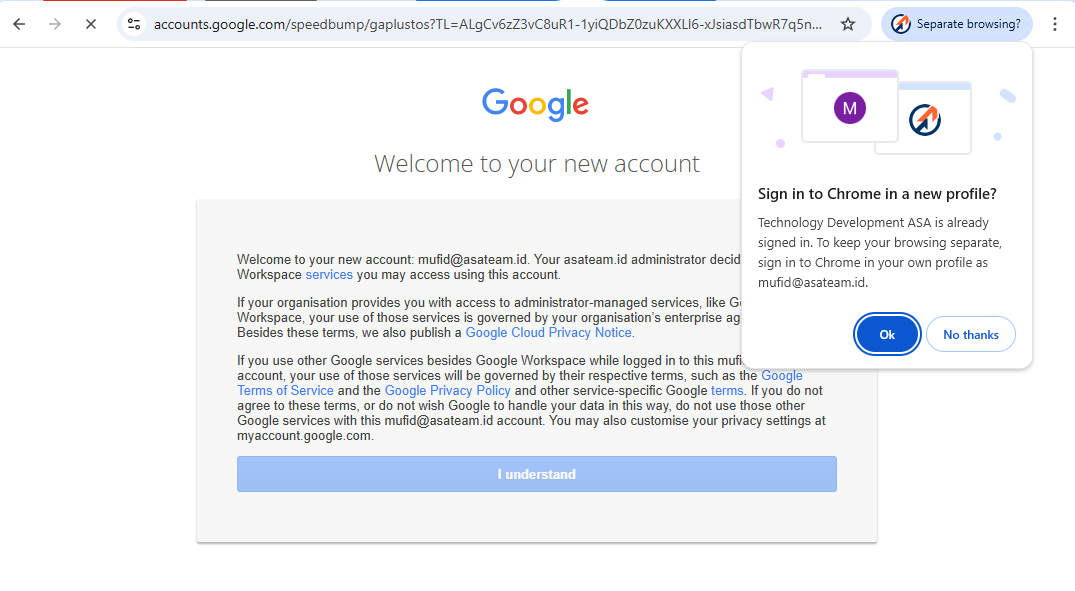
- If you get a pop up message in the top right corner, click OK so that Google automatically creates a new Chrome profile
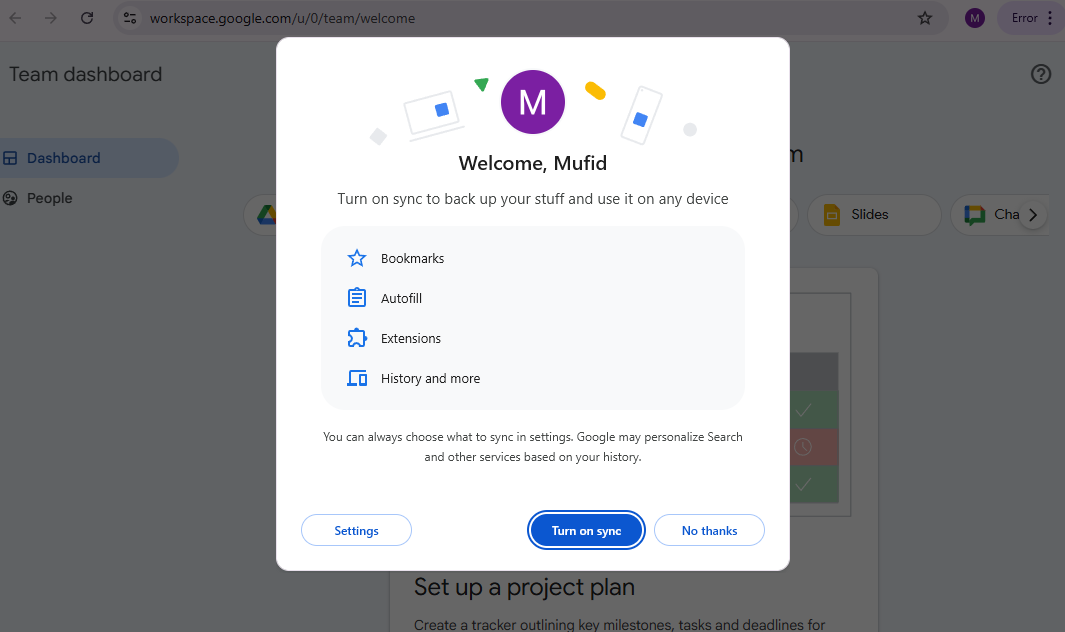
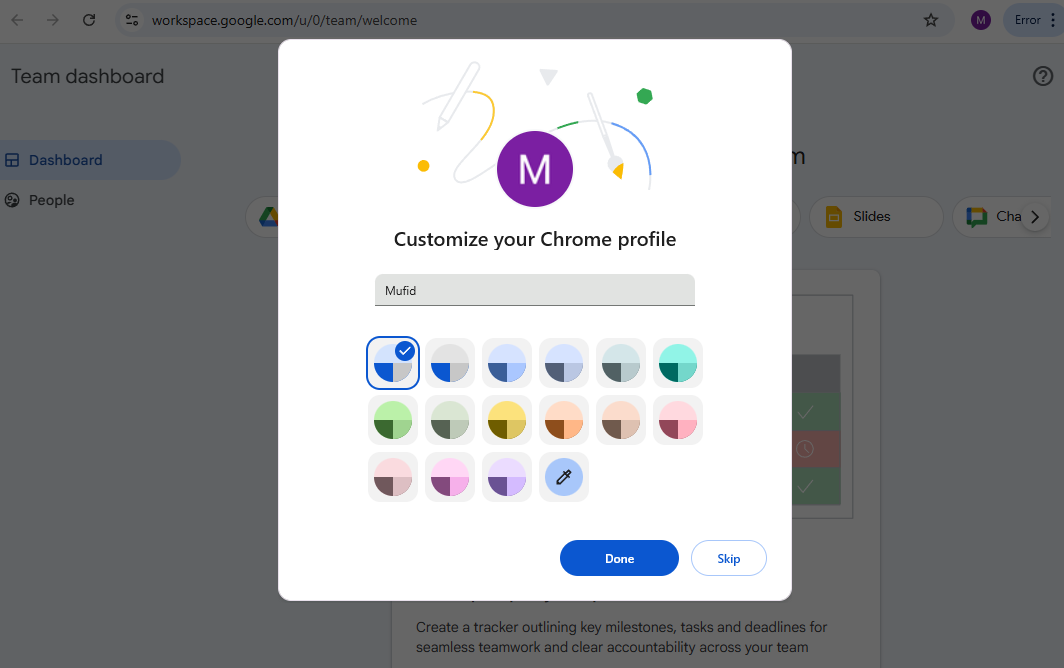
- Turn on Sync and choose your color profile
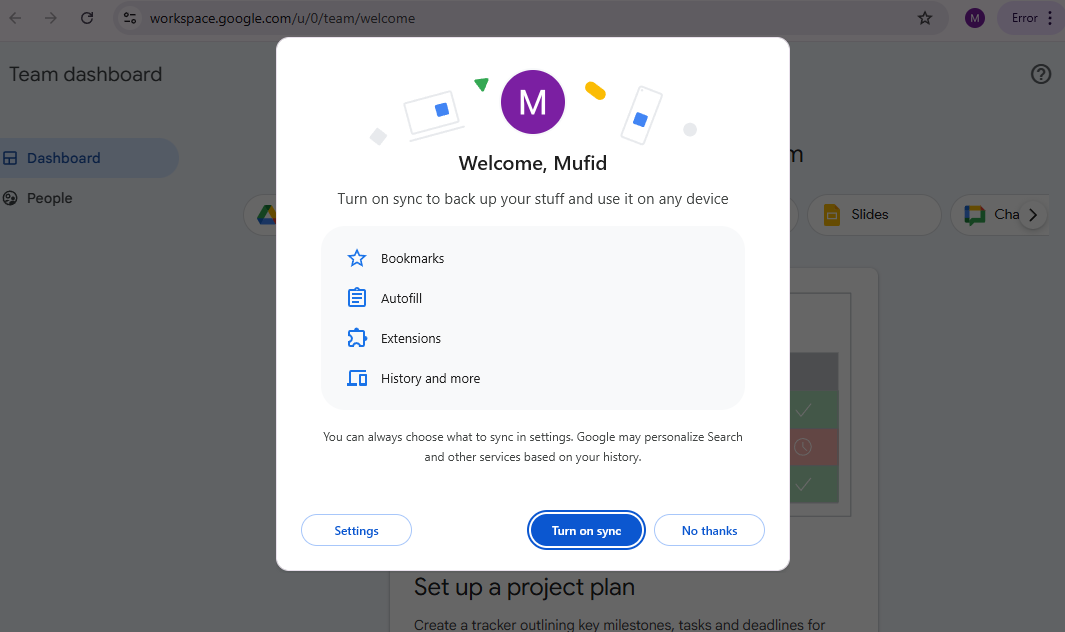
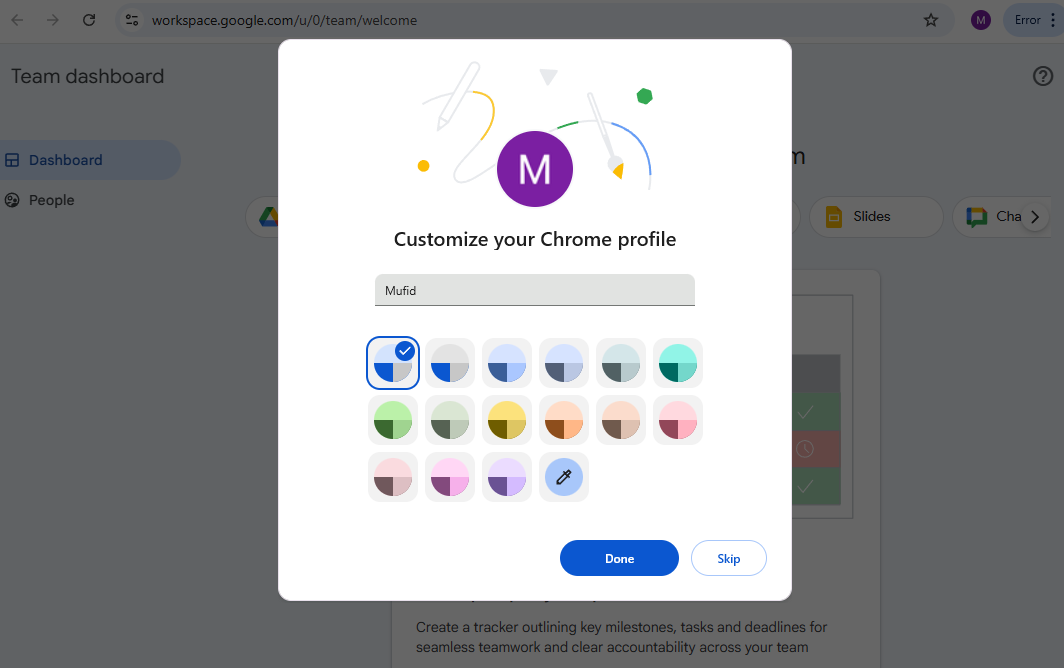
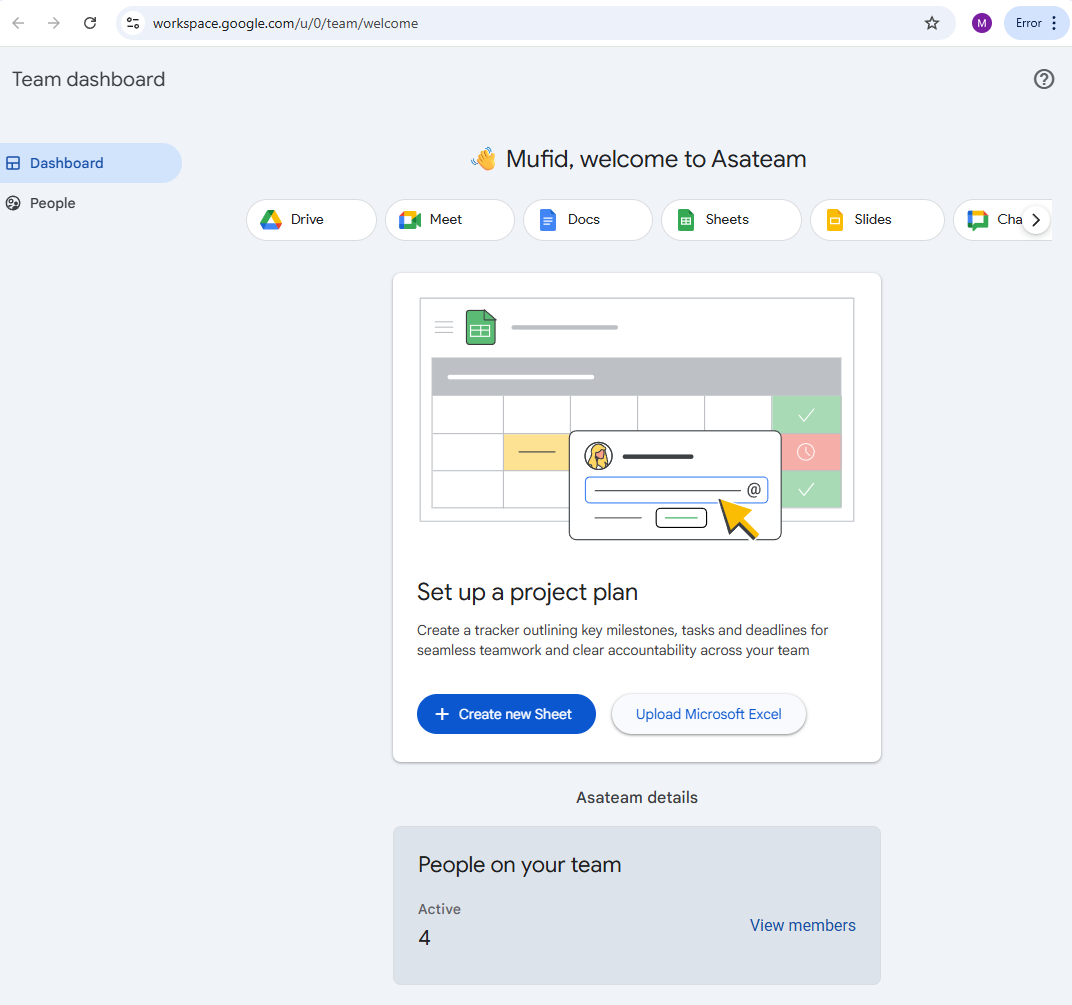
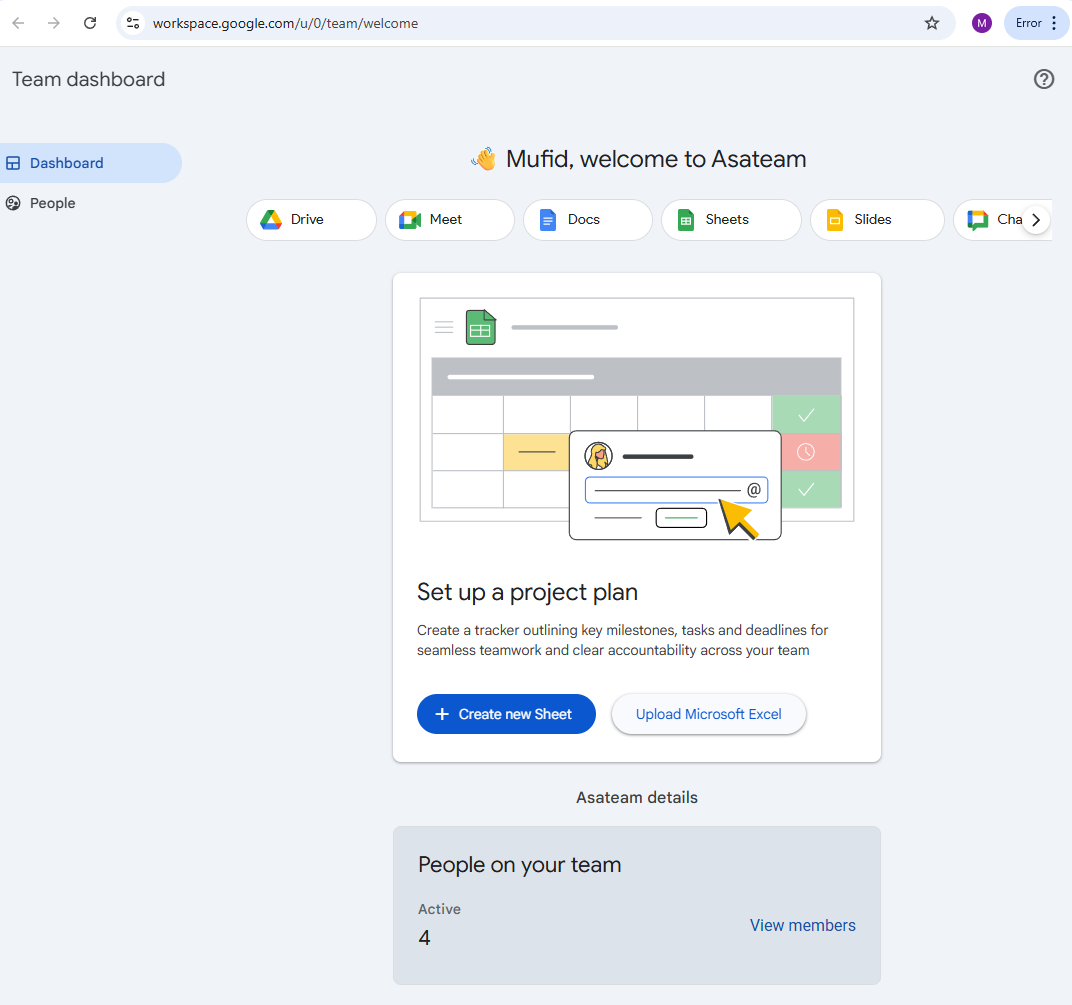
- Welcome to Asateam Google Workspace, your account ready to embark
Difference from previous experience
- Centralized email account management.