
Flow Google Workspace
Step by Step Implementation
Phase 1 — Stakeholder
Objective: Menetapkan RACI.
- Step: Pilih user.
- Output: RACI, grup komunikasi, jadwal sync.
- Exit: 80% RACI aktif.
Phase 2 — Target
Objective: Menetapkan angka awal.
- Step: Survey baseline, set target matriks.
- Output: Dashboard (draft), OKR.
- Exit: Target clear and fix.
Phase 3 — Communication & Benefit Narrative
Objective: Semua user mengerti “kenapa” & “apa yang berubah”.
- Langkah: Susun Comms Pack (poster, FAQ, video singkat, template chat/email).
- Output: Pesan inti, one‑pager manfaat per peran.
- Exit: 90% user menerima pengumuman & read receipts terkumpul.
Phase 4 — Pilot Controlled & Improvement
Objective: Validasi di satu area.
- Step: UAT skenario nyata; cutover terbatas; hypercare lokal.
- Output: Laporan temuan (bug, UX, gap SOP), daftar perbaikan.
- Exit: Semua isu tertutup atau ada workaround disetujui.
Phase 5 — Hypercare
Objective: Respons cepat & edukasi ulang.
- Step: SLA support ketat, daily standup tickets, broadcast tips.
- Output: Laporan harian, playbook kendala umum.
- Exit: Ticket rate < 3/100 user/minggu, kepuasan ≥ 4,3/5.
Phase 6 — Stabilisasi & Reinforcement
Objective: Menjadikan kebiasaan.
- Step: Update SOP, integrasi KPI adopsi ke penilaian kinerja, nudges (dorongan) berkala.
- Output: SOP final, job aids permanen, materi onboarding karyawan baru.
- Exit: ≥ 95% transaksi lewat aplikasi selama 4 minggu.
Phase 7 — Closure & Handover
- Step: Serah terima ke unit untuk BAU, arsip dokumen, budget close, lessons learned.
- Output: Paket Handover, risalah pembelajaran.
- Exit: Fungsi BAU menerima & menjalankan tanpa pendampingan proyek.
Overview Flow Google Workspace
How to access your google workspace account.
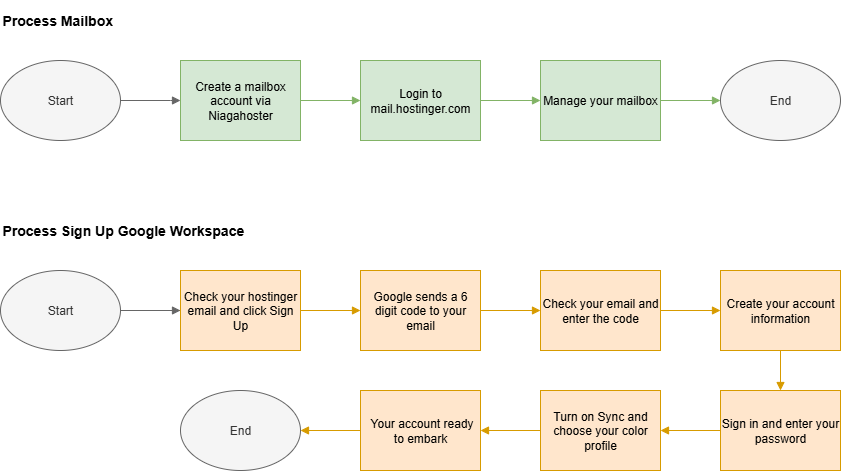
Step by Step to Embark your Google Workspace Account
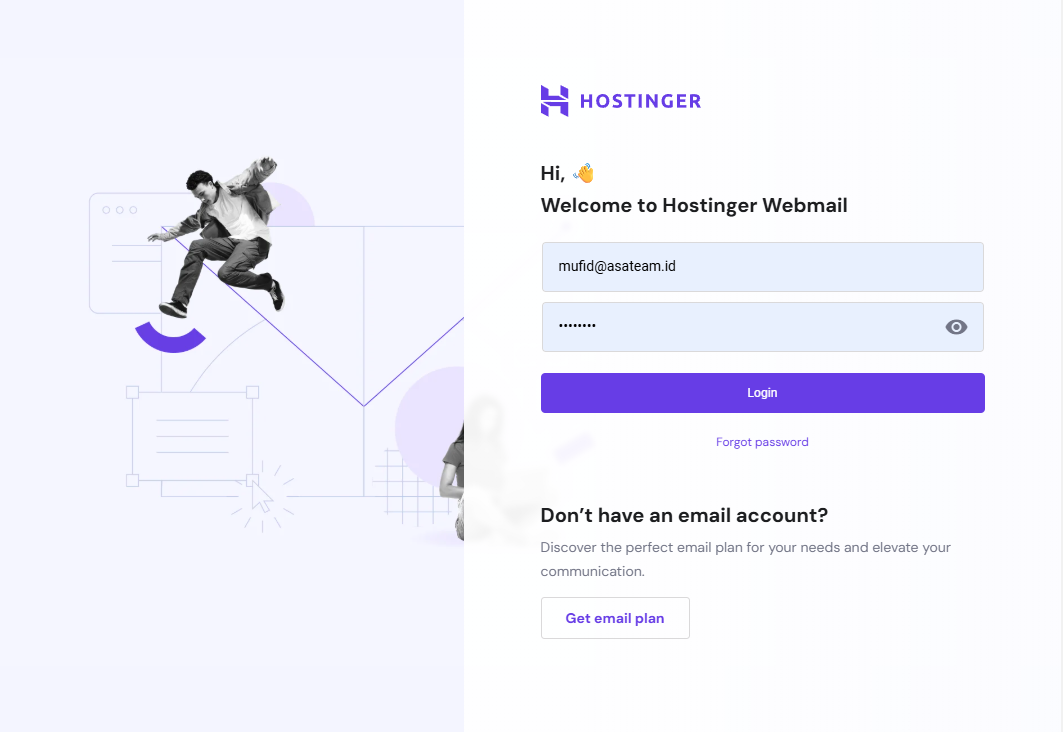
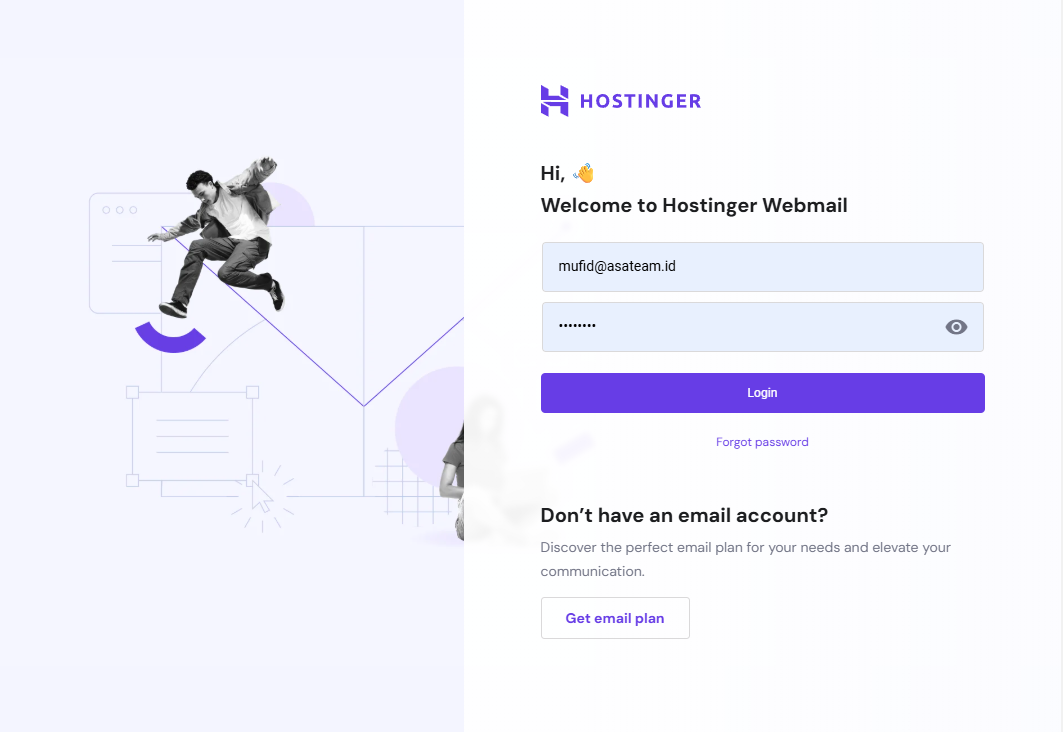
- Login on mail.hostinger.com
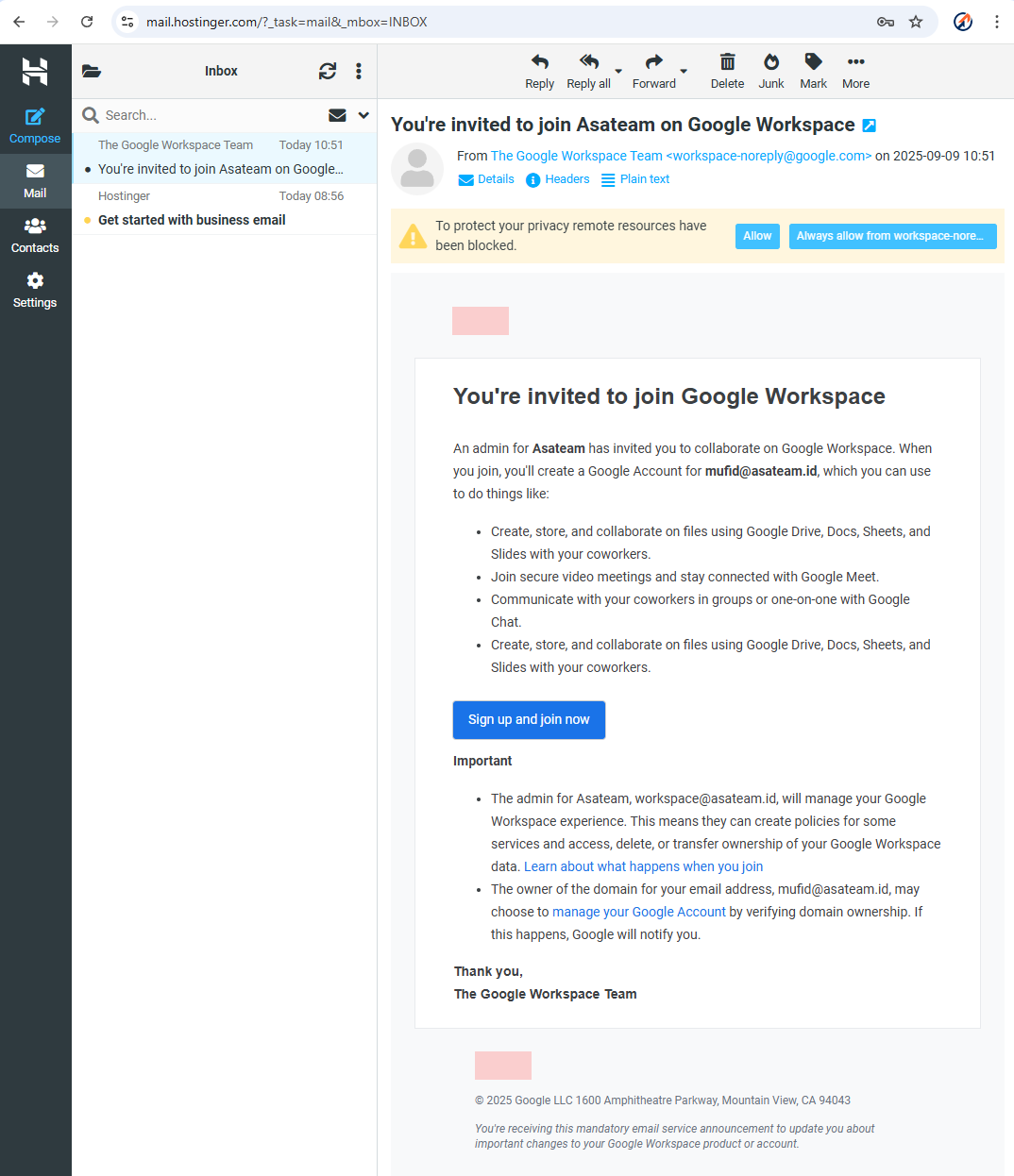
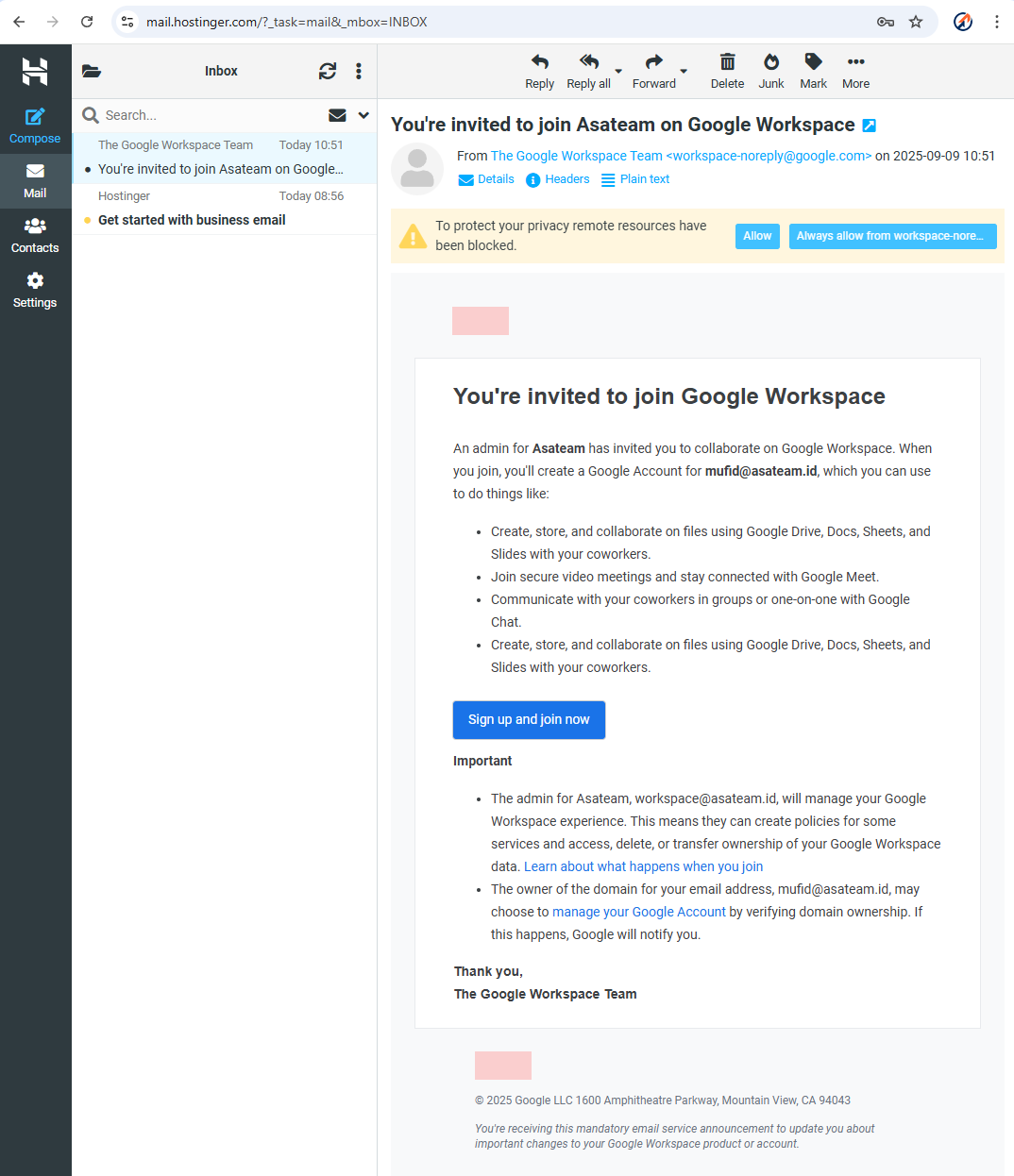
- Check your hostinger email for the invitation and click Sign Up and Join Now
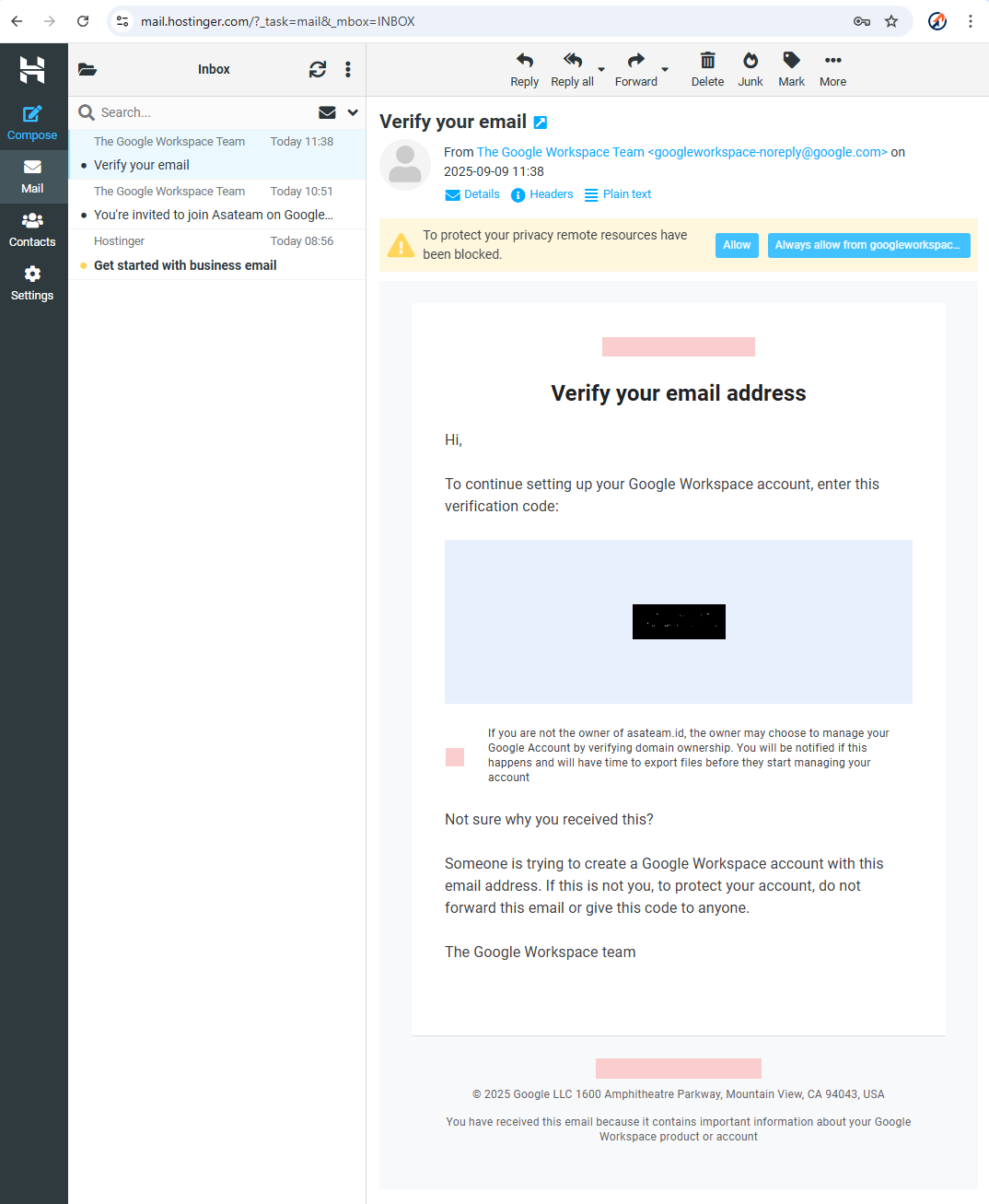
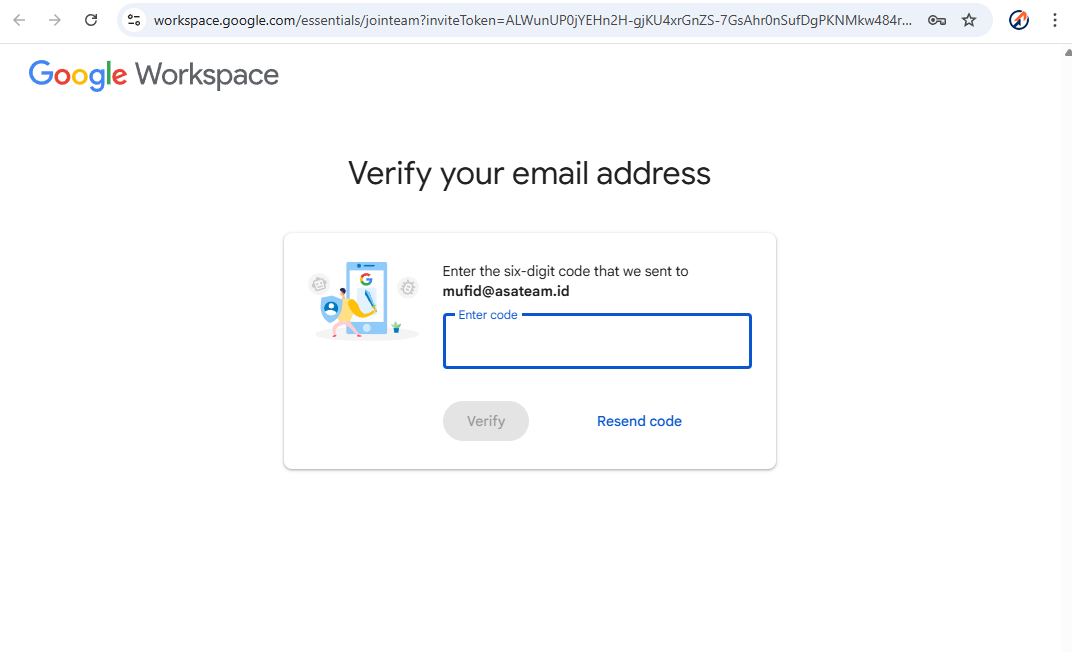
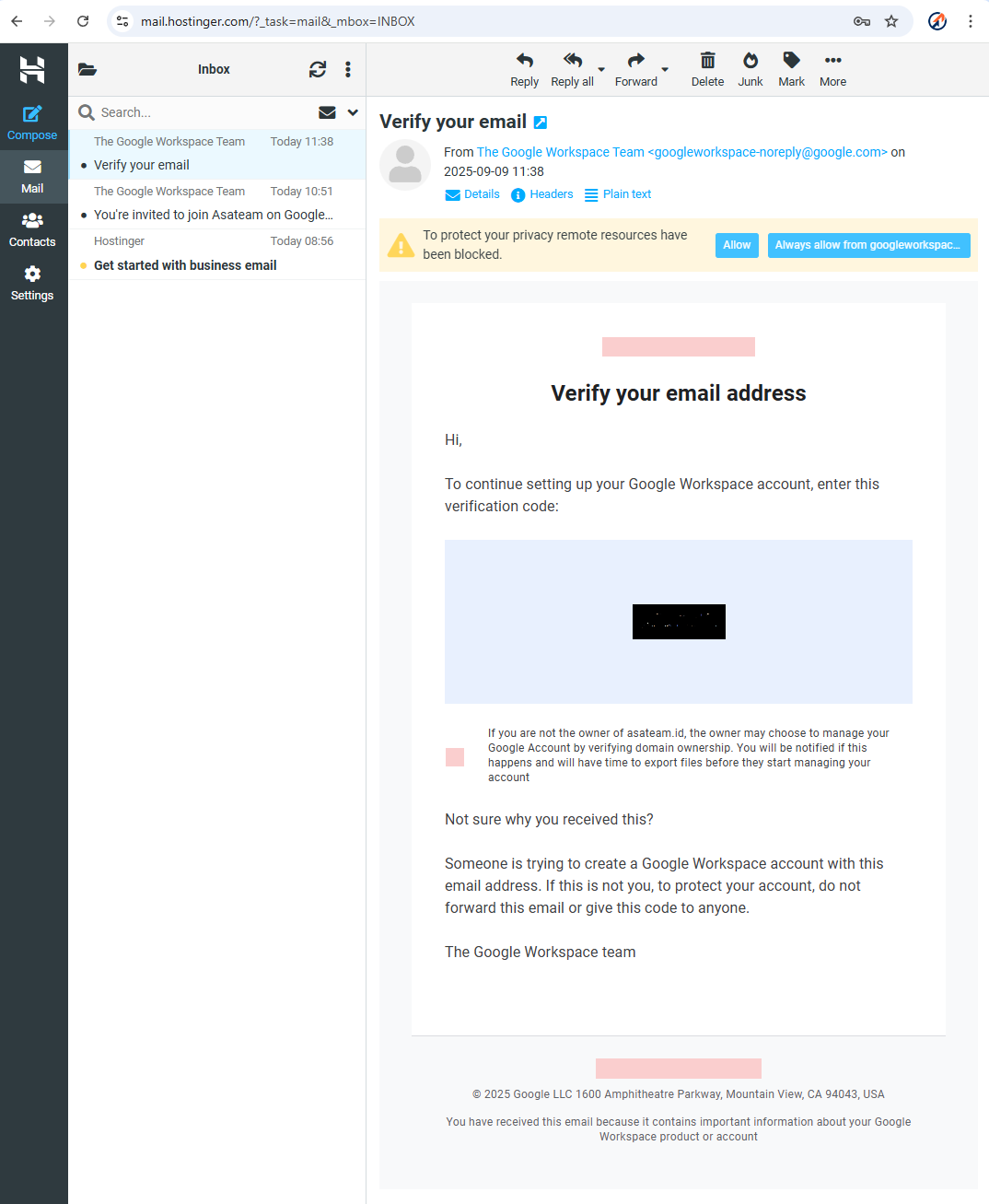
- Google sends a 6 digit code to your hostinger email account
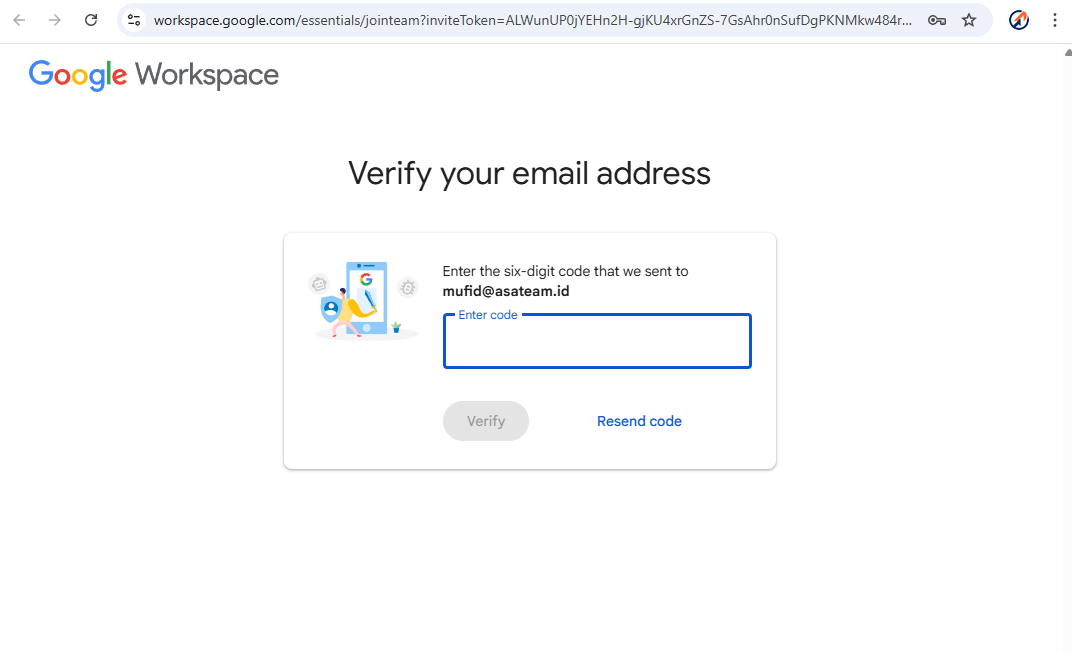
- Check your Hostinger email again and enter the code in the form above
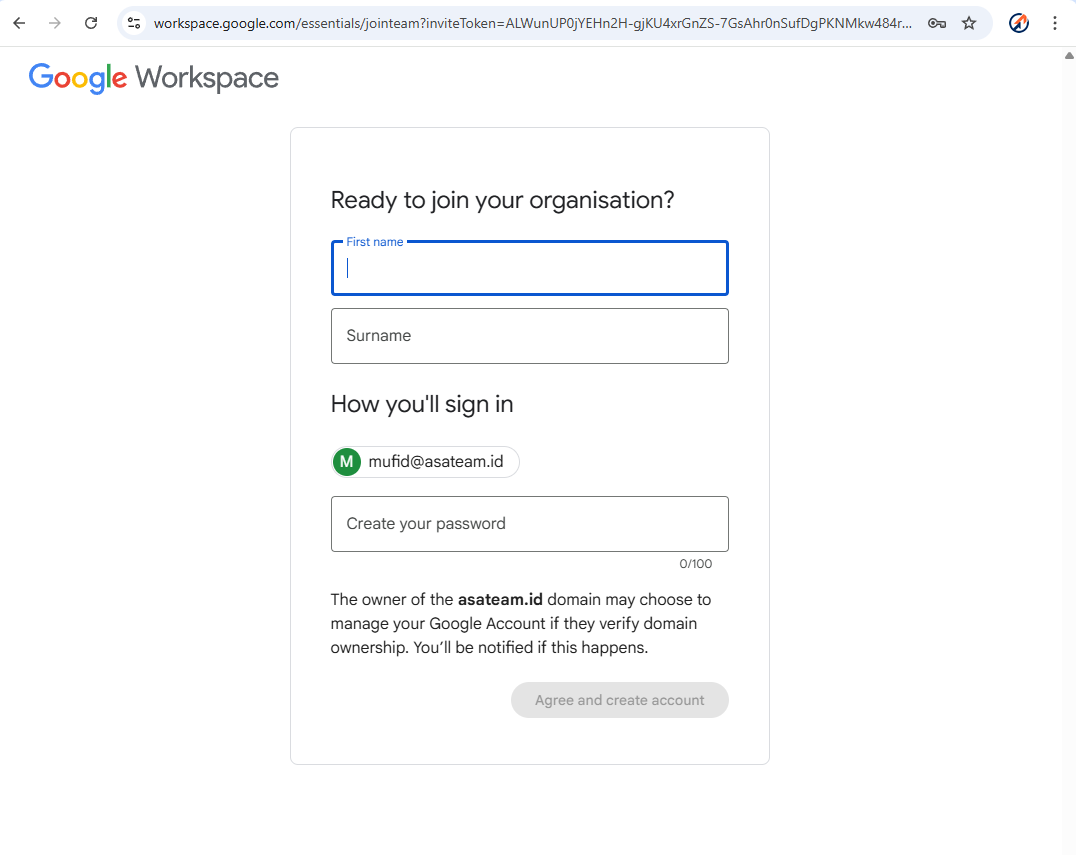
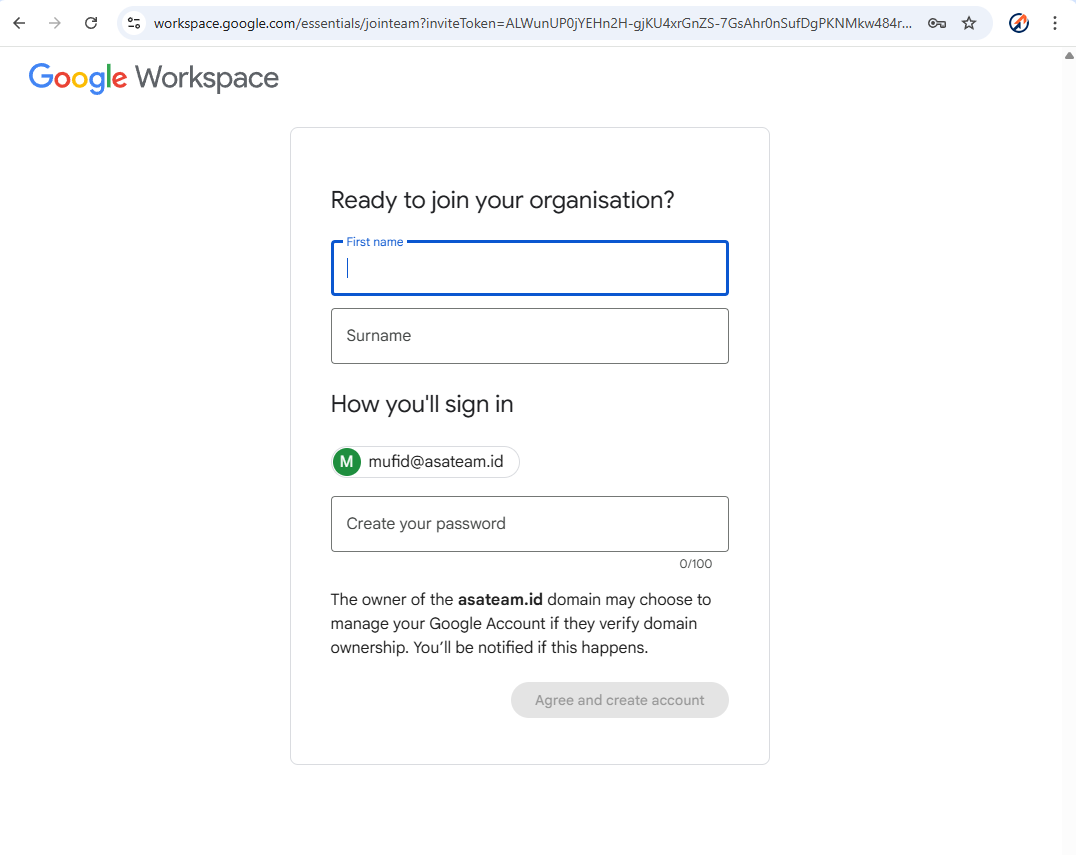
- Create your account information (Name must nickname, Surename must Asateam) and create your password
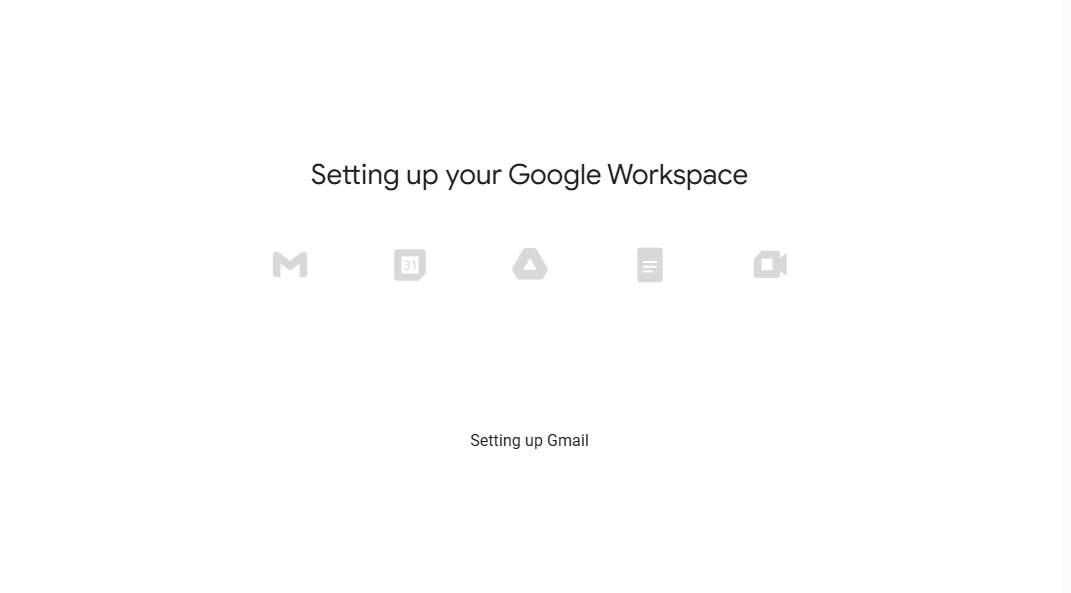
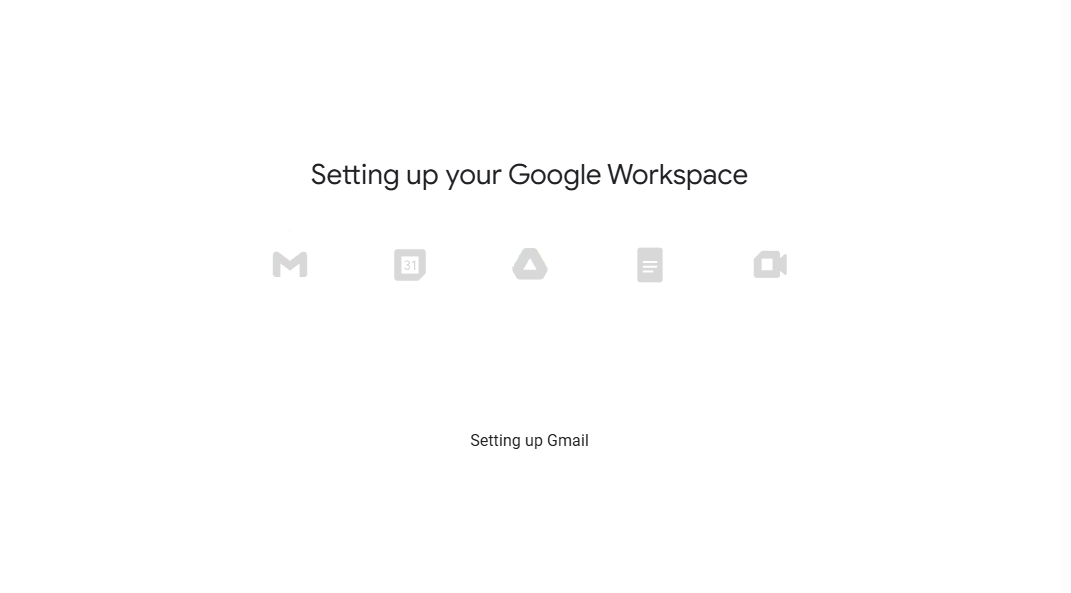
- Google setup your account workspace
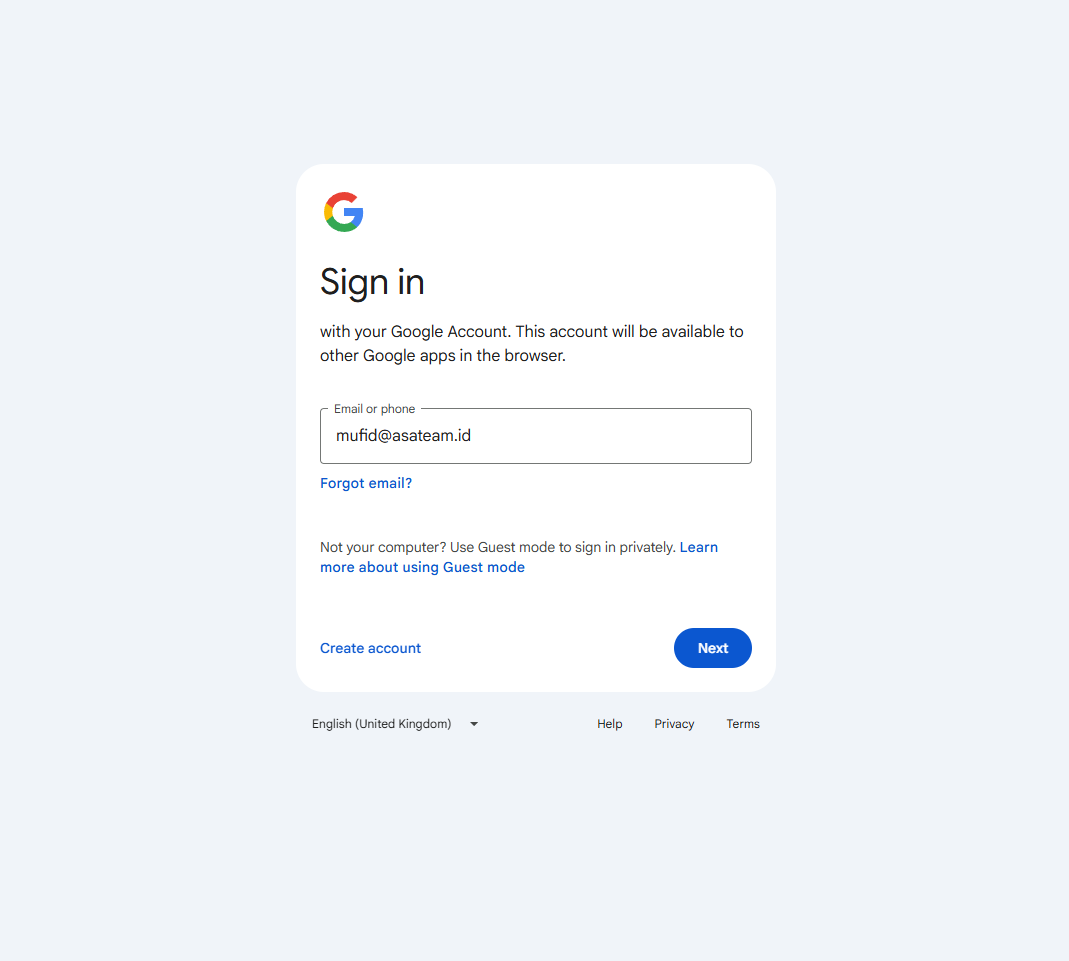
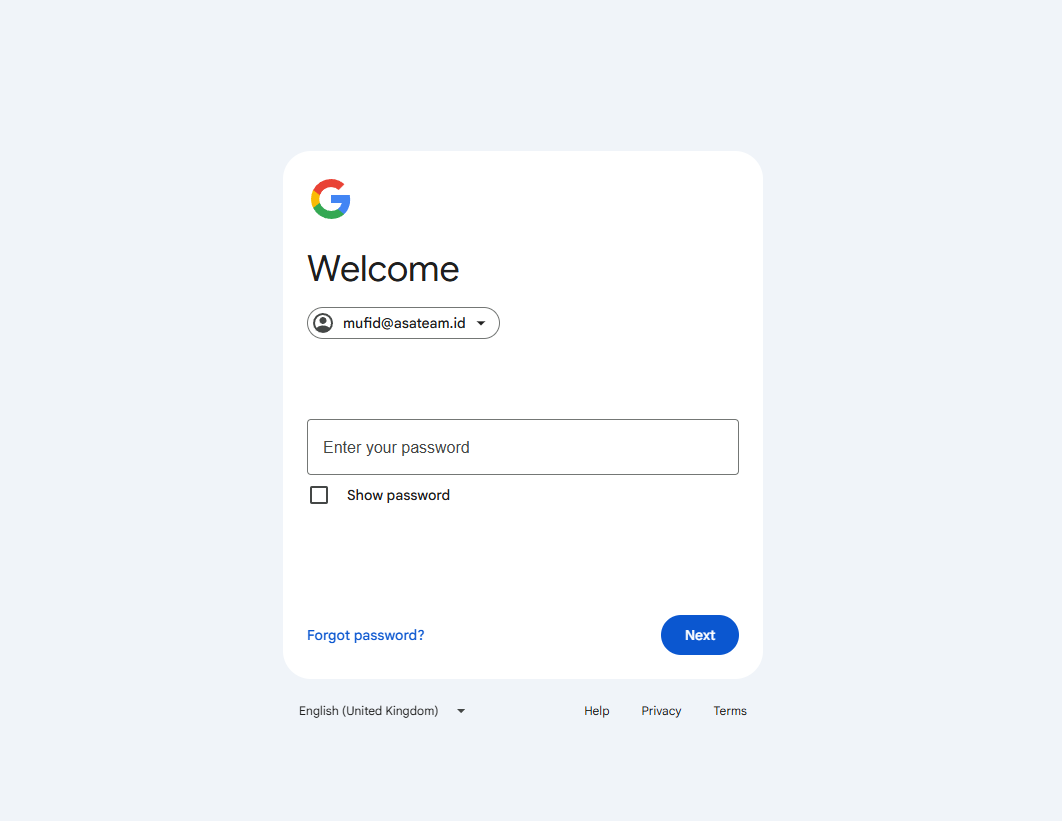
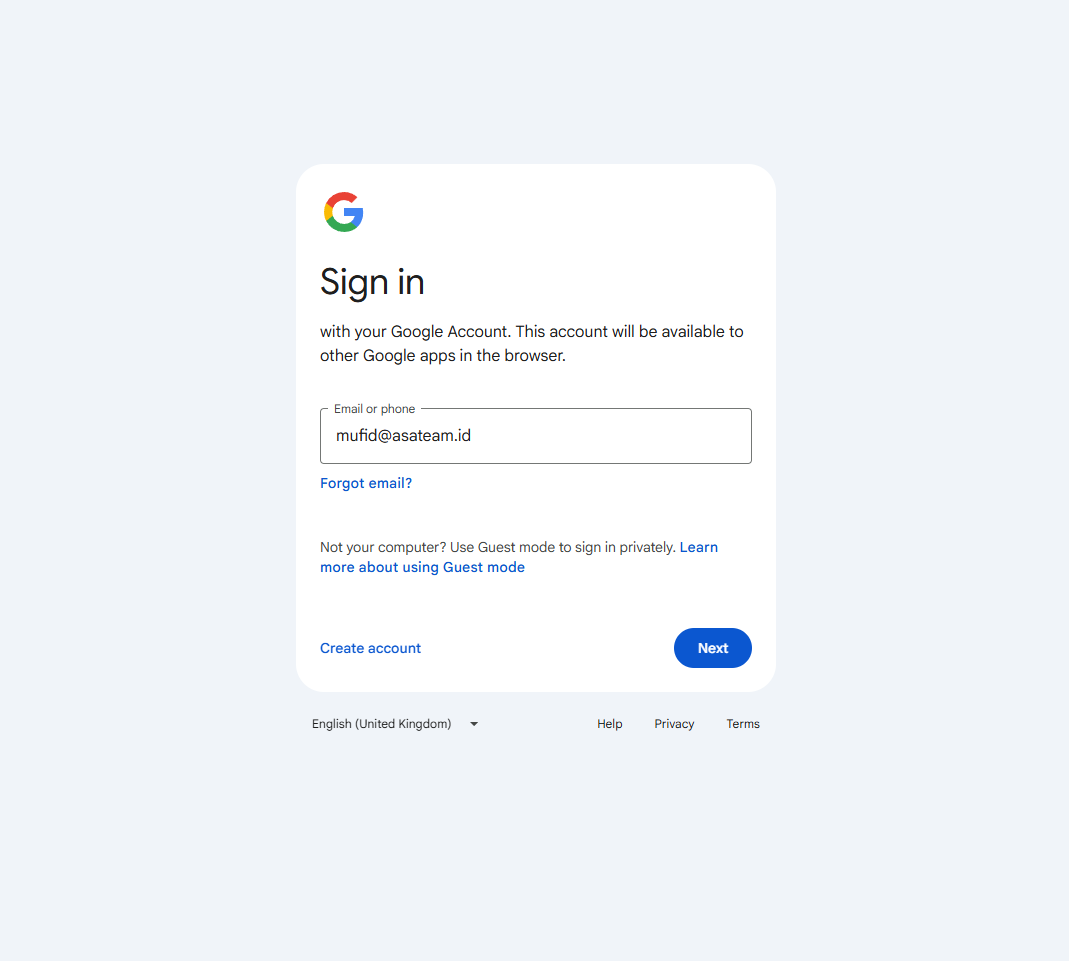
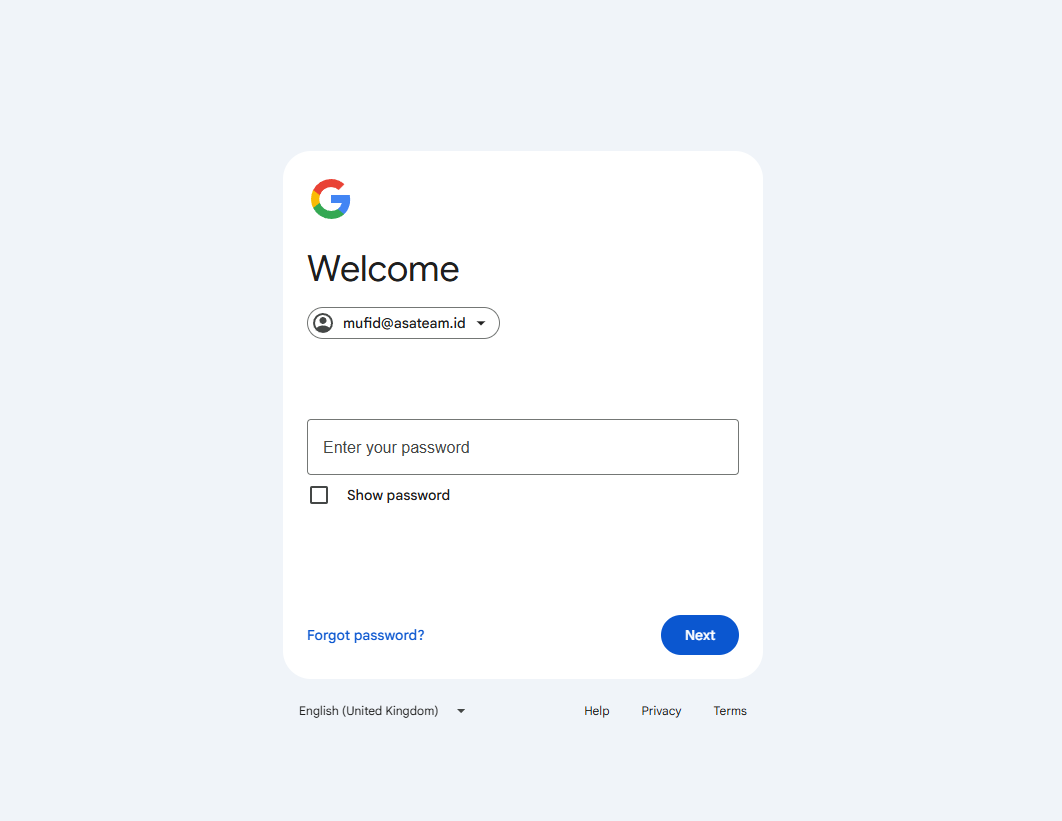
- Sign in and enter your password
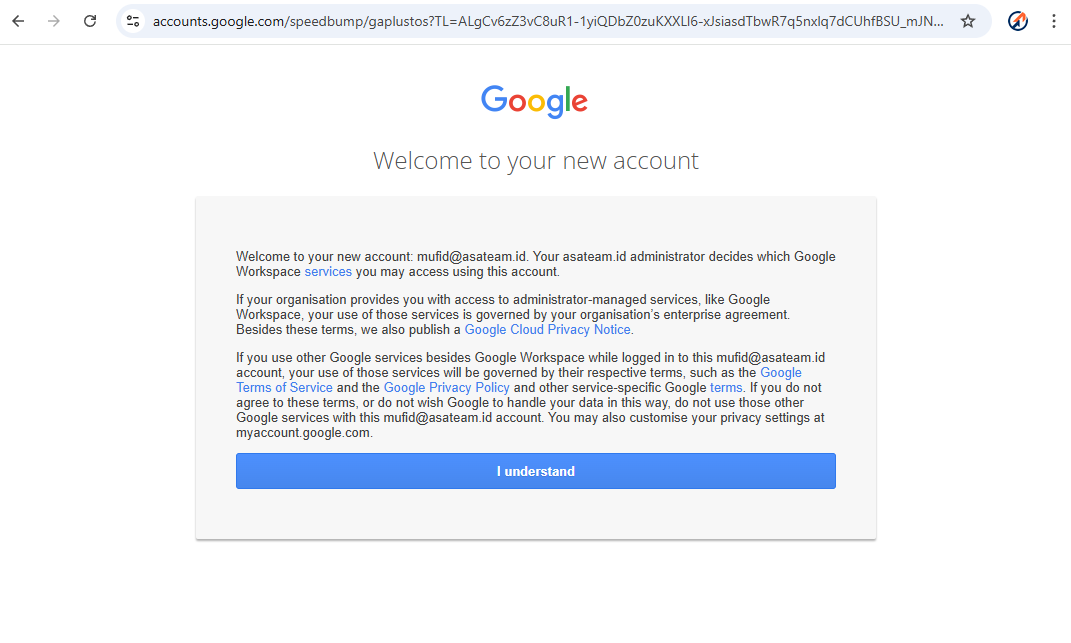
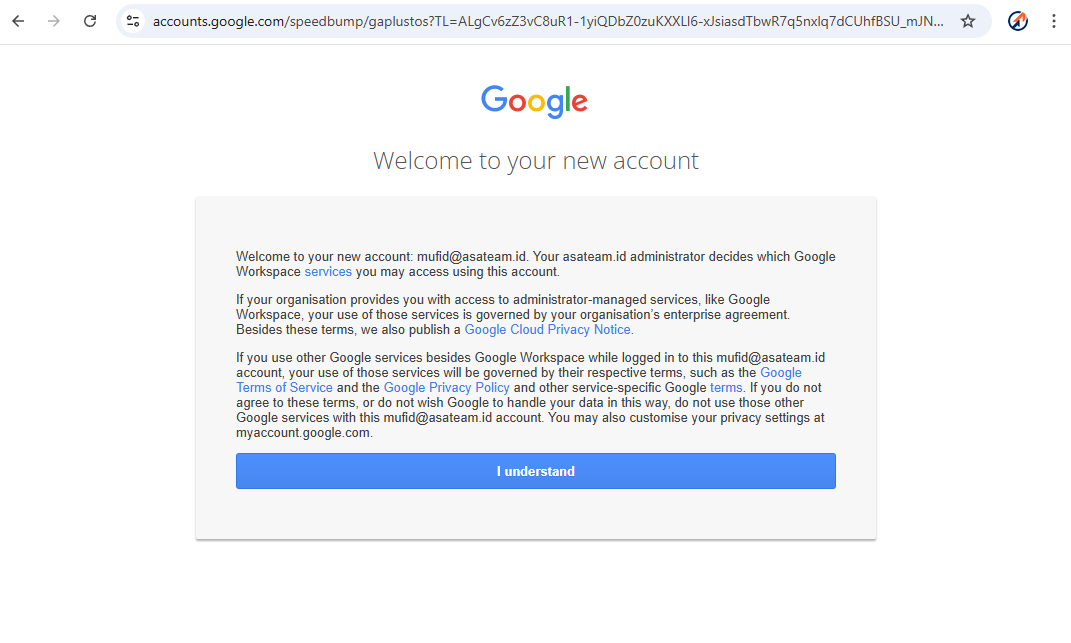
- Click understand
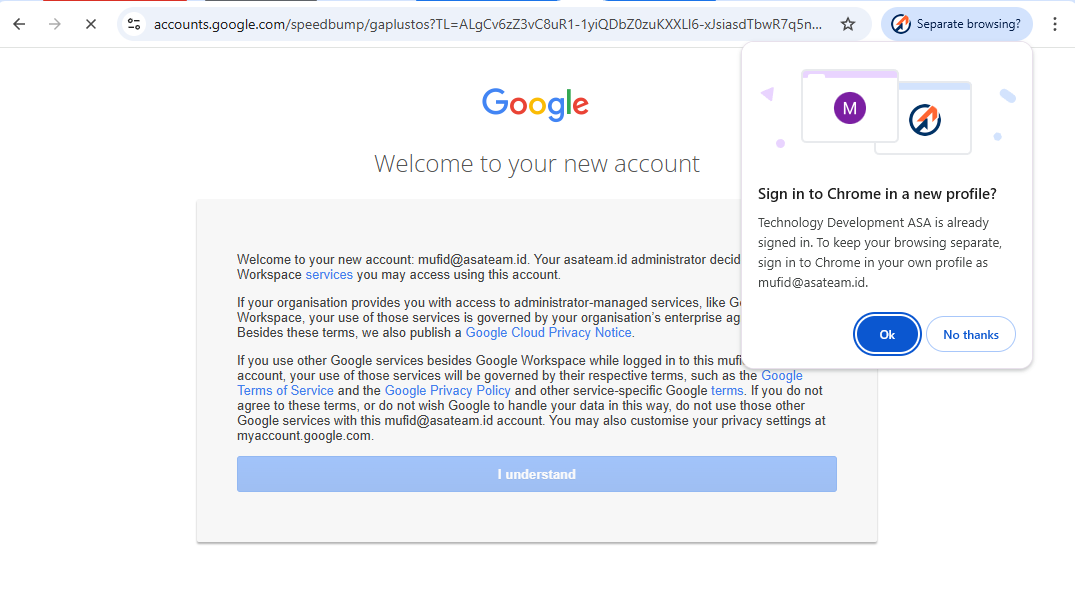
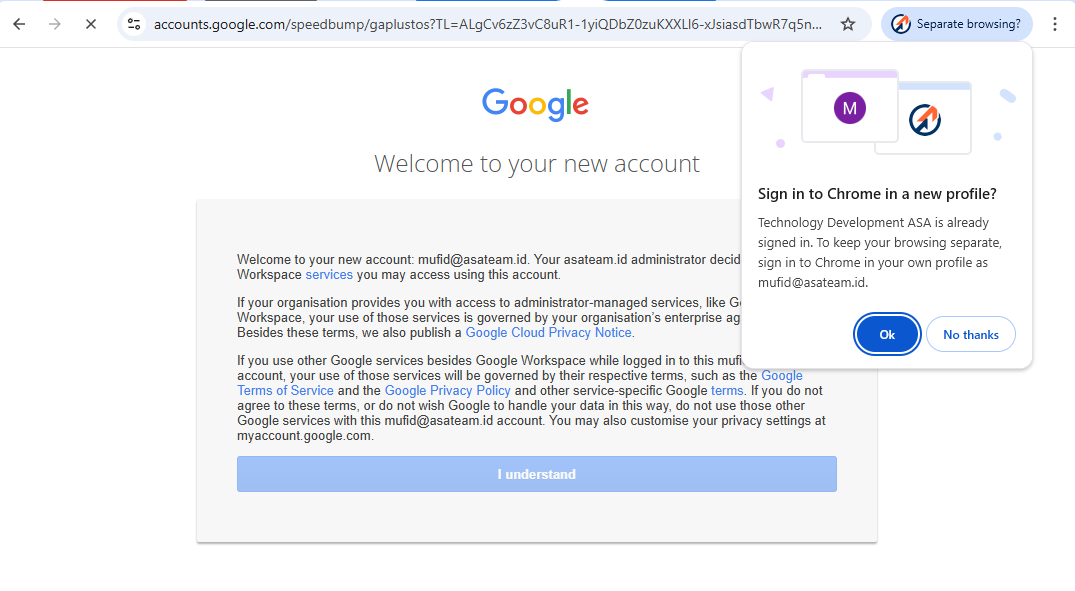
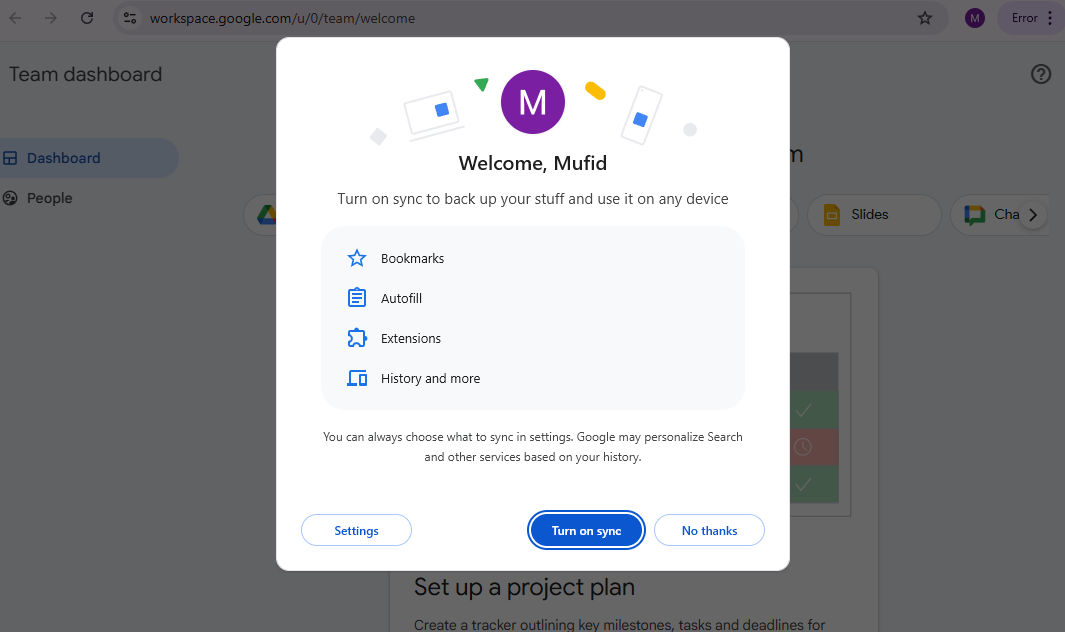
- If you get a pop up message in the top right corner, click OK so that Google automatically creates a new Chrome profile
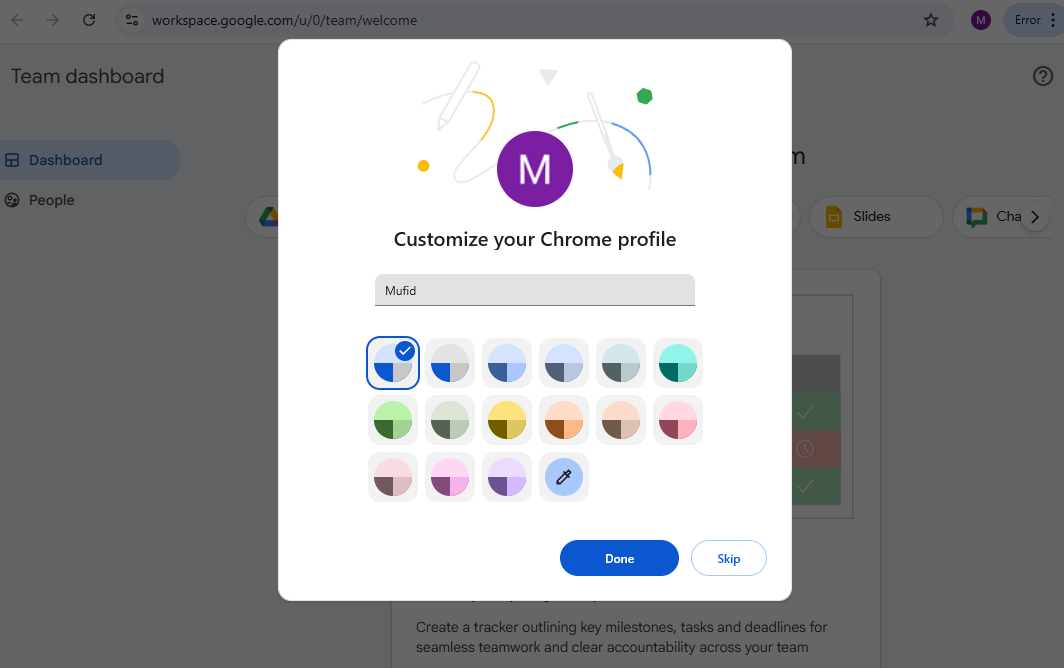
- Turn on Sync and choose your color profile
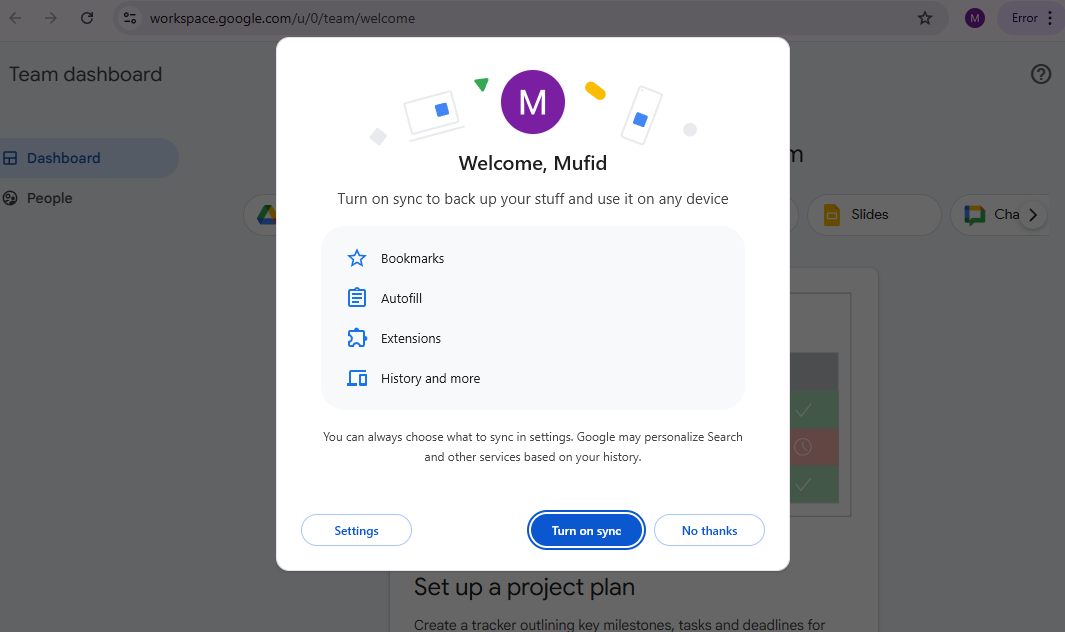
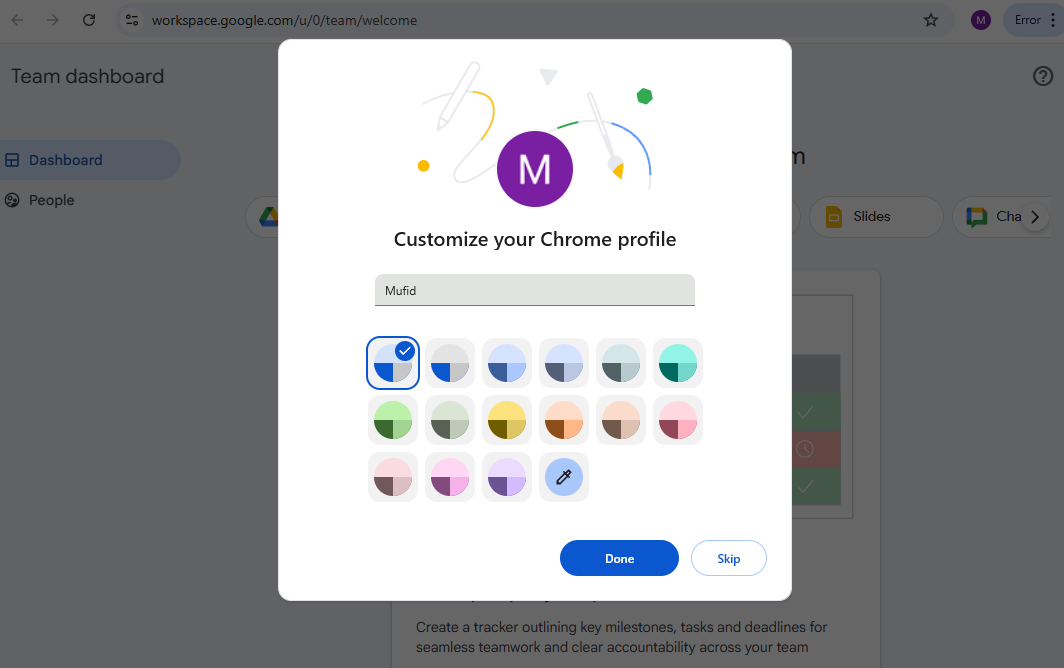
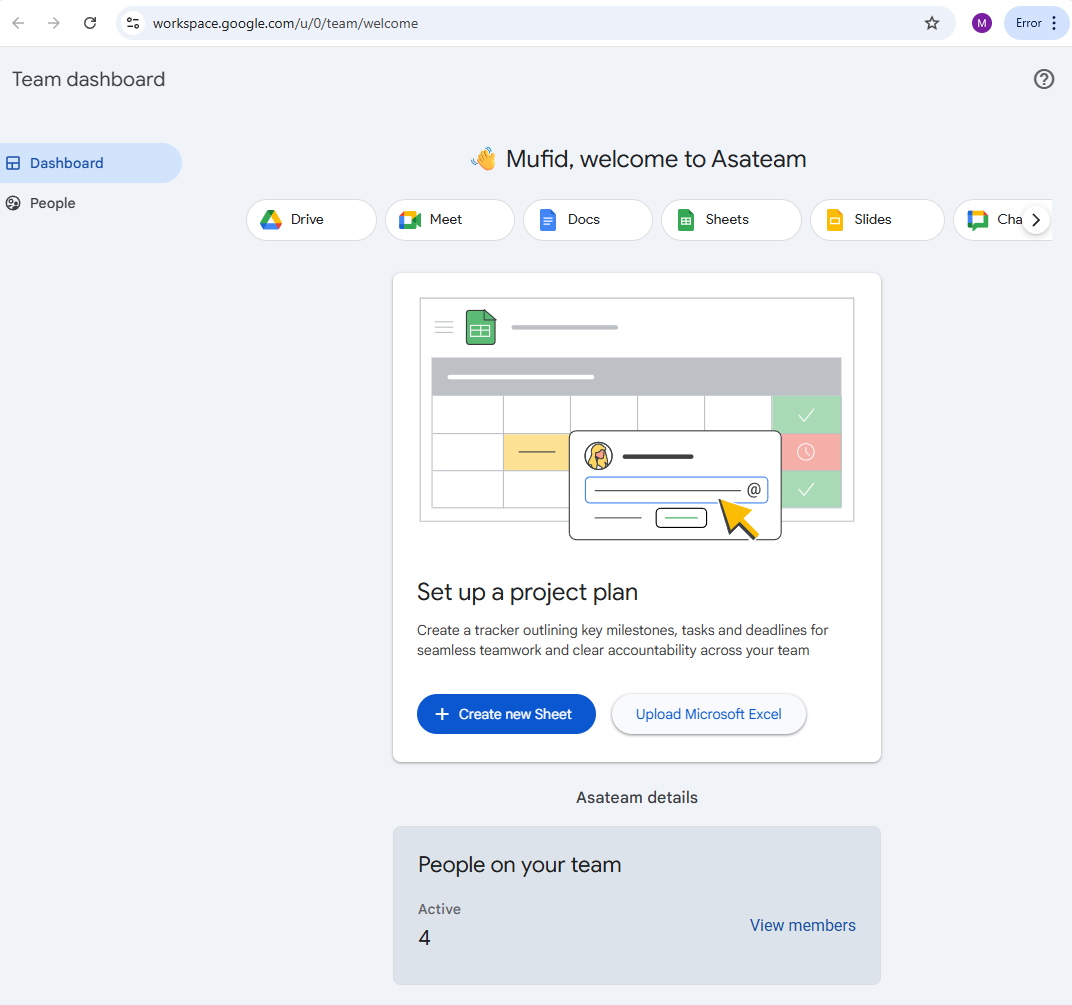
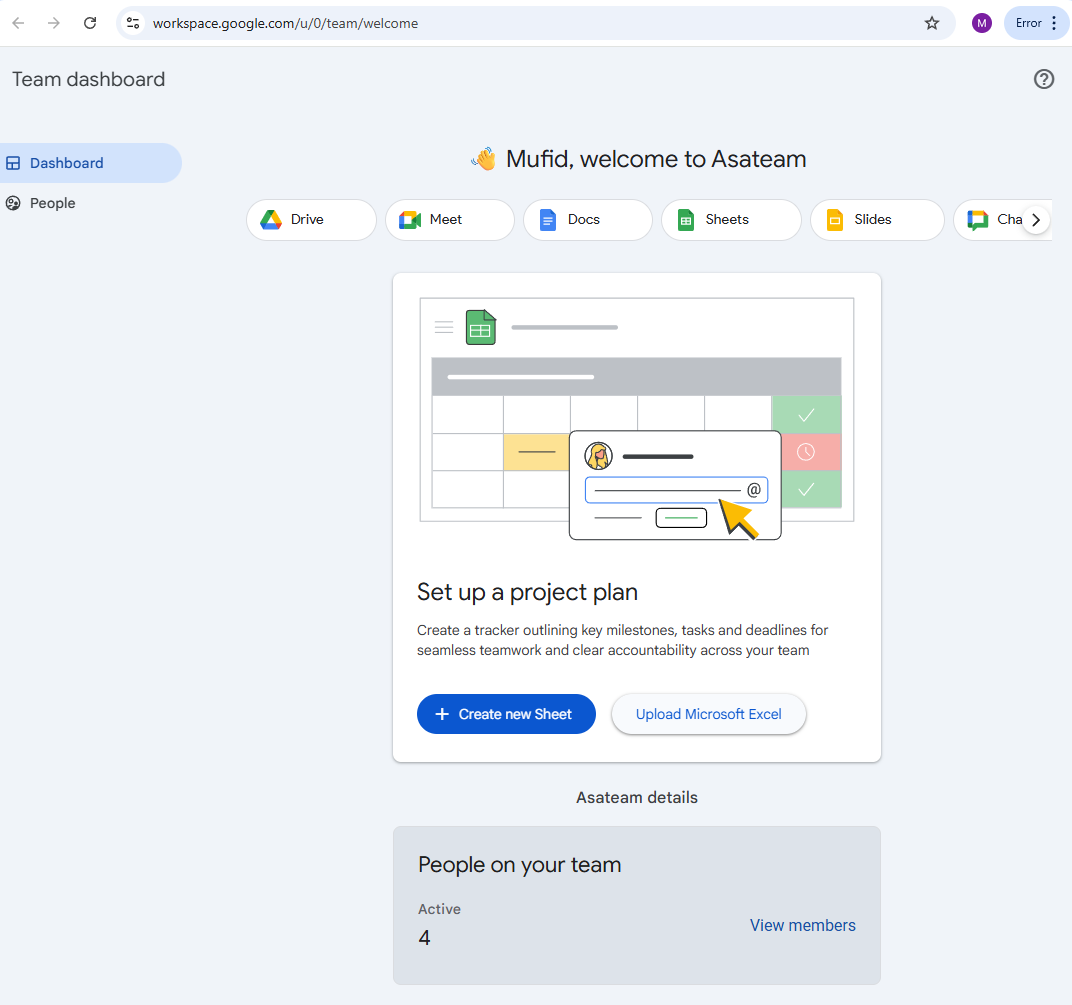
- Welcome to Asateam Google Workspace, your account ready to embark
Difference from previous experience
- Centralized email account management.